Accessing the User Management Pages
To manage users:
1. Connect to the HOPEX Administration desktop.
2. Click the Users navigation menu.
The user management submenus appear.
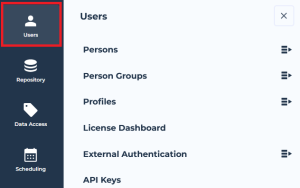
3. For a direct access, click:
• Persons to manage persons and logins
 Direct access from the homepage: in Inventory, click Persons indicator.
• Person Groups to manage the persons belonging to the same person group
Direct access from the homepage: in Inventory, click Person Groups indicator.• Profiles to access profiles
 See Profile Properties.To manage profiles, see Managing Profiles.Direct access from the homepage: in Inventory, click Profiles indicator.
• External Authentication to manage authentication (e.g.: authentication groups and parameters).
Direct access from the homepage: in Inventory, click Authentication Groups or Authentication Parameters indicator.• API Keys to manage user API keys
See Managing API Keys.Direct access from the homepage: in Inventory, click API Keys indicator.The management page selected appears.
Managing persons with identical characteristic
To manage persons who have an identical characteristic, see:
with the HOPEX Power Supervisor technical module:
Managing a person group with a specific characteristic
To manage persons who have a specific characteristic, see:
with the HOPEX Power Supervisor technical module
Actions performed in the Persons management page
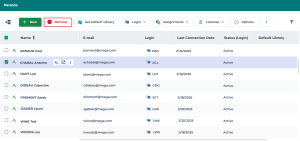
The Persons management page enables to:
• configure a user
• manage users
• manage person profile assignments
• manage user licenses
Tips to access persons:
• access a person by his/her name
• filter the person list
Actions performed in the Person Group page
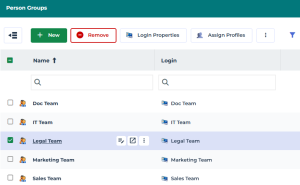
In the Person Groups management page you can:
• create user groups
• define the characteristics of a person group
• configure the characteristics of a login
• assign a profile to a person group
• connect a person group to a writing access area
• connect a person group to a reading area access
• delete a person group
• modify a user group properties
Accessing the list of persons who have a specific profile assigned
You can list and manage all persons who have the same profile assigned.
To access the list of persons who have a specific profile assigned:
1. Access the User management pages.
2. Click Persons  then select By Profile.
then select By Profile.3. (To display the persons only) In the tree, click the  of the profile.
of the profile.The persons to whom the profile is assigned are displayed.
4. (To display the persons as a list) Select the profile.
In the edit area, in the Characteristics page, the Assignments section lists the person groups (and persons) to which the selected profile is assigned.
Accessing the list of persons belonging to a specific group
You can list and manage all persons belonging to a same group.
To access the list of persons belonging to a specific group:
1. Access the User management pages.
2. Click Persons then select By Group.
then select By Group.3. In the tree, click the of the group.
of the group.The persons belonging to this group are displayed.
4. (To display the persons as a list) Select the group.
In the edit area, in the Characteristics page, the Persons section lists the persons belonging to this group.
In case of SSO groups, the list of persons may be long. Click Calculated to display, in the Persons section, the list of persons belonging to this group.
Accessing the list of persons connected to a specific writing access area
With the HOPEX Power Supervisor technical module.When several writing access areas are defined, you can list and manage all the members (persons and person groups) of a specific writing access area.
To access the list of members of a specific writing access area:
1. Access the User management pages.
2. Click Persons then select By writing access area.
then select By writing access area.3. (To display the persons only) In the tree, click the of the writing access area selected.
of the writing access area selected.The persons connected to the writing access area are displayed.
4. Select the writing access area.
In the edit area, in the Characteristics page, the Access area members section lists all the persons and person groups connected to the writing access area selected.
Accessing the list of persons connected to a specific reading access area
With the HOPEX Power Supervisor technical module.When management of reading access areas is activated, you can list and manage all the members (persons and person groups) of a specific reading access area.
To access the list of members of a specific reading access area:
1. Access the Users management pages.
2. Click Persons then select By reading access area.
then select By reading access area.3. (To display the persons only) In the tree, click the of the reading access area concerned.
of the reading access area concerned.The persons connected to the reading access area are displayed.
4. Select the reading access area.
In the edit area, in the Characteristics page, the Access area members section lists all the persons and person groups connected to the reading access area selected.
Accessing the list of persons with or without login
You can filter persons according to their login.
To display the persons with or without login:
1. Access the Persons management pages.
2. In the Login column field, click the filtering operator then select:
• Show non empty values only 
The persons who have a login are listed.
• Show empty values only 
The persons who do not have a login are listed.
Accessing a person using his/her name
You can filter the persons according to their name:
• in the edit area
• in the browse area
To find a person by name (edit area):
1. Access the Users management pages.
2. In the Name column field, enter the name of the person.
The list of persons narrows down as you enter characters.
To find a person by name (browse area):
1. Access the Users management pages.
2. Click Persons .
.3. In the search field, enter the name of the person.
The list of persons narrows down as you enter characters.
Accessing a person group with a specific profile
To access a group of persons connected to a specific profile:
1. Access the Users management pages.
2. Click Person Groups then select By Profile.
then select By Profile.3. (To display the person groups only) In the tree, click the of the profile.
of the profile.The person groups to which the profile is assigned are displayed.
4. (To display the person groups as a list) Select the profile.
In the edit area, in the Characteristics page, the Assignments section lists the person groups (and persons) to which the selected profile is assigned.
Accessing the list of person groups connected to a specific writing access area
With the HOPEX Power Supervisor technical module.When several writing access areas are defined, you can list and manage the members (persons and person groups) of a specific writing access area.
To access the person groups of a specific writing access area:
1. Access the Users management pages.
2. Click Person Groups then select By writing access area.
then select By writing access area.3. (To display the person groups only) In the tree, click the of the writing access area selected.
of the writing access area selected.The person groups connected to the writing access area are displayed.
4. Select the writing access area.
In the edit area, in the Characteristics page:
• the Access area members section lists all the persons and person groups connected to the writing access area selected.
• The Objects section lists all the objects connected to the writing access area selected.
Accessing the list of person groups connected to a specific reading access area
With the HOPEX Power Supervisor technical moduleWhen management of reading access areas is activated, you can list and manage the members (persons and person groups) of a specific reading access area.
To access the person groups of a specific reading access area:
1. Access the Users management pages.
2. Click Person Groups then select By reading access area.
then select By reading access area.3. (To display the person groups only) In the tree, click the of the reading access area selected.
of the reading access area selected.The person groups connected to the reading access area are displayed.
4. Select the reading access area.
In the edit area, in the Characteristics page, the Access area members section lists all the persons and person groups connected to the reading access area selected.