Managing API Keys
API keys are used to securely establish sessions with HOPEX, for example when working with GraphQL, ServiceNow Integration or Teams Integration.
Accessing the List of API Keys
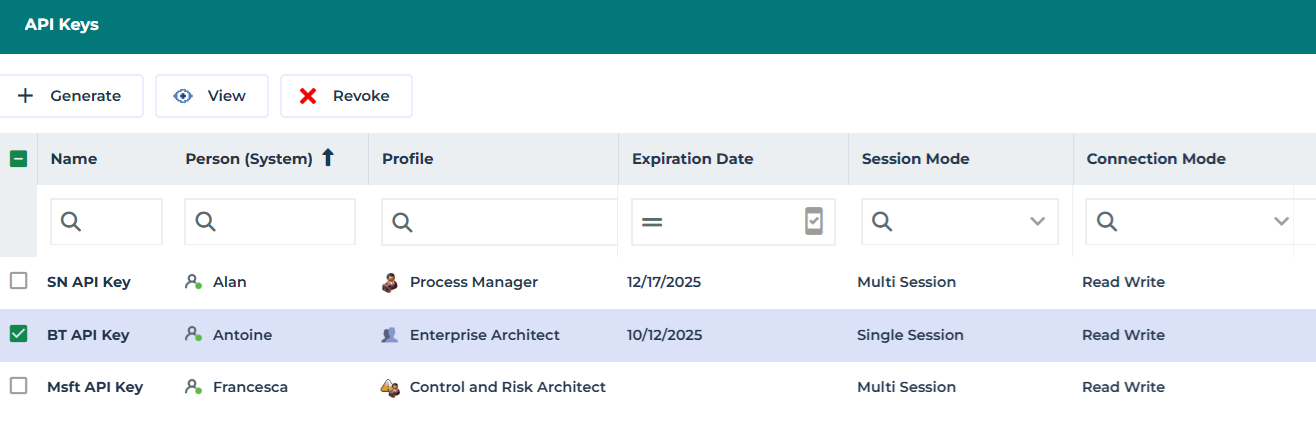
API keys are displayed in a list format.
To access the list of API keys:
1. Connect to the HOPEX Administration desktop.

2. In the navigation bar, select Users > API Keys.
The list of API keys is displayed.
Generating an API Key
To generate a new API key:
1. Access the list of API keys.
2. In the list menu bar, click Generate.
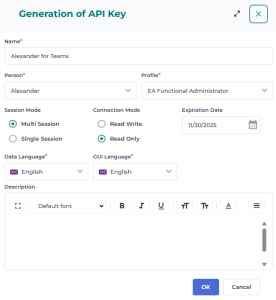
The API Key generation wizard opens.
3. Enter the Name of the API key.
4. Select the Person and the Profile concerned.
5. Choose a Session Mode:
• Multi Session (recommended): optimized for the use of GraphQL queries, Microsoft Teams Integration and ServiceNow Integration.
• Single Session: less efficient, memory-intensive, and may slow down other users.
6. Select a Connection Mode.
• Read Write
• Read Only
7. Select the languages:
• Data Language: display language for repository data.
• GUI Language: display language for interface elements, including error messages and internal or external tabular values.
8. (Optional) Select an expiration date for the API key.
9. (Optional) Enter a description.
10. Click OK.
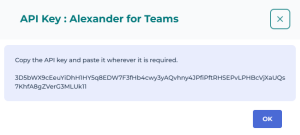
The API key is generated and can be copied.
It is added to the list of API keys.
You can view the API key value later again.
Viewing an API Key value
You can view the secret value of an API key value.
To view the secret value of an API key:
1. Access the list of API keys.
2. Select the API key concerned.
 You can use the list filtering tool to help find the API key.
3. In the list menu bar, click View  .
.
.The API key is displayed and can be copied.
Revoking an API Key
For organizational or security reasons, you may need to revoke an API key.
To revoke an API key:
1. Access the list of API keys.
2. Select the API key concerned.
You can use the list filtering tool to help find the API key.3. In the list menu bar, click Revoke  .
.
.The API key is deleted and can no longer be used.
Renewing an API Key
You can renew only API keys with an expiration date configured.
To renew an API key:
1. Access the list of API keys.
2. Select the API key concerned.
You can use the list filtering tool (e.g.: Expiration date) to help find the API key.3. In the list menu bar, click Renew  .
.
.The API key generation wizard opens.
4. Enter or modify the required information.
5. Click OK.
A new key is created and appears in the list of API keys.
 It is important to revoke the old key to prevent any unauthorized use and to update the new key in all applications or services that use it.