Navigating in HOPEX Explorer
Irrespective of the support with which you are working, the pages you access are identical.
Navigation is slightly different depending on your support:
• In the HOPEX Explorer desktop, you navigate with navigation tabs.
• In the HOPEX Explorer (tablet) desktop, you navigate via the navigation Menu  .
.
.Example: Accessing technologies in HOPEX Explorer
To access technologies in HOPEX Explorer :
1. Connect to HOPEX Explorer with the Application Contributor (lite) profile.
2. In the Application Architecture tab, click the drop-down menu and select Technical Architecture.
The Technical Architecture page opens.
3. Click the Technologies tile.
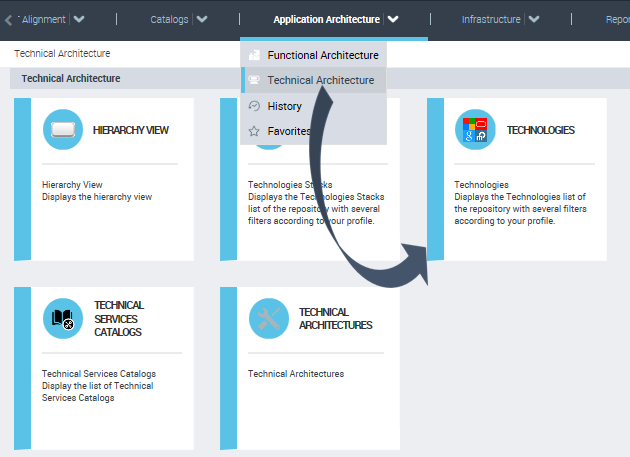
The list of technologies is displayed.
Example: Accessing technologies in HOPEX Explorer (tablet)
To access Technologies in HOPEX Explorer (tablet):
1. Connect to HOPEX Explorer (tablet) with the Application Contributor (lite) profile.
2. Click the navigation Menu and select Application Architecture.
and select Application Architecture.The Application Architecture navigation pane appears in the Functional Architecture tab.
3. Click the Technical Architecture tab.
The Technical Architecture page opens.
4. Click the Technologies tile.
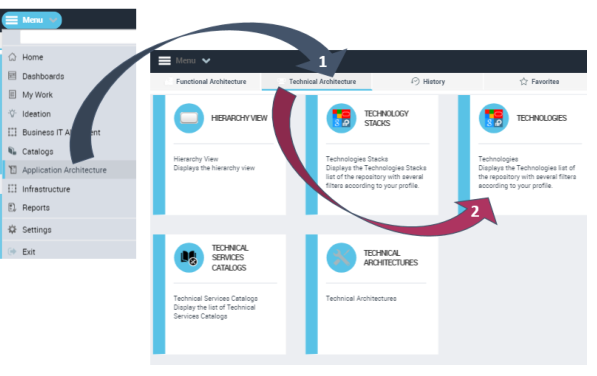
The list of technologies is displayed.
Work Modes in HOPEX Explorer
The HOPEX Explorer desktop is a simplified desktop that offers two work modes.
• Browse mode (default)
• Edit mode
To change your work mode, see Switching Working Mode.
Browse mode
This is the current work mode for all profiles.
Irrespective of your profile for connecting to HOPEX Explorer, you access your desktop in browse mode. You can:
• browse and view objects.
Eg.: search objects, view diagrams.
• perform actions that do not modify the objects in the repository.
Eg.: create instant reports, add tags, add review notes.
You cannot update objects in the repository in browse mode.
Edit mode
With an edit type profile (connection to HOPEX Explorer ), you can switch as necessary to edit mode to modify, create, and delete objects.
Property page fields are editable.
Eg.: modify the value of an object attribute.
Functionalities Available to All Profiles
By default, irrespective of your profile for connecting to the HOPEX Explorer desktop, you access your desktop in browse mode.
The functionalities available on the HOPEX Explorer desktop can be restricted according to the permissions defined for the profile used for connection.
Example: Process Contributor Lite
Functionalities Available in the HOPEX Explorer Desktop
In browse mode in the HOPEX Explorer desktop, the following functionalities are available:
• full-text search on objects.
 See Full-text Search.
• search by object type.
• your home page customization: adding and removing tiles.
• your dashboard customization: adding and removing widgets.
• access to options: viewing and modifying
See Navigation Tabs.• favorite management.
See Managing Favorites.• access to reports.
• access to your notifications on objects.
See Notifications.• access to the Collaboration window.
Functionalities available in a diagram
In browse mode in the HOPEX Explorer desktop, the following functionality is available for a diagram:
• viewing the diagram.
Functionalities available in a report
In browse mode in the HOPEX Explorer desktop, the following functionalities are available in the reports:
• viewing
• exporting in Excel format
• printing
• refreshing
Functionalities available on an object
In browse mode in the HOPEX Explorer desktop, the following functionalities are available on an object in a list:
• accessing object properties (modification not available).
• viewing the reports available on the object (creation not available).
• accessing the diagrams that contain the object.
See Opening a Diagram.• customizing: adding the object to the home page or to favorites.
• accessing the diagrams describing or containing the object.
• instant report creation.
• Social: liking and following the object.
• accessing the Workflow transitions.
• Excel export.
• use of all the collaboration functionalities on an object:
• Review Notes
See also Review note specificity.• Workflow transitions.
• Activity Feed
• Social: tags, liking and following an object.
• Ideation.
Functionalities available on a list of objects
In browse mode on the HOPEX Explorer desktop, the following functionalities are available on a list of objects:
• instant report creation.
• accessing the Workflow transitions.
See Using Workflows.• Excel export.
Additional Functionalities Available to Contribution Type Profiles
Functionalities available on objects
In edit mode, the following additional functionalities are available on objects with contribution type profiles:
• object creation.
• object deletion.
• object property modification.
• accessing the pop-up menu of an object (in a list or in its properties page) and all associated commands (e.g.: Copy, Manage, History).
• modification of diagrams via tabular input (diagram editing not available).
• report creation.
Functionalities available on diagrams
In edit mode, the following additional functionality is available on diagrams with contribution type profiles:
• export in PPT format (Documentation > Export the Diagrams)
Functionalities available on report
In edit mode, the following additional functionalities are available for reports with contribution type profiles:
• editing the report
• adding notes to existing reports
• report discovery
• creating reports
Functionalities Not Available in HOPEX Explorer
Some functionalities are not available with the HOPEX Explorer desktop, for example:
• import
• creating and updating diagrams
• canceling/restoring
• advanced searches
• saving requests