Actions on an Object in a List
In an object list:
• when you click an object, its proprieties display over the list itself
• other actions on an object are available:
• (after selecting the object) in the menu bar of the list
 When you select an object in a list, it is highlighted in bold.
• when you hover the cursor over the Local Name column of the object
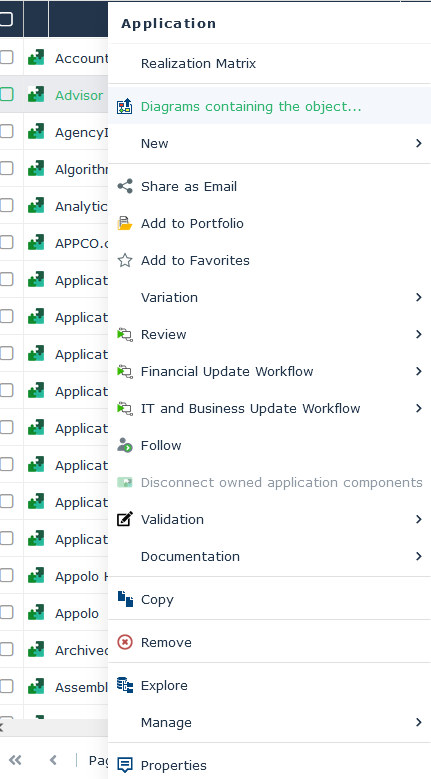
• when you right-click an object row, in the object pop-up menu.
Actions on an object using the menu bar of a list
When you select an object in a list of objects, the menu bar of the list enables you to perform general actions on the object.
To access all the actions available on an object, see Object pop-up menu.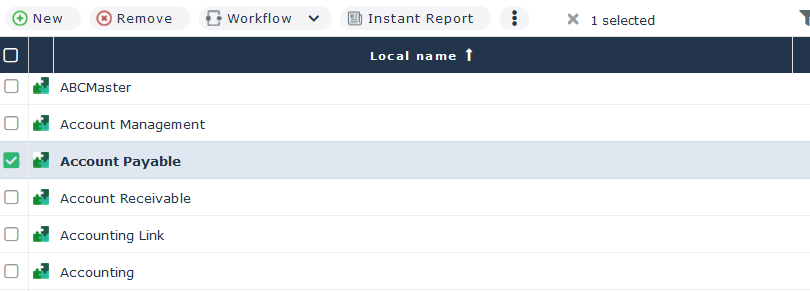
Icon | Actions on the object | For more details, see: |
|---|---|---|
 | Delete the object from the HOPEX repository | |
 | Assign the object to a business role (certain desktops) | |
 | Access the object Workflows and launch a workflow transition on the object | |
 | Create an instant report on this object | |
 | Access the object properties | |
 | Follow the object to be informed of all the modifications performed on this object | |
 | Export the selected object in Excel format |
Click More  to access hidden actions.
Actions on an object from the Local Name of a list
In a list of objects, when you hover the cursor over the Local Name of an object, a list of buttons appears:
• In the first part of the list, you can perform current actions on the object.
• The second part of the list gives you direct access to the collaboration features relating to this object.
In HOPEX Explorer (tablet), these buttons are available in the Action and Collaboration columns of the list.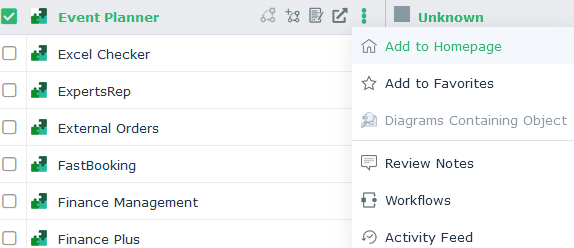
Icon | Action on the object | For more details, see: |
|---|---|---|
 | Open or preview the diagram(s) describing the object in the edit area | |
 | Create a diagram in the edit area | |
 | Display the properties of the object in the edit area | |
 | Display the properties of the object in a new tab of the navigator | |
 | Add the object to your home page | |
 | Add the object to your favorites | |
 | Open the diagram(s) containing the object, in the edit area |
Icon | Action/Collaboration on an object | For more details, see: |
|---|---|---|
 | Access the Review Notes on the object | |
| Access the object Workflow page. | |
 | Access the Activity Feed of the object |
Object pop-up menu
To access all the commands specific to an object using a list:
 Right-click the object row and and in its pop-up menu, select the action.