The EA Desktop (Web Front-End)
To connect to the EA desktop (Web Front-End), select the "Enterprise Architect" business role (or the "EA Standard" profile).
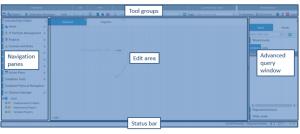
The EA desktop (Web Front-End) is as follows:

You can right-click in your EA desktop (Web Front-End). In particular, right-click enables access to object properties and activation of commands on these objects.
EA desktop presentation (Web Front-End)
The EA desktop (Web Front-End) comprises the following areas:
• In the top, the tool groups that allow you to quickly find commands you require to execute a task.
• On the left, navigation tree panes appear providing access to objects in the repository.
• In the center, an edit area is used to, for example:
• edit diagrams
• display your dashboard, which hosts the widgets for quickly accessing repository information
• open the properties window of the current object.
• To the right, the advanced search window appears for performing advance searches.
• In the bottom, the status bar:
• indicates the name of the MEGA user used for mapping and his/her profile or business role.
• provides access to the chat service and to the notification type alerts.
EA desktop (Web Front-End) tool groups
When the desktop page size is not sufficient to display the complete toolbar, arrows appear at the extremities of the toolbar.
To scroll the toolbar:
• to the left, click

.
• to the right, click

.
Commands are organized by tool groups.
Repository
The Repository tool group provides access to actions that concern:
• dispatch

You can dispatch or refresh your work at any time.
• collaborative work
• tools:
• import/export
• mapping editor
Edit
The Edit tool group is used to cancel or redo your most recent action(s).
View
The Display tool group is used to:
• define the display of navigation panes
• to display, move and hide the properties window
• to display favorites
• to modify data display language.
Search
The Search tool group is used for perform a simple search in the repository.
Current task
The Current Task tool group is used to select a design task to which you connect the modeling work carried out in your private workspace.
Desktops

and
enable navigation between
EA and
Teamwork desktops.
The Teamwork desktop enables management of notifications, requests for change, tasks, workflows and validations via the Web; see
HOPEX Collaboration Manager.
Miscellaneous
The Miscellaneous tool group is used to:
• access your dashboard.
• manage your account
• modify your password
• modify your options
• modify the theme of your desktop
• access your license information
• diagnose the installation
This information simplifies error diagnostics. It can help explain application slow response time.
• manage your alerts
• reset your desktop customization
• access the documentation
• refresh you desktop data
• disconnect.