Using MEGA in a Multilingual Context
Knowledge sharing is possible across the company and in different languages through multilingual support: repository content is managed and published in as many languages as required.
MEGA allows you to enter data in several languages.
You can easily switch from one language to another to enter or consult data or to generate documents.
Specifying the Data Language
MEGA allows you to enter data in several languages. You can easily switch from one language to another to enter or consult data or to generate documents.
To specify the work language in MEGA Windows Front-End:

In the desktop, select
Tools > Language, then specify your work language.
You do not therefore need to end a session in order to display data in another language.

To configure the list of work languages, see "Managing Options" in the
MEGA Administration - Supervisor guide.
To specify the data language in MEGA Web Front-End:
From the
Display tool group at the top of the page, click the button corresponding to the language of your interface (here, "English") and select the language of your choice in the drop-down menu.
To specify the data language in MEGA solutions:
In the menu bar, click the button corresponding to the interface language flag and select the language of your choice in the drop-down menu.
Entering Data in Several Languages
To enter your data in several languages:
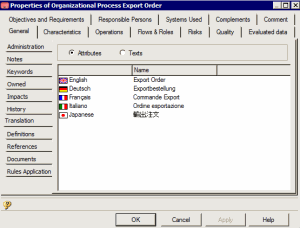
Select the
General tab of the object properties dialog box, then the
Translation subtab.
Display an example
Object characteristics in the target language
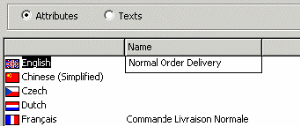
To enter the characteristics of an object (for example, its name) in another language:
In the
Translation subtab, select
Attributes.
You can enter the Name of the object in one or several languages.
Object comments in the target language
Before entering a comment in another language, check that it is selected in
Tools > Options > Languages.
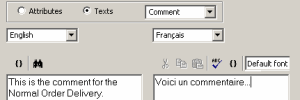
To enter the comment of an object (or other text type) in another language:
1. In the Translation subtab, select Texts.
2. In the drop-down list, select the type of text that you want to enter in another language (Comment, Scope of application, etc.)
If a text has already been entered in English, it will appear in the frame on the left.
3. Select the target language, that is the language into which you wish to translate your original text.
4. Enter your text in the target language in the frame on the right.
5. When completed, click Apply and/or OK.
In this frame you can use cut/paste and spell checker functions.
MEGA offers a tool that can be used to find the remaining objects for translation in a repository. For more detailed information, see "Querying objects to be translated" in "Managing objects" in the
MEGA Administration - Supervisor guide.
Multilingualism and duplicated object names
When you duplicate an object, it must be in the repository language so that translations in the various languages will be correctly transferred to the duplicates.
To determine the language of your repository, consult repository properties.
Viewing Untranslated Objects
To view untranslated objects:
1. In the desktop menu, select Tools > Options.
2. Click the Languages icon.
3. Select the Indication of objects not translated check box.
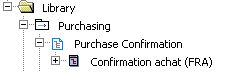
The name displayed for untranslated objects is their name in the language in which they were created. When you select this option, the name is suffixed by the code of the corresponding language (for example, US for English). This option is disabled by default.
In the example above, an application has been created in French and has to be translated into the current language (English in this example).