Accessing the User Management Pages
To manage users from the Web Administration desktop:
1. Connect to the HOPEX Administration desktop.
2. In the Administration tab, click the User Management pane.
The user management tree appears.
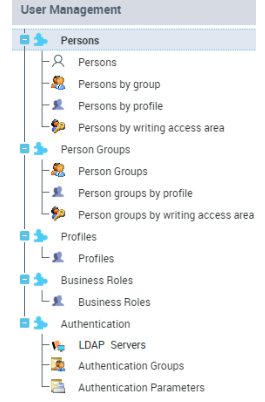
3. In the user management tree, click a sub-folder of:
• Persons to manage persons and logins
• Person Groups to manage the persons who belong to the same person group
• Profiles to manage profiles
 See Managing Profiles.See Profile Properties.
• Business Roles to manage the business roles
• Authentication to manage authentication (e.g.: LDAP servers, authentication groups and parameters).
The management page selected appears.
Managing persons who have an identical characteristic
To manage persons who have an identical characteristic, see:
Managing a group of persons who have a specific characteristic
To manage persons who have a specific characteristic, see:
Actions performed from the Persons management page
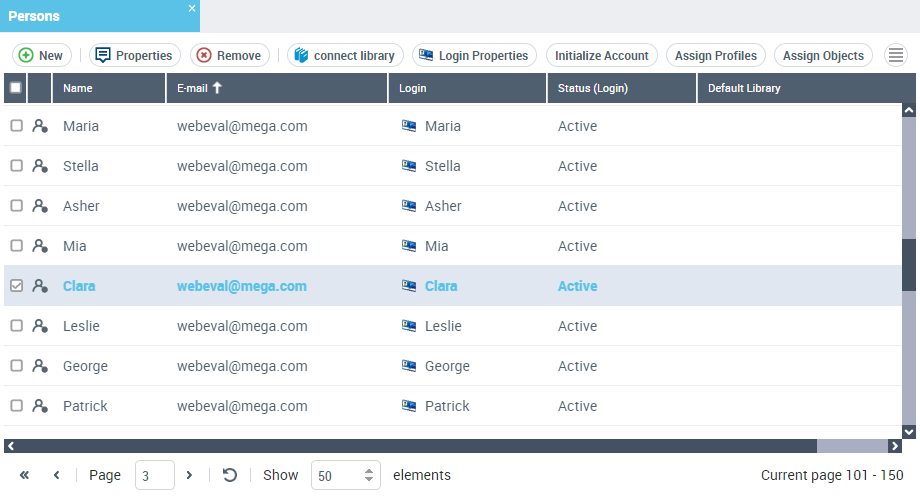
From the Persons management page you can:
• create users
See Creating a User.• create logins
• access a person using his/her name
• configure the characteristics of a person
See Defining a Person.• check the configuration of a person
• configure the characteristics of a login
• delete users
See Deleting a User.• modify the properties of users
• assign a profile to a person
• assign an object to a person
• transfer the responsibilities of a person
• duplicate the responsibilities of a person
• initialize and manage the password of a Web user
• connect a person to a writing access area
• connect a person to a reading access area
• access user options
• import persons from an LDAP directory
• filter persons.
Actions performed from the Person Group page
From the Person Group management page you can:
• create user groups
• define the properties of a person group
• configure the characteristics of a login
• assign a profile to a person group
• connect a person group with a writing access area
• connect a person group with a reading area access
• define a person group
• modify user group properties
Accessing the list of persons who have the same profile assigned
You can list and manage all persons who have the same profile assigned.
To access the list of persons who have the same profile assigned:
1. Access the user management page.
2. Select the Persons by profile sub-folder.
3. In the edit area, in the Persons by profile tab, select a profile.
The Persons tab lists all the persons who have the selected profile assigned.
Accessing the list of person who belong to the same group
You can list and manage all persons who belong to a specific group.
To access the list of person who belong to the same group:
1. Access the user management page.
2. Select the Persons by group sub-folder.
3. In the edit area, in the Persons by group tab, select a person group.
The Persons tab lists all the persons who belong to the selected group.
In the case of LDAP groups or groups calculated by macros, the list of persons can be long. Click Calculated to display, in the Persons tab, the list of person who are part of the group selected.
Accessing the list of persons connected to a specific writing access area
When several writing access areas are defined, you can list and manage all the persons and all the objects connected to a specific writing access area.
To access the list of persons and objects connected to a specific writing access area:
1. Access the user management page.
2. Select the Persons by writing access area sub-folder.
3. In the edit area, in the Persons by writing access area tab, select a writing access area.
4. In the edit area, in the Persons and objects tab, click:
• Persons to list all the persons who are connected to the selected writing access area.
• Objects to list all the objects that are connected to the selected writing access area.
Accessing the list of persons connected to a specific reading access area
When management of reading access areas is activated, you can list and manage all the persons and all the objects connected to a specific reading access area.
To access the list of persons and objects connected to a specific reading access area:
1. Access the user management page.
2. Select the Persons by reading access area sub-folder.
3. In the edit area, in the Persons by reading access area tab, select a writing access area.
4. In the edit area, in the Persons and objects tab, click:
• Persons to list all the persons who are associated with the selected reading access area.
• Objects to list all the objects connected to the selected reading access area.
Accessing the list of persons who have or do not have a login
You can filter persons according to their login.
To display the persons who have or do not have a login:
1. Access the user management page.
2. Select a Persons sub-folder.
3. In the edit area, click Display filters  .
.
.Fields appear under the header of each column.
4. In the Login column field, click the filtering operator and select:
• Shows non empty values only 
The persons who have a login are listed.
• Shows empty values only 
The persons who do not have a login are listed.
Accessing a person using his/her name
You can filter persons according to their name.
To find a person using his/her name:
1. Access the user management page.
2. Select a Persons sub-folder.
3. In the edit area, click Display filters .
.Fields appear under the header of each column.
4. In the Name column field, enter the name (or a part of the name) of the person queried.
The persons with the queried name (the string) appear.
Accessing a group of persons connected to a specific profile
To access a group of persons connected to a specific profile:
1. Access the user management page.
2. Select the Person groups by profile sub-folder.
3. In the edit area, in the Person groups by profile tab, select a profile.
The Person Groups tab lists the person groups to which the selected profile is assigned.
Accessing the list of person groups connected to a specific writing access area
When several writing access areas are defined, you can list and manage all the person groups and all the objects connected to a specific writing access area.
To access the list of person groups and objects connected to a specific writing access area:
1. Access the user management page.
2. Select the Person groups by writing access area sub-folder.
3. In the edit area, in the Person groups by writing access area tab, select a writing access area.
4. In the edit area, in the Person groups and objects tab, click:
• Person Groups to list all the person groups connected to the selected writing access area.
• Objects to list all the objects that are connected to the selected writing access area.
Accessing the list of person groups connected to a specific reading access area
When management of reading access areas is activated, you can list and manage the person groups and the objects connected to a specific reading access area.
To access the list of person groups and objects connected to a specific reading access area:
1. Access the user management page.
2. Select the Person groups by reading access area sub-folder.
3. In the edit area, in the Person groups by reading access area tab, select a reading access area.
4. In the edit area, in the Person groups and objects tab, click:
• Person Groups to list all the person groups connected to the selected reading access area.
• Objects to list all the objects connected to the selected reading access area.