Configuring LDAP Authentication
 LDAP authentication is available only if you have HOPEX Power Supervisor technical module.
An LDAP directory enables storage of user data of the enterprise.
HOPEX Administration allows you to create users authenticated at LDAP server level.
Only users (example: Administrator) with a HOPEX Administrator or User Management Web Administrator profile can enter LDAP data, see Administration Profiles Provided.To configure LDAP authentication:
1. Create an LDAP server in HOPEX Administration.
2. Specify parameters of your LDAP server.
3. (Optional) You can:
• configure LDAP parameters
• modify LDAP import parameters
4. Check the configuration of the LDAP server.
5. Once LDAP authentication is configured, you must:
• import persons from the LDAP directory.
 Do not overload HOPEX repository with user who are not intending to connect to HOPEX.
or if you manage person groups:
• define authentication groups and map them to person groups in HOPEX.
See Defining an authentication group and Associating a HOPEX User Group with an Authenticated User Group.When connecting to HOPEX, the authentication service uses the HOPEX login and password entered by the user to authenticate the user with the list of available LDAP servers.
Accessing LDAP server management
The LDAP Servers folder is available only if you are connected with a user with the HOPEX Administrator profile (example: Administrator), see Administration Profiles Provided and that LDAP authentication is the user default authentication mode, see Defining default authentication mode to LDAP.To access LDAP server management:
 From the Administration desktop, select the LDAP Servers sub-folder.
Creating an LDAP server
The LDAP server is the server on which the LDAP directory is installed.
The LDAP directory can be an Active Directory directory.
To create an LDAP server:
1. Access LDAP server management.
2. In the LDAP server menu bar, click New  .
.
.3. In the creation of LDAP server window, enter the Name of the LDAP server and click OK.
The new LDAP server appears in the list of LDAP servers.
You must configure the LDAP server, see Configuring the LDAP server.
Configuring the LDAP server
LDAP server configuration is restricted to users with a HOPEX Administrator or User management Administrator profile.To configure an LDAP server:
Prerequisite: the LDAP server is already created.
1. Access the LDAP server management pages.
2. Select the new LDAP server and click Properties  .
.
.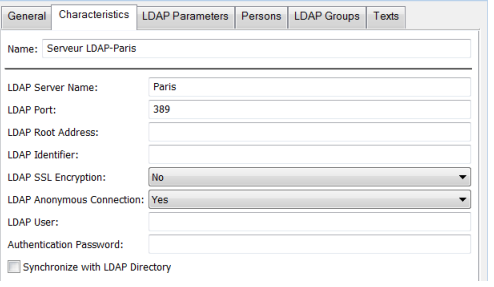
3. In Characteristics, complete the following fields:
• LDAP Server Name: name of the server hosting the LDAP directory.
• LDAP Port: LDAP communication bridge
E.g.: 389
• LDAP Root Address: root address of the LDAP server. This is an important attribute to limit query for a user in the LDAP directory or to address a particular forest.
• LDAP Identifier: this is the LDAP attribute enabling unique identification of a user
E.g.: SAMAccountName, UID
• LDAP SSL Encryption: select “Yes” if you want LDAP directory connection to be SSL protocol encoded
• LDAP Anonymous Connection: if you select “No”, you must specify the user via which LDAP directory connection will be made, as well as the user password
Only an administrator user can connect anonymously to an LDAP server.• LDAP User: enter the identifier of the LDAP user used for LDAP directory connection. If connection is anonymous, this field should not be completed.
This user must have reading rights on data that HOPEX needs to access (example: LDAP person group, membership of a group in LDAP, e-mail in LDAP, etc.).• Authentication Password: enter the password of the LDAP user used for LDAP directory connection. If connection is anonymous, this field should not be completed.
• (If nedded) Select Synchronize with LDAP directory to synchronize LDAP parameters defined on the LDAP server (HOPEX) with the updates of the LDAP directory parameters.
4. Click Save.
The LDAP server is configured.
You can also:
• configure an LDAP parameter, see Configuring an LDAP parameter.
• modify content of LDAP directory import, see Modifying LDAP directory import content.
Configuring an LDAP parameter
An LDAP parameter is an authentication parameter that exists in the LDAP directory and that is associated uniquely with a HOPEX attribute.
Configuring an LDAP parameter is useful when importing persons from an LDAP directory. This configuration enables initialization of attributes (of the person or login created in HOPEX) corresponding to parameters with values stored in the LDAP directory.
Example: the "E-mail" MetaAttribute of the person is initialized with the "mail" LDAP parameter of the person in the "Active Directory" LDAP directory (if mapping has been carried out).
To configure an LDAP parameter:
1. Access the LDAP server management pages.
2. Select the LDAP server for which you want to configure an LDAP parameter and click Properties  .
.
.3. In LDAP Parameters, click New .
.The LDAP parameter enables pre-completion of the person's characteristics corresponding to the LDAP parameters.4. Enter a Name for the authentication parameter then click Properties  .
.
.Examples: E-mail, Name (person).
5. Select Index on Persons, so that the parameter value enables unique identification of a person. If a person in HOPEX has the same e-mail as a person defined in the LDAP directory, this person is reused (instead of creating a new person and risking duplicating the same person).
6. Select Is available for search so that an e-mail can be entered in the import entry area.
Example: if you enter ctodd@mega.com, you should find Clara TODD.
7. In the Authentication Identifier field enter the name of the attribute corresponding to the parameter within the LDAP directory or Active Directory.
Examples: mail, DN
8. In the Mapped MetaAttribute field, click the arrow and select Connect MetaAttribute.
9. Perform the search and select the MetaAttribute corresponding to the parameter within HOPEX.
E.g.: E-mail, Name (person).
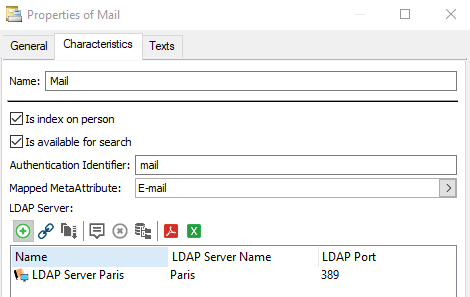
When importing persons from the LDAP directory, the LDAP parameter (example: mail) will initialize the MetaAttribute (example: E-mail address).
Modifying LDAP directory import content
You can modify LDAP directory import content:
• export candidate objects:
This option enables definition of the type of objects to be imported from the LDAP directory.
Default value: person.
• the list of objects browsed for LDAP query
This option enables addition to the import of a particular person and/or persons of a team ("organization").
Default value: organization,organizationalUnit,person

To define content of LDAP directory import:
1. Access environment options.
2. In the options tree, select Installation > User Management > LDAP folder.
3. (Optional) In the right pane, modify the List of ObjectClass candidates for import from LDAP option.
To import objects other than persons (default value), for example resources or org-units, specify this in this field. Objects should be separated by commas.
Everything that is imported creates occurrences of persons with login.
4. (Optional) In the right pane, modify the List of ObjectClass browsed for LDAP query option.
To add a person or organization to the import, enter the name of the person or organization (example: Quality) in the field.
The result is the list of ObjectClass candidates for import from LDAP, that is, persons by default.
Checking the configuration of an LDAP server
To check the configuration of an LDAP server:
1. Access LDAP server management.
2. In the edit area, select the LDAP server and click LDAP Check.
Importing persons from an LDAP server
The import of persons from an LDAP directory enables initialization of attributes (of the person or login created in HOPEX) corresponding to parameters with values stored in the LDAP directory.
Example: the "E-mail address" MetaAttribute of the person is initialized with the "mail" LDAP parameter of the person in the "Active Directory" LDAP directory (if mapping has been carried out).
To import persons from an LDAP directory:
1. Access the User Management pages.
2. In Persons, click Import From LDAP.
3. The LDAP Import Wizard appears.
4. In the LDAP Server field, click the drop-down menu and select the server from which you want to import persons.
The LDAP server must be created, seeCreating an LDAP server.5. In the Queried Element field, enter the queried character string.
E.g.: Support service.
6. Names resulting from the query are listed.
7. Select the persons you want to import.
8. Click OK.
Authentication and a user created on the fly
When a user has been created on the fly (see Connection request and user created on the fly), the LDAP parameters can be used as indexing identifier (Index on Person attribute, see Configuring an LDAP parameter) to check that a person with an attribute with the same value as the LDAP directory already exists in HOPEX.
Example of use:
Anne, responsible for sending questionnaires, wants to send a questionnaire. If one of the addressees does not exist:
• Anne can create the person (example: "Thomas KOCH" with e-mail "tkoch@mega.com")
• Anne cannot create the login of Thomas Koch since she is not an administrator.
When Thomas KOCH connects to HOPEX (Web Front-End), with tkh:
1. The authentication service authenticates tkh with the LDAP directory: the "mail" parameter exists and is indexing identifier type (Index on Person is selected),
2. The authentication service checks if a person already has this e-mail.
• Answer yes: the authentication service creates the login associated with the person.
• Answer no: the authentication service creates the person and the login associated with the e-mail.
If Thomas KOCH has assignments to complete the questionnaire, he can connect to the application to complete this questionnaire.