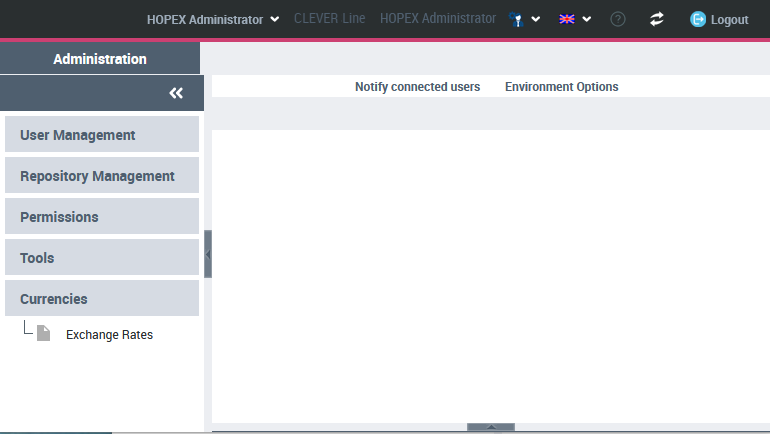
Introduction to Web Administration Desktop
The Web Administration Desktop
The Web Administration desktop is the HOPEX administration application accessible via an internet browser.
This application is used to manage:
• users (persons, person groups, business roles, profiles, LDAP servers)
• repositories (workspaces, locks, repository, repository snapshots)
• permissions (UI accesses).
This application also provides:
• access to tools (Excel import/export, Import/Export of command files, Scheduler, Exchange Rate)
• management of person skills.
Connecting to the Administration Desktop
To perform Administration operations via the Web, you must have connection rights to the Web Administration desktop, that is connect with an administration profile.
 At installation, only the Mega user can connect to the Web Administration desktop.
To connect to the Administration desktop:
1. Start the HOPEX application using its HTTP address.
If you do not know this address, contact your administrator.The connection page appears.
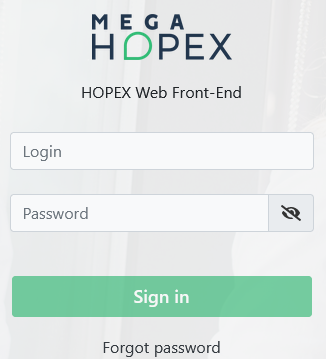
2. In the Login field, enter your identifier.
3. In the Password field, enter your password.
To view your password, click  .
.4. Click Sign in.
When you have been authenticated, a new dialog box appears.
5. In the drop-down menu for repositories, select your work repository.
If you can access only one repository, this is automatically taken into account and the repository selection field does not appear.6. In the drop-down menu for profiles, select an administration profile:
• HOPEX Administrator, for global management of users and repositories.
• MEGA Administrator - Production, if you are in production mode
• Web user Administrator, for management limited to users and locks.
For information on these profiles, see Administration Profiles ProvidedIf you have only one profile (administration), this is automatically taken into account and the profile selection field does not appear.7. (If you belong to a person group) In the group drop-down menu, select the group with which you want to connect or "My assignments" to connect with one of your own assignments.
8. Click the Privacy and Cookie Policy link bellow and read the confidentiality policy, then select I have read and accept the privacy policy.
The Enter button is active.
This step is requested only once, when you first log on to a HOPEX Web desktop. A certificate is automatically linked to your person.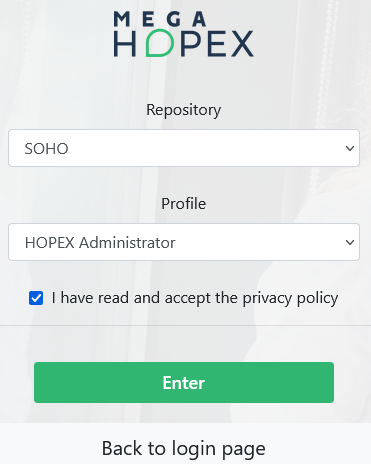
9. Click Enter.
Click Back to login page if you want to return to the authentication window.The Administration desktop appears and the session is opened.