Accessing HOPEX
Activating your HOPEX Account
To connect to HOPEX, you must first activate your HOPEX account, i.e.:
• define your password
• Your password must include at least 8 characters, one uppercase letter, one lowercase letter, one digit, and one special character.
• Your password must be complex enough to meet your enterprise security requirements.
 Avoid using usual words (dictionary or HOPEX vocabulary), your name, your first name, your login, a series of lettres (abc) or numbers (123), which do not increase the complexity.
• choose a security question and answer it.
To activate your HOPEX account:
1. Access your HOPEX activation email and click the link included.
 If you did not receive any email, contact your HOPEX administrator for your account activation, see Initializing a User Web Account.
2. In the New Password field, enter your password.
A colored progress bar (red, orange, green) indicates your password complexity level as you type.
3. In the Confirm Password field, confirm your password.
If needed, to view your password, click  .
.4. In the Security question field, select a security question.
5. In the Answer to question field, answer the selected security question.
Click to check your answer.6. Click Apply.
Your HOPEX account is activated and you can connect to HOPEX.
Connecting to HOPEX
To connect to your HOPEX desktop:
1. Start the HOPEX application using its HTTP address.
If you do not know this address, contact your administrator.The connection page appears.

2. In the Login field, enter your connection identifier.
3. In the Password field, enter your password.
To view your password, click .4. Click Sign in.
When you have been authenticated, a new dialog box appears.
5. (If you belong to a person group) In the drop-down menu for groups, select the group with which you want to connect or "My assignments" to connect with one of your own assignments.
6. In the drop-down menu for repositories, select your work repository.
If you can access only one repository, this is automatically taken into account.7. In the profile drop-down menu, select the profile with which you want to work.
If you can access only one profile, this is automatically taken into account.Your profile defines your desktop, which defines the workspace type in which you are going to work.The "Create a private workspace” message indicates you are going to work in a private workspace, see Workspace Types and Updates.
The profile you select defines the applications you can access.8. Below the window, click the Privacy and Cookie Policy link and read the privacy policy, then select I have read and accept the privacy policy.
The LOGIN button is active.
When you have read and accepted the confidentiality policy, a certificate is automatically linked to your person and this step is not required anymore.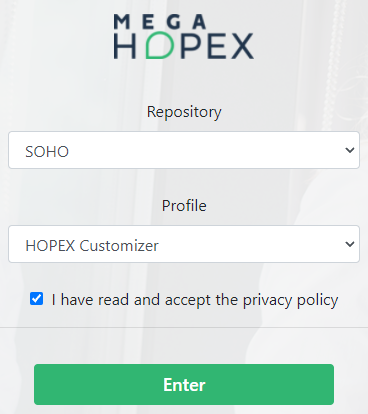
9. Click LOGIN.
Click Back if you want to return to the authentication window.Your desktop home page appears and a session is opened.
See Home Page.After a certain period of inactivity, you are disconnected from the desktop. To reconnect, repeat the steps of the procedure above. This inactivity period is configured by the portal administrator.10. (If the selected profile gives access to several applications) In the drop-down menu, select the application to which you want to connect, then click Enter.
If you can access only one application with the selected profile, this field does not appear.Switching between Profiles
In your HOPEX desktop, you can easily switch to another profile without logging out from HOPEX.
To switch to another profile without logging out from HOPEX:
1. In your HOPEX desktop, click Main Menu  .
.
.2. Click Switch profile and select another profile.
3. Select your desktop exit mode:
Click Cancel if you no longer want to change profile.• Yes
Modifications you have made in your private workspace are saved in the repository.
In order to work effectively as a team, it is recommended that you dispatch frequently and regularly. Other users can update their own private workspace without dispatching their work (menu File > Refresh).• No
All the modifications you made since your last dispatch (private workspace) / save (public workspace) will be lost. You can use this option if you want to view data quickly and exit without impacting the repository.
Modifications to your desktop are also lost.• (Private workspace specific) Later
You work is kept, but other users are not yet seeing the changes you made.
 When you choose “Later” and in a following desktop you exit HOPEX without keeping your modifications (“No”), this work is also lost. If you want to keep your work you must choose “Yes” as HOPEX exit mode.
The desktop associated with the selected profile is displayed.
Resetting your Password
To modify your password, see Modifying your password.If you lost your password to access a HOPEX application on the Web, you can reset it.
To reset your password:
1. Open the connection page.
See Connecting to HOPEX.2. Click Forgot Password.
The Lost password page appears.
3. In the Login field, enter your login.
4. Click Continue.
5. Answer the security question.
6. Click Reinitialize.
An e-mail containing a link with limited validity period is sent to you.
7. Click this link.
The Change your password window appears.
8. In the New password field, enter your password.
For more details on the password, see Activating your HOPEX Account.A colored progress bar (red, orange, green) indicates your password complexity level as you type.
Attention: by default your last five passwords cannot be reused.9. In the Confirm Password field, confirm your password.
If needed, to view your password, click .10. In the Security question field, select a security question.
11. In the Answer to question field, answer the selected security question.
Click to check your answer.12. Click Apply.