Customization Safety Overview
To ensure safe updates of Hopex environments, you should not modify Hopex standard data but instead safely enrich it.
If you need to change the Hopex standard data, you can override the standard data without overloading it. This ensures that customizations remain isolated and are not impacted by standard Hopex upgrades, while still benefiting from the standard fixes and enhancements.
 See Customization.
Especially when migrating from an earlier Hopex version that did not yet support overriding, you can evaluate the volume, nature, and quality of your customizations to assess their upgradeability and overall safety.
How to check customization safety overview:
1. Launch the detection tool.
JSON files are generated.
2. Convert the JSON file to an Excel file using Python.
3. Analyze the Excel file.
Launching the Safe Customization Detection Tool
Safe customization detection is performed by the Repository Health Customization Check job.
This job is scheduled to run once a week, every Monday at 04:00 GMT. If needed, you can:
• modify its schedule
• run the job immediately (outside its regular schedule)
The result of the job execution is generated as JSON files:
• Location:
C:\ProgramData\MEGA\Hopex Application Server\<name of the HAS instance>\LocalData\RepositoryHealth folder
Example:
C:\ProgramData\MEGA\Hopex Application Server\5000\LocalData\RepositoryHealth
• Name of the safe customization file
RepositoryHealthCustoSafeInfo-<yyyy-mm-dd>-HAS_<name of the HAS instance>_<environment name>_<module version>-<repository name>
Example:
RepositoryHealthCustoSafeInfo-2026-07-08-HAS_5000_backup.envtestlab_62_12_39+32-SystemDb
• Name of the safe security file
RepositoryHealthCustoSecuInfo-<yyyy-mm-dd>-HAS_<name of the HAS instance>_<environment name>_<module version>-<repository name>
Example:
RepositoryHealthCustoSecuInfo-2026-07-08-HAS_5000_backup.envtestlab_62_12_39+32-SystemDb
To launch the safe customization detection tool:
1. Connect to the Hopex Administration desktop
2. Click the Scheduling navigation menu.
3. Display the Jobs page.
The list of jobs displays.
4. Select the Repository Health Customization Check job.
 Use the list filtering tool to find the job.
5. Click Execute.
The result is written to a JSON file.
The generation takes approximatively 2 to 3 minutes, depending on your customization volume.Launching the File Conversion (Python)
To analyze the JSON file generated for repository customization check, you need to convert the JSON file to an Excel file using Python.
To launch the JSON file conversion:
1. Access the Utilities > Customization Tools folder of your Hopex installation.
Location: C:\ProgramData\MEGA\Hopex Application Server\<name of the HAS instance>\.shadowFiles\hopex.core\<module version>\Utilities\Customization Tools
2. In the Customization Tools folder, read the Documentation file:
• Install Python 3.8 or later.
• Install the required libraries:
Enter: pip install pandas openpyxl
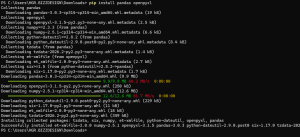 If you get troubles with the library installation, you might need to add the Python paths to your environment variables:
<installation path>\Python\pythoncore-<version number>
<installation path>\Python\pythoncore-<version number>\Scripts
• Launch the program:
Enter: python generate_excel_from_json.py
3. In the JSON to Excel Utility, browse and select the safe customization (or security) JSON generated file.
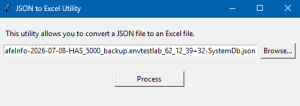
4. Click Process.
The safe customization (or security) JSON file is converted to an Excel file
Analyzing Customization Safety
Customization safety levels and best practice examples
Safe
These customizations follow the recommendations. They are safe and ensure safe updates of Hopex environments.
These customizations follow the recommendations. They are safe and ensure safe updates of Hopex environments.
Example:
• As a Functional Administrator, you can change the content (report or diagram) of the Overview page of an object.
See Changing content.Medium safe
These customizations are safe but not recommended. A standard alternative is available.
Examples of metamodel customizations:
• To add a new MetaAttribute to a standard MetaClass, do not create custom MetaAttributes. Instead use either:
• the Easy Property feature, or
• the custom MetaAttribute link
• To modify a standard MetaAttribute, do not create custom MetaAttributes.
Instead use the override feature available on the MetaAttribute.
Example: do not modify the Command Line of a standard profile. Instead use the override feature available on the Command Line MetaAttribute of the profile.
• To rename a standard MetaClass/MetaAttribute, do not create a custom MetaClass/MetaAttribute.
Instead use the override feature available on the MetaClass/MetaAttribute.
• Creation of an Abstract MetaClass is allowed with only one level of inheritance
Unsafe
These customizations are unsafe. They are not recommended and might generate issues. An override alternative is available.
Examples:
• To modify (add, remove, reorder) a desktop navigation menus, do not add items to its corresponding Working Environment Template.
Instead use the override feature.
• Do not add a Data Access Rule to a standard MetaClass or standard profile.
Instead use the override feature available on the MetaClass or profile.
• Do not add a Report Display Context to a standard profile.
Instead use the override feature available on the profile.
• Do not modify a Display Context associated with a standard profile.
Instead use the override feature available on the Display Context associated with the profile.
• Do not update a standard Set of UI Access Rights, but use the Customizing Set of UI Access Rights associated with the profile.
Blocking
These customizations are unsafe and forbidden (not supported). There is no alternative.
Such customizations must be removed or converted.
Such customizations must be removed or converted.
Example:
• Do not modify a standard macro.
• Do not modify a Metamodel Diagram.
Instead duplicate or recreate the diagram in a custom context.
• Do not use a non-WET based desktop
Only WET-based desktops are allowed.Actions according to safety levels
Based on your customization level:
• Safe or Medium Safe: eligible for Continuous Delivery.
• Unsafe: a conversion project is recommended.
• Blocking: immediate remediation is required before upgrades can be performed safely.
Safe customization Excel file description
The RepositoryHealthCustoSafeInfo Excel file provides all the information you need to assess your customization safety. Several worksheets detail the customizations:
• version sheet:
Indicates your Hopex version.
• MEGAUpdates sheet:
The "Authorize Hopex data modification" option (Environment Options > Installation > Customization) must not be selected for safe customizations.
Indicates blocking when selected.
• a sheet for each customization type
Each row details a customization, the safe cell indicates the safety level of the customization, and the Recommendations cell gives a recommendation.

• Stats sheet: gives a summary of the number of each customization type
For example here,368 System Objects and 2 Custom MetaClasses are blocking.

• CustoSafe: indicates your global customization safety level:
• safe
• medium safe
• unsafe
• blocking
Managing false positives
The safe detection tool might generate false positives.
Example: a previous data conversion changed the Modifier Name field to "Administrator" instead of "MEGA user".
You can exclude false positives from the results by adding a custom query that filters them out.
To manage the false positives, you can create queries defining the system objects you do not want to be analyzed. According to the Removed Objects Section value of the query, the following applies:
• System Repository occurrences
The query must returns Generic System Objects. All the occurrences returned by the query are ignored in the detection analysis.
• System Repository objects types
The query must return MetaClasses. All the occurrences of the MetaClasses returned by the query are ignored in the detection analysis.
• Metaclasses
The query must return MetaClasses. All the MetaClasses returned by the query are ignored in the detection analysis.
To add queries defining the system objects you do not want to be analyzed:
1. Access Hopex (Windows Front-End).
2. Search for the "RepositoryHealthCustoSafeInfo" Repository Health (System).
3. Explore the "RepositoryHealthCustoSafeInfo" Repository Health (System).
The "(Safe Customization) False positiv Generic System Objects" query is already added.
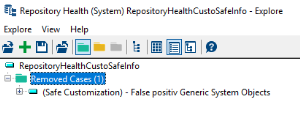
4. Add the relevant queries to the Removed cases folder:
• Create the query.
Example 1: create the "False positive - Repository Health (system)" query, which excludes the occurrences of the repository health (system) MetaClass.
Example 2: create the "MyWET-custo" query (Select [Working Environment Template] Where [Name]="<WET name>"), which excludes the customization on the specific Working Environment Template.
Example 3: create the "False positive - WET" query (Select [MetaClass] Where [Name]="Working Environment Template"), which excludes the customizations performed on the Working Environment Template MetaClass.
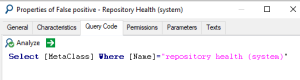
• Define the type of system objects to be ignored: in its Repository health (System) section, select the Removed Objects Section value.
Example 1: system repository objects types
Example 2: system repository occurrences
Example 3: MetaClasses
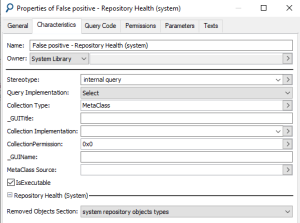
According to the Removed Object Section value, all the relevant occurrences of the Generic System Objects or the relevant occurrences of the MetaClasses, or the relevant MetaClasses are excluded from the results.
You can add as many queries as you want.