Customizing a Desktop
You can create and customize your own desktops.
 For detailed information on how to create and customize a desktop, see Customizing the User Interface > Versatile Desktop documentation.
You can customize a desktop provided with Hopex, for example you can modify:
• its navigation menus:
• menus (Working Environment Group Template): add, remove, and reorder the menus
• sub-menus (Working Environment Topic Template): add, remove and reorganize the sub-menus; modify the default sub-menu
• the Homepage associated with a specific profile:
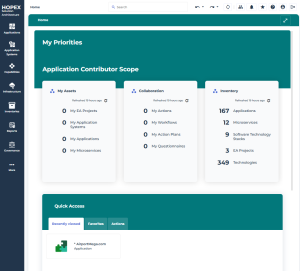
• My Priorities and Need Help? (in the Header)
• My Scope
• Quick Access
 To modify the Quick Access or My Scope parts of the Homepage associated with a profile, see Overriding multiple object links.
Overriding navigation menus
For a specific desktop, you can override its navigation menus.
For information about connections between profiles and desktops, see Connection diagram.Example: you can override the navigation menus of Hopex enterprise Architecture desktop:
- remove the Business navigation menu
- reorder the navigation menus: move Technologies menu above Application menu
To override the navigation menus for a specific desktop:
1. Access HOPEX Studio desktop (with Hopex Customizer profile).
2. Access the Working Environment Template property pages corresponding to the Desktop concerned.
Example: the "Hopex V6 - Enterprise Architect" Working Environment Template of the Hopex Enterprise Architecture Solution.
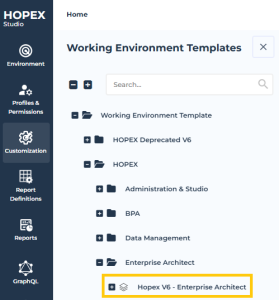
3. Display its Override Configuration page.
4. In the Links section, for Available Groups, select Overridden.
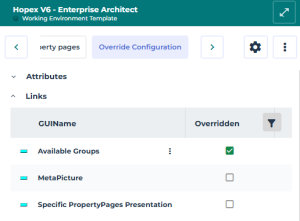
5. To remove a link (navigation menu):
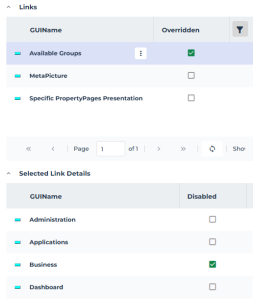
• Click the row of Available Groups (with overridden selected).
The Selected Link Details section displays the available links (navigation menus).
• In the Selected Link Details section, select Disabled corresponding to each link (navigation menu) you want to remove.
Example: Disable "Business".
6. (Not performed in this example) To add a link (navigation menu):
• Access the page displaying the links to override:
Example: Display the Characteristics page of the "Hopex V6 - Enterprise Architect" Working Environment Template, and expand Available Groups section.
• Click Connect  and select the navigation menu you want to add.
and select the navigation menu you want to add.7. To reorganize the links (navigation menus):
• Access the page displaying the links to override:
Example: Display the Characteristics page of the "Hopex V6 - Enterprise Architect" Working Environment Template, and expand Available Groups section.
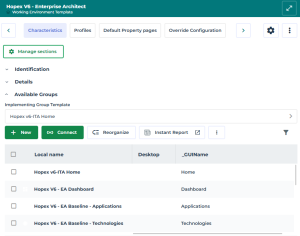
• Click Reorganize  .
.
.• Drag and drop the links (navigation menus) to arrange them in the required order.
Example: drag and drop "Hopex V6 - EA Baseline - Technologies" above "Hopex V6 - EA Baseline - Applications".
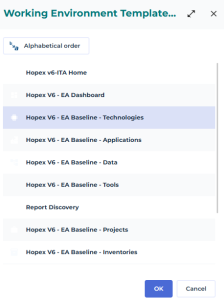
• Click OK.
Example: in Enterprise Architecture desktop, navigation menu order is changed and Business navigation menu is removed.
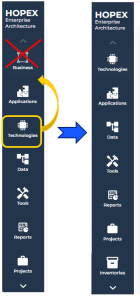
Overriding the homepage header (My Priorities)
For a specific profile, you can override its homepage elements.
For example, you can override My priorities.
To override the homepage header for a profile:
1. Access HOPEX Studio desktop (with Hopex Customizer profile).
2. Access the profile property pages.
Example: the Application Contributor profile property pages.
3. Display its Override Configuration page:
• In the Links section, for Covered Domain, select Overridden.
• Click the Covered Domain row.
• In the Selected Link Details section, for Solution Architecture select Disabled.
4. Display the Characteristics page.
5. In the Details section, Covered Domain field:
• connect a covered domain to override the standard covered domain, or
• leave the field empty, in the homepage My Priorities is empty.