Accessing the Overridable Metamodel
Prerequisite: check wheter the metamodel you want to override is overridable.
Accessing profiles for overriding
To access a profile for overriding:
1. Access HOPEX Studio desktop (with Hopex Customizer profile).
2. To override:
• attributes or links of the profile, access the Override Configuration property page of the profile.
• profile options, access the options of the profile.
Accessing desktop items for overriding
You can override items of your desktop like for example:
• navigation menus
• navigation sub-menus
• quick access items
• scope items
• card items
 For detailed information on how to create and customize a desktop, see Customizing the User Interface > Versatile Desktop documentation
 Direct access to these items are available from the Customization > Desktops menu.
To access the desktop elements for overriding:
1. Access HOPEX Studio desktop (with Hopex Customizer profile).
2. Click Customization > Desktops navigation menu.
3. To override:
• a navigation menu (Working Environment Group Template), click the Working Environment Templates page, access the relevant Working Environment template properties and access its Characteristics page > Available Groups section.
Overridable items are as follows:

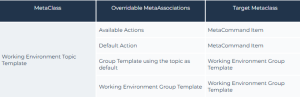
• a navigation sub-menu (Working Environment Topic Template), access the relevant Working Environment Group Template properties (described above) and access its Available Topics section.
Overridable items are as follows:
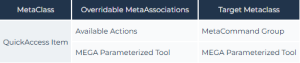
• a quick access item, click the Homepages page, and access the QuickAccess Item properties associated with the relevant profile.
Overridable items are as follows:
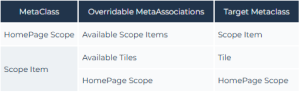
• a scope item, click the Homepages page, access the Homepage scope properties and/or Scope item properties associated with the relevant profile.
Overridable items are as follows:
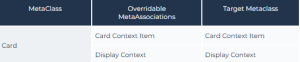
• a card item, click Display Context page, access the relevant Display Context properties of the profile concerned.
Overridable items are as follows:
Accessing property pages for overriding
You can override property pages, like for example:
• PropertyPage Presentations
• MetaPropertyPages
Direct access to these items is available from the Customization > Property Pages menu.
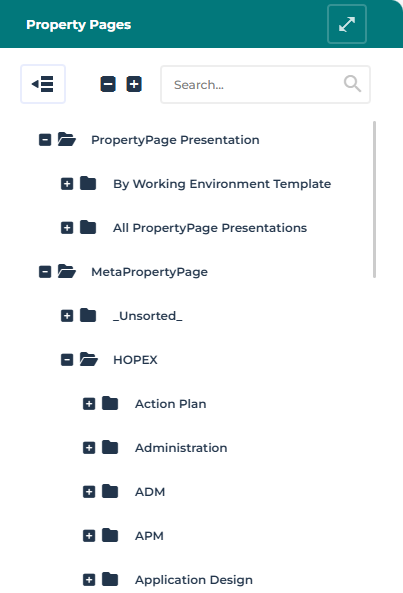
You can access:
• a PropertyPage Presentation and all its MetaPropertyPages belonging to a Working Environment Template
• a MetaPropertyPage belonging to a product/Solution
To access a property page for overriding:
1. Access HOPEX Studio desktop (with Hopex Customizer profile).
2. Click Customization > Property Pages navigation menu.
3. Access the relevant PropertyPage Presentation.
4. Hover the cursor over the PropertyPage Presentation and click Open in a new tab  .
.
.5. Display the Override Configuration page and select the item(s) to override.
See:
Accessing metamodels for overriding
The Overridable MetaModel Dendrogram shows which elements of a MetaClass are overridable:
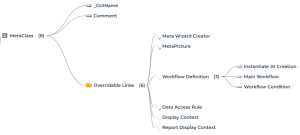
 To access all the MetaClasses belonging to a specific Diagram Type, see Accessing Diagrams for overriding.For detailed information on how to create and customize the metamodel, see Customizing the Metamodel > Managing the Metamodel documentation.
Direct access to a MetaClass is available from the Customization > Metamodels menu.
To access a specific MetaClass for overriding:
1. Access HOPEX Studio desktop (with Hopex Customizer profile).
2. Click Customization > Metamodels navigation menu.
3. Display the List page.
MetaClasses are sorted by type, by default Concrete MetaClasses are displayed.
4. (To display another MetaClass type) Click the Concrete MetaClasses drop-down menu and select the required type.
Examples: Abstract MetaClasses, Kernel MetaClasses, or Meta-metamodel (MOF) MetaClasses).
5. Use the list filtering tool to access the required MetaClass.
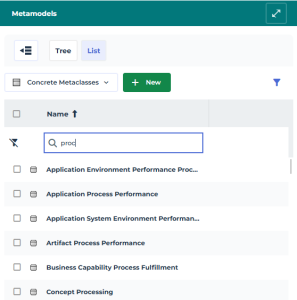
6. Hover the cursor over the relevant MetaClass and click Open in a new tab .
.7. Display the Override Configuration page and select the item(s) to override.
See:
Accessing Code Templates for overriding
Direct access to _Code Templates is available from the Code Templates menu.
Overridable items are as follows:
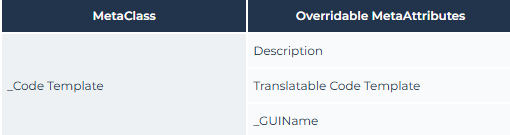
To access a Code Template for overriding:
1. Access HOPEX Studio desktop (with Hopex Customizer profile).
2. Click Customization > Code Templates navigation menu.
Use the filtering tool to access the relevant Code Template.3. Hover the cursor over the relevant Code Template and click Open in a new tab  .
.
.4. Display its Override Configuration page and select the item(s) to override.
Accessing Diagrams for overriding
The Overridable MetaModel shows which diagram-related items are overridable.
For detailed information on how to create and customize diagrams, see Customizing Diagrams > Configuring Diagrams documentation.Direct access to Diagram-related items is available from the Customization > Diagrams menu:
• DiagramTypes Presentations are organized into folders according to methodological domains
Example: Business Process Analysis, Data Architecture, and Enterprise Architecture folders.
• Diagram Types are organized into folders according to Solutions or features
Example: Business Architecture, IT Architecture, IT Portfolio Management, and Risks and Control folders.
Each DiagramType Presentation gives access to all its DiagramTypes and MetaClasses.
To access diagram-related items for overriding:
1. Access HOPEX Studio desktop (with Hopex Customizer profile).
2. Click Customization > Diagrams navigation menu.
3. From the Diagrams page, expand the folders to access the relevant DiagramType.
You can also use the available search tool.Example: from the BPA Org Unit DiagramType Presentation folder, expand the Organizational Chart DiagramType.
4. Hover the cursor over the relevant item and click Open in a new tab .
.5. Display the Override Configuration page and select the item(s) to override.
See:
Accessing workflow definitions for overriding
The Overridable MetaModel shows which Workflow Definition-related items are overridable.
For detailed information on how to create and customize Workflows, see Customizing Workflows > Configuring Workflows documentation.Direct access to workflow definitions is available from the Customization > Workflow Definitions menu.
To access a workflow definition for overriding:
1. Access HOPEX Studio desktop (with Hopex Customizer profile).
2. Click Customization > Workflow Definitions navigation menu.
3. Hover the cursor over the relevant Workflow Definition and click Open in a new tab .
.Use the filtering tool to access the relevant Workflow Definition.4. Display its Override Configuration page and select the item(s) to override.
See: