Hopex IT Architecture Desktop Presentation
The menus and commands available in Hopex IT Architecture depend on the product licenses that you have and on the profile with which you are connected.
 For more details on using the HOPEX interface, see the Interface Presentationchapter of the Hopex Common Features guide.
All users signed-in to the Hopex IT Architecture Solution dispose of the same desktop containing several navigation menus.
Presentation of the Solution Architect workspace
Users connected to the Solution Architect profile can use several navigation menus giving access to all the features provided in the Hopex IT Architecture Solution.
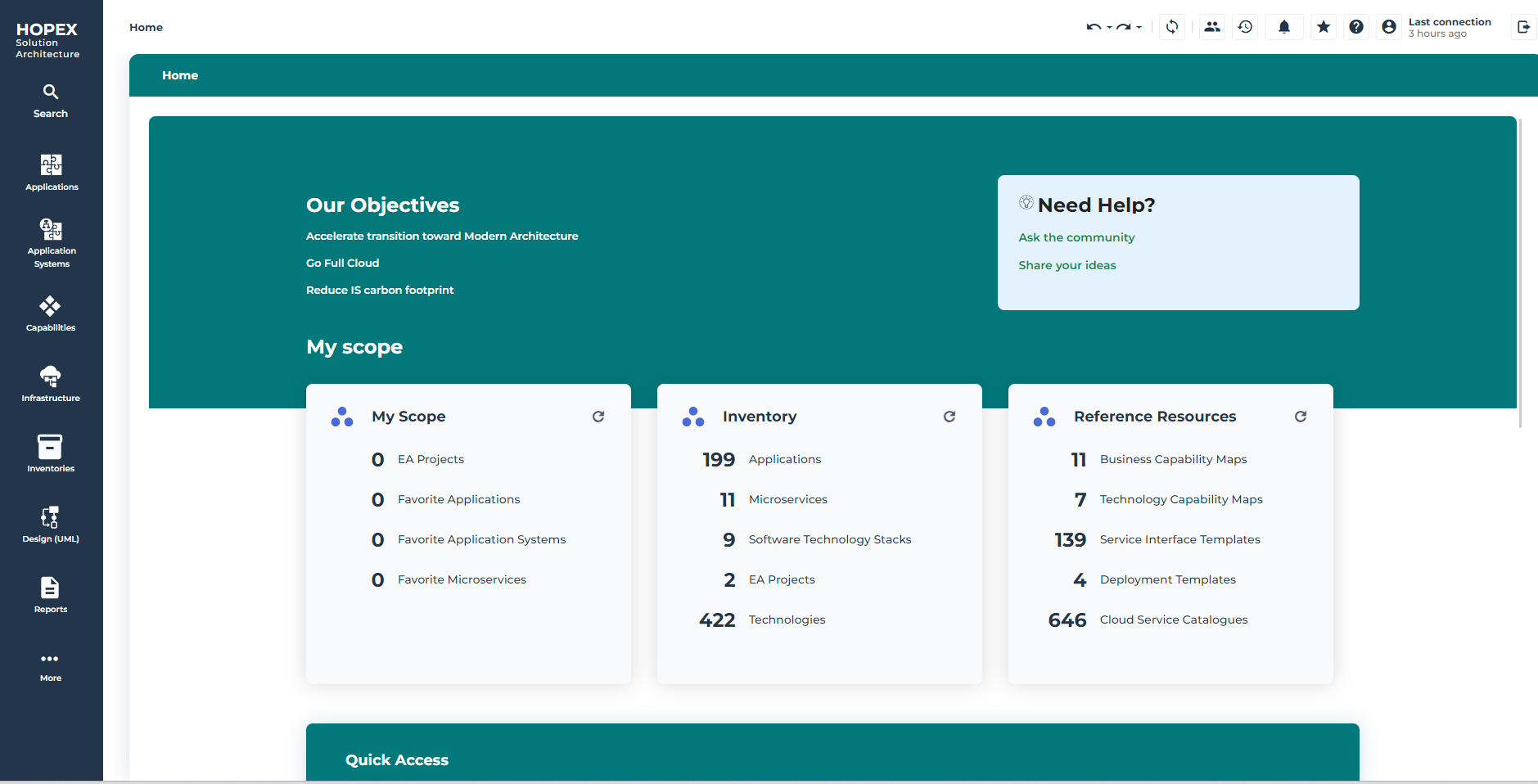
The Applications menu
The Applications menu gives access to all the repository applications.
For more information about the description of applications, see Describing an Application with Hopex IT Architecture.The Application Systems menu
The Application Systems menu gives access to all the repository application systems.
For more information about the description of applications, see Describing System architecture.The Capabilities menu
The Capabilities menu gives access to the following subjects.
• Business capability, to describe business capabilities and business capability maps.
For more details on logical architectures, see Describing Business Capabilities with Hopex IT Architecture.• Functionalities, to describe the functionality maps of the information system.
For more details on functionalities, see Using Functionalities with Hopex IT Architecture.The Infrastructure menu
The Infrastructure menu gives access to subjects related to infrastructures.
For more details on infrastructures, see Modeling IT Infrastructures.• IT infrastructure, to describe the IT infrastructure elements.
For more details on infrastructures elements, see Describing IT Infrastructures.• Resource architecture, to describe the elements constituting a resource architecture.
For more details on resource architectures, see Describing Resource Architectures.• Resource configuration, to describe the server and network technical elements.
For more details on resource configuration, see Describing a resource configuration.The Inventories menu
The Inventories menu gives access to the following subjects.
• Software theme, giving access to the following elements:
• Application services,
 An IT service is a software component of an application, that can't be deployed alone and that realizes a sub-set of the functionalities of this application either for end users of this application or inside the application (or another application). This includes batch programs.For more details on applications services, see Describing an IT Service.
• Microservices,
A microservice is a software component that can be deployed autonomously, but which does not directly provide an end user service. It can interact with other application services, applications or application systems. This is a deployable software component that uses software technologies. For example: an authentication service, a PDF file printing service.For more details on microservices, see Describing a Microservice with Hopex IT Architecture.• System processes,
A system process is the executable representation of a process. the events of the workflow, the tasks to be carried out during the processing, the algorithmic elements used to specify the way in which the tasks follow each other, the information flows exchanged with the participants.For more details on system processes, see Describing System Processes.• Business Service Catalogs to describe the services provided by the businesses to the users.
For more details on service catalogs, see Using service catalogs.• Communication systems
A communication system helps to identify and describe the main integration processes using several Software Communication Chains as well as communication services.For more details on communication systems, see Using communication systems.• Logical software architecture, to describe the elements contained in the information system logical architecture.
For more details on logical architecture, see Describing Logical Application Architecture.• Deployment to describe the elements linked to the deployment of an information system.
• Technology Capabilities
A technology capability is the ability to deliver a technology service which is required by a technology artifact or an application.For more information on the use of technology capabilities, see Describing a technology capability.• Software Technologies to describe the technical elements of the information system.
For more details on software technologies, see Describing Software Technologies.• Cloud service catalogs
For more details on Cloud service catalogs, see Using Cloud Services.• Technology service catalogs
For more details on technology services catalogs, see Using Cloud Services.• Infrastructure theme, giving access to the following themes:
• Facilities,
A facility is a model of site of interest for the enterprise. Examples: Data Center, Factory or OutletFor more details on facilities, see Describing a Facility.• Computing Networks,
An IT network is set of IT equipment components (e.g.: routers, switches, firewalls) that allow remote communications between computing devices (e.g.: IT server). An IT network can be broken down into sub-networks.for more details on computing networks, see Describing an IT network.• Computing Devices
An IT network is set of IT equipment components (e.g.: routers, switches, firewalls) that allow remote communications between computing devices (e.g.: IT server). An IT network can be broken down into sub-networks.For more details on computing devices, see Describing a Computing Device.• Network Devices,
An IT network is set of IT equipment components (e.g.: routers, switches, firewalls) that allow remote communications between computing devices (e.g.: IT server). An IT network can be broken down into sub-networks.for more details on computing networks, see Describing a Computer Network Device.• Data, to describe the business data.
For more details on business data management, see Managing Data.• Business dictionaries
A business dictionary collects and structures a set of concepts that expresses the knowledge of a particular area. For more details on business dictionaries, see the Hopex Data Governance guide.• Data Dictionaries
A data dictionary describe all the elements defining your logical data architecture. For more details on data dictionaries, see the Hopex Data Governance guide.• Information Service Catalogs to describe the user services offered by the information system.
For more details on service catalogs, see Using service catalogs.• Hardware to describe all hardware elements of the information system.
• Hardware Capabilities, to access the functionalities related to hardware elements.
A hardware capability is the ability to deliver a physical outcome which is required by an organizational resource in order to perform its work. This hardware capability is generally necessary within a computing process in order to execute a specific operation.For more information on the use of technology capabilities, see Describing a hardware capability.• Hardware,
Non-IT Hardware can embed computers. Together with their embedded computers, they provide information and IS services. Examples: Connected Truck with Delivery Calendar Application and connected Drone with Online Payment Application. Hardware device can also provide hardware functionalities. Example: Connected fridge providing ordering functionalities and of course a freezing hardware functionality and connected drones fly and provide Online Payment.for more details on computing networks, see Describing an Hardware.• Hardware services Catalogs.
For more details on hardware services catalogs, see Using Cloud Services.• All Sketches, to access all the sketches of your repository.
For more details on the use of sketches with Hopex IT Architecture, see Creating a Sketching diagram with Hopex IT Architecture.The Design (UML) menu
The Design (UML) menu gives access to the following submenus:
• OO Implementation (UML), to design you IS using the UML formalism.
For more details on the use of UML concepts, see About UML implementation.Depending on the options selected, two submenus are also available:
To see these submenus, open the Options window and check that IT Architecture > User Interface and Batch Features (ADES) is selected.• Submenu Batch and Program Implementation,
For more details, see Describing Batch Processing.• Submenu User Interfaces.
For more details on describing user interfaces, see the Defining User Interfaces.The Reports menu
The Reports menu gives access to all the reports contained in each Solution.
For more details on the use of these reports, see "Generating Reports”.The Governance menu
Governance gives access to the following submenus.
• Policy framework, to access the frameworks that define the company policy.
For more details on Policy Frameworks, see Define a Policy Framework with Hopex IT Architecture• EA Projects, to access the project management features.
For more details on managing ideas and projects, see Enterprise Architecture (EA) projects in Hopex.• Action Plans, to describe and manage the action plans linked to the transformation of the information system.
For more information on managing action plans, see Using Action Plans.The Environment menu
The Environment menu gives access to the following submenus:
• Containers, to access the Libraries and Enterprises management features.
• Organization, to access the main objects handled in the Hopex IT Architecture Solution.
• Business Lines,
A business line is a high level classification of main enterprise activities. It corresponds for example to major product segments or to distribution channels. It enables classification of enterprise processes, organizational units or applications that serve a specific product and/or specific market.• Process Categories,
A process category defines a group of processes. It is linked to a Process Map or higher level Process Category. It regroups several processes and/or other categorized elements (e.g. Value Streams, Applications). It serves as an intermediate categorization level in the process hierarchy, so as to provide a guided and progressive access to finer grained processes.• Processes
A process is a set of operations performed by org-units within a company or organization, to produce a result. It is depicted as a sequence of operations, controlled by events and conditions. In the BPMN notation, the process represents a sub-process from the organizational point of view.• Sites
A site is a geographical location of an enterprise. Examples: Boston subsidiary, Seattle plant, and more generally the headquarters, subsidiaries, plants, warehouses, etc.• Org-Units.
An org-unit represents a person or a group of persons that intervenes in the enterprise business processes or information system. An org-unit can be internal or external to the enterprise. An internal org-unit is an organizational element of enterprise structure such as a management, department, or job function. It is defined at a level depending on the degree of detail to be provided on the organization (see org-unit type). Example: financial management, sales management, marketing department, account manager. An external org-unit is an external entity that exchanges flows with the enterprise. Example: customer, supplier, government office.• My RFC's
• Ideas, to access the features of library and environment management.
If you own the associated license, Ideas provides access to idea management facilities.
For more details on managing ideas and projects, see Submitting and evaluating ideas.• Common, to access to following objects:
• Tags
A tag is a classifying description used to characterize objects.For more details on the use of tags, see Platform - Common Features > Collaboration Tools > Communicating in HOPEX.• Report DataSets
A Report DataSet is a set of data extracted from the HOPEX repository and used as a data source in reports.For more information, see Platform - Common Features > Documentation > Generating Documentation > Managing Report DataSets.• All Sketches, to access all the skectches of your repository.
A sketching diagram is a drawing that enables you to exchange with your coworkers without an issue of methodology or formalism.For more details on the use of sketches with Hopex IT Architecture, see Creating a Sketching diagram with Hopex IT Architecture.Administration Menu
The Administration menu gives access to the following submenus:
• Templates giving access to templates associated with the following components:
Presenting the Solution Architecture Functional Administrator workspace menus
The activities offered only to users connected with the Solution Architecture Functional Administrator profile are:
• Administration, via the Administration menu,
Presentation of the Application Designer workspace
The menus offered when using the Application Designer profile are similar to the ones of the Solution Architect profile.
However, the users signed-in as an Application Designer can modify object properties but can not modify diagrams.
Presenting the Application Viewer workspace
The navigations menus available for the users signed-in as Application Viewer are identical to the menus available in the Solution Architect profile.
However, users signed-in as Application Viewer can only access objects in read-only mode.