Interface Elements
The interface displays the elements specific to the profile with which you are connected.
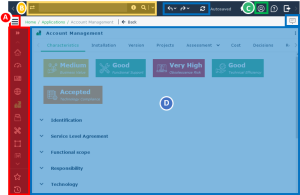
Navigation menu and panes
 To handle the navigation panes, see Handling Navigation Panes.
The navigation menu  gives access to navigation panes that vary according to the solution and the connection profile.
gives access to navigation panes that vary according to the solution and the connection profile.The navigation panes correspond to the various types of objects or various steps of a project.
Most of HOPEX profiles have access to the following navigation panes:
• Home: provides quick access to user objects.
• Dashboards: displays the list of indicators required to steer objects such as processes, applications, or org-units.
• Reports: gives access to dynamic reports, which enable repository data analysis under different perspectives.
• Collaboration: gives quick access to all of the collaboration features.
• Favorites: gives quick access to your favorites and to shared favorites.
See Managing Favorites.• History: gives quick access to all of the objects you have accessed.
See Using the History.Example
In HOPEX IT Portfolio Management, the desktop of the application portfolio manager displays the following navigation panes:
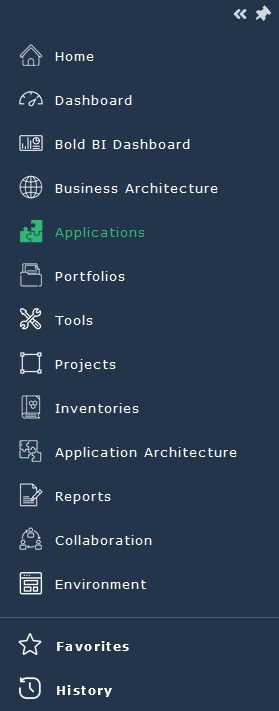
Hover the cursor over a navigation pane to access its specific object list.
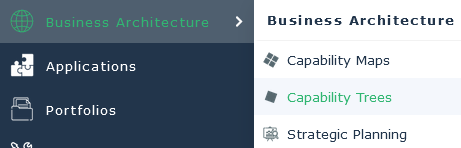
Hovering the cursor over the Business Architecture pane gives access to Capability Maps, Capability Trees, and Strategic Planning classifications.
Each classification is shown as a tree, tiles or lists giving access to the objects they comprise.
E.g.: with the Capability Trees classification you can access the Business Capability Maps.
Breadcrumb
 To share your breadcrumb (i.e. your navigation) with other users, see Sharing your breadcrumb.
A breadcrumb is available on all HOPEX desktops. It keeps the last pages that you viewed so you can reopen them easily if needed. It is reset on each change of navigation page.
 The breadcrumb trail is especially useful when you display an object properties from another object property pages With the breadcrumb trail you can easily return to the property pages of the first object.
With the breadcrumb trail you can go back to:
• the last page consulted: click Back.
• another page, in the breadcrumb, click the name of the page.
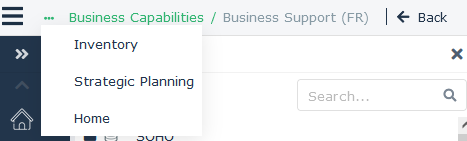
You can also click Back several times.• an older page from the same navigation pane, in the breadcrumb, click ... then select the page you want to access.
Main menu
The Main Menu  , represented by your avatar, gives access to:
, represented by your avatar, gives access to:• your connection information:
• name
• Profile
• Repository
• Environment
You can modify your avatar, see Modifying your avatar.• your HOPEX connection and use parameters:
• password modification
• options (user level)
• alert management
See Notifications.• detail of your licenses
• HOPEX version installed
The Main Menu allows you to:
allows you to:• change profile, without disconnecting
• save your work underway
See Saving your Work.• change data language.
• define or modify your current library
• reset your personal parameters
• change the theme (style sheet) of your desktop
• access the community
The Main Menu gives you access to actions that concern:
gives you access to actions that concern:• (Private workspaces) dispatching
You can dispatch, refresh, or discard your work at any time. For more details on dispatching and refreshing, see Working in a Private Workspace.• import/export tools
See HOPEX Administration (Web) > Importing - Exporting a command file documentation.See the Import and Export (EN) Technical Article.• the mapping editor
See Data Model Mapping.• the advanced search
See Advanced Search.