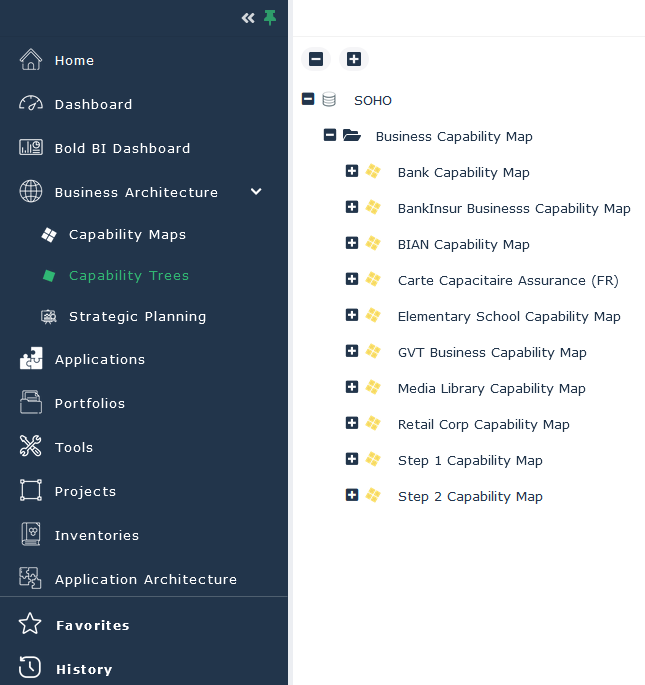
Handling Navigation Panes
By default, the navigation panel is reduced to icon size to avoid the congestion of your work space.
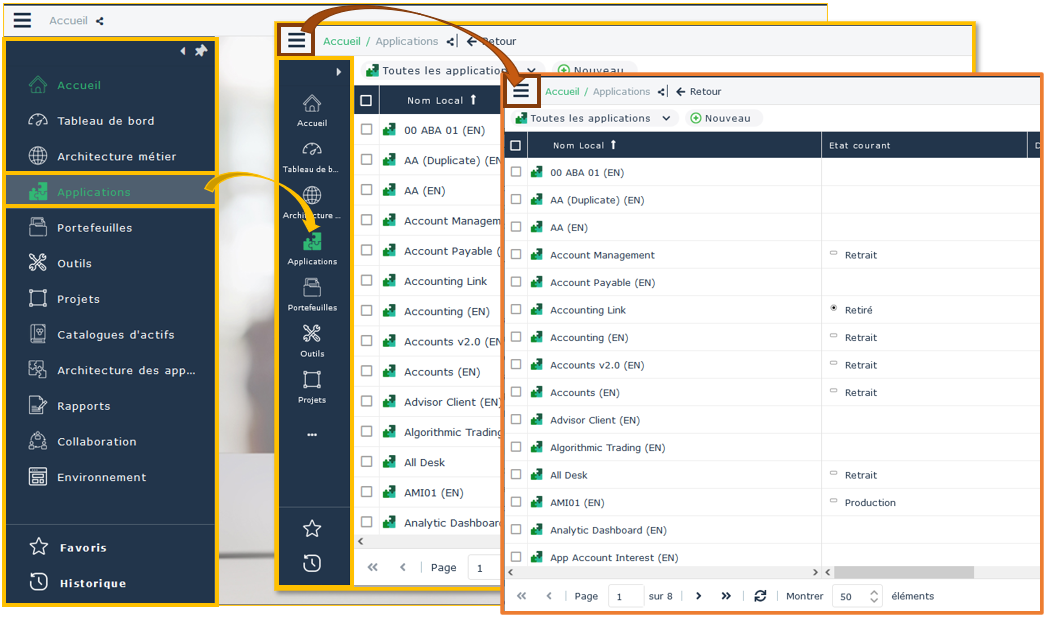
You can:
• manipulate the navigation panel to display all its tabs
• fully hide the navigation panel
• show back the navigation panel
• widen the navigation panel
• anchor the widened navigation panel
You can then:
• keep the panes permanently entirely displayed, or
• collapse them to icon size
Handling the navigation panel (when collapsed)
When the navigation panel is collapsed to icon size, only the first navigation panes are displayed.
To display all navigation panes:
1. Below the last navigation pane icon, click See more  .
.
. 2. Use the mouse wheel (or the navigation arrows) to navigate through panes.
Hide/Display the navigation panel
To hide/display the navigation panel:
 When the navigation panel is displayed (widened or collapsed), click the navigation menu
  .
.The navigation panel is hidden and the edit area takes up the whole space.
 If needed, use the breadcrumb trail to go back to the previous page.When the navigation pane is hidden, click the navigation menu .
 The navigation pane displays.
Expanding the navigation panel
By default, the navigation panel is reduced to icon size and only the first navigation pane icons are displayed.
To expand the navigation panel:
In the navigation panel, click Expand panel  .
.The navigation panel expands and shows the navigation panes contained in See more .
.As soon as you click a navigation pane, the panel collapses back to icon size.
It is possible to pin the panel, see Pinning the navigation panel.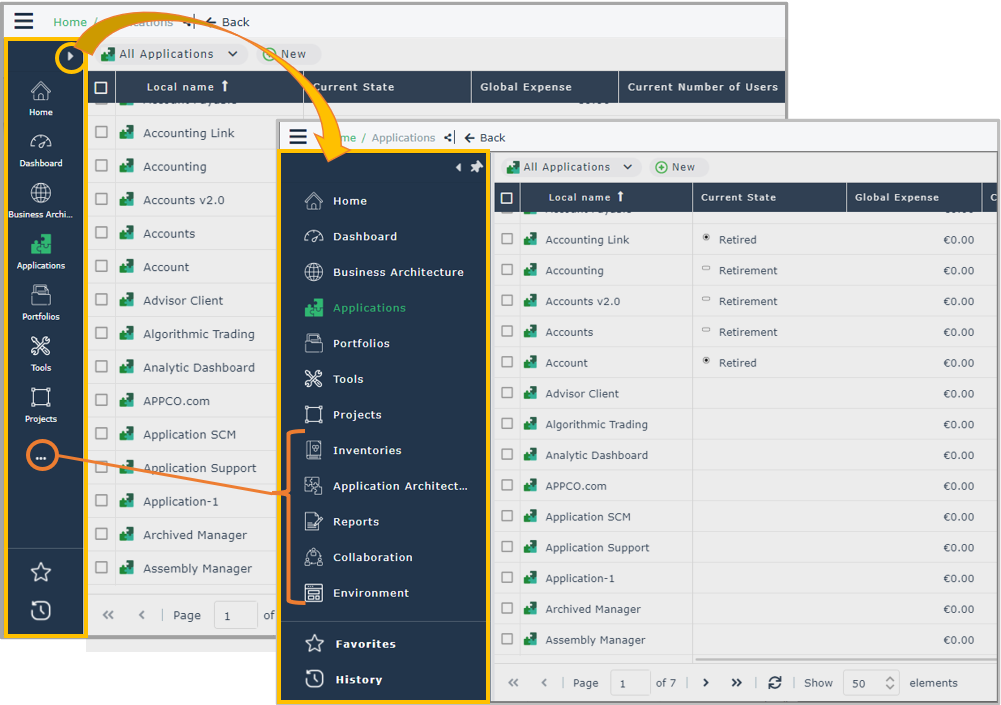
Pinning the navigation panel
You can modify the default configuration, i.e.:
• pin the navigation panel
• manually manage the navigation panel size:
• fold/unfold the panel
• hide the panel
To pin the navigation panel:
1. Expand the navigation panel.
2. In the navigation panel, click Pin  .
.
.The navigation panel is pinned  .
.
. When you select a navigation pane, the panel remains entirely displayed and sub-panes expand.
To get back to default configuration, click Unpin.