Description of a Profile
A profile enables definition of the same connection parameters and rights to a set of users.
The description of a profile includes:
• the definition of the profile
• the definition of the profile assignment to a person
 See Profile Properties.
Definition of the profile
A profile defines the function of a person or person group in the enterprise
E.g.: Application Portfolio Manager, Enterprise Architect.
The profile defines:
• the products accessible
 The command line of each profile is also described in the online documentation: Concepts > Profiles.
 If a user already has restricted access rights to products (see Viewing the Login Characteristics), the products accessible to this user are at the intersection of values of the Command Line attribute of the user login and profile.
• the desktops to which the user can access.
See Connection Diagrams.See Assigning a WET to a profile or Defining the applications accessible to the users of a profile (non WET-based configuration).• the user's access rights to UIs (permissions)
• the same options for all the users connected with this profile
See Options.Profile assignment
You must assign each person at least one profile so that this person can connect to HOPEX.
By default, no profile is assigned to a person or person group.Assigning a profile to a person or a person group defines:
• the repository concerned by the assignment
• the person's data access rights (reading, writing) with this profile assignment
• (optional) the validity period of the assignment
Connection Diagrams
The connection diagram relies on the desktop creation, that is whether the desktop is based on a Work Environment Template (WET) or not.
Connection diagram (with WET)
Using a Working Environment Template (WET) enables to homogenize the display of the desktops.
For detailed information regarding the WET creation, see HOPEX Power Studio - Versatile Desktop documentation.To connect to HOPEX, a person must have:
• a login
See Creating a User.The login status must be active so the person can connect, see Status (Login).• at least one profile
The profile gives access to one or several WET-based desktops.
At least one WET (with one or several associated desktops) must be assigned to the profile. A desktop manager enables to define the desktops associated with this WET-profile assignment.
In a non WET-based configuration, applications (and their associated desktops) are connected to the profile.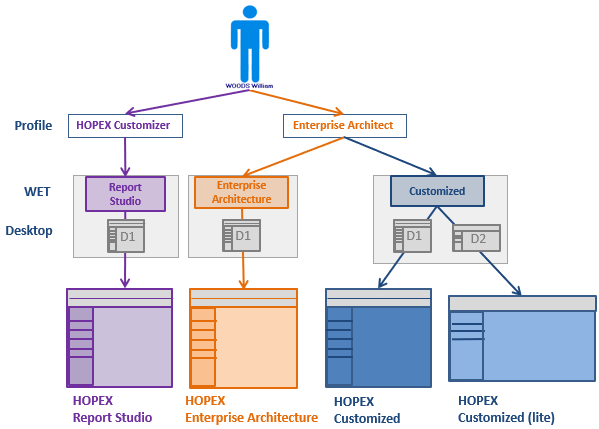
In the above example, William WOODS has an active login. He can connect to:
• HOPEX Report Studio with the HOPEX Customizer profile.
• HOPEX Enterprise Architecture with the Enterprise Architect profile.
• HOPEX Customized with the Enterprise Architect profile and choose a device (computer or tablet) adapted display.
Connection diagram (without WET)
To connect to HOPEX, a person must have:
• a login
See Creating a User.The login status must be active so the person can connect, see Status (Login).• at least one profile.
So that a user of a profile can connect to an application, you must connect this application to the profile concerned.
All desktops connected to the application are then accessible.
To modify a profile provided by MEGA, see Customizing the Characteristics of an Existing Profile / Creating a Profile from an Existing Profile.To enable access to only certain desktops of the application, see Restricting access to the desktops of an application.Example:
A1 application is connected to P1 profile and A2 application is connected to P2 profile.
None of the desktops of A1 and A2 applications are directly connected to P1 and P2 profiles.
The user U1, who is assigned the P1 and P2 profiles, has access to all of the desktops of A1 and A2 applications.
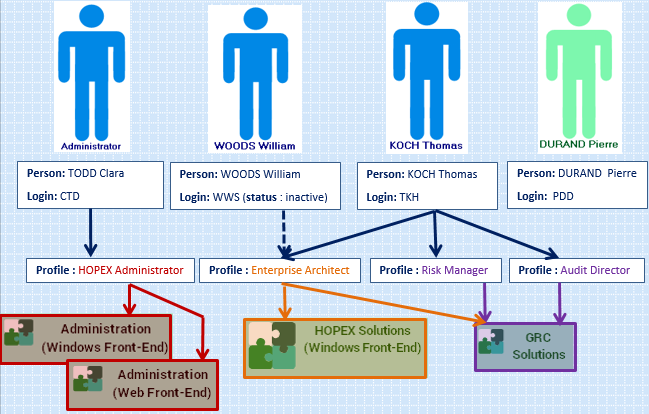
In the previous example:
• Clara TODD has a login and the HOPEX Administrator profile assigned:
she can connect to Administration applications (Windows Front-Endand Web Front-End).
• William WOODS has the Enterprise Architect profile assigned but the status of his login is inactive:
he cannot connect to HOPEX.
• Thomas KOCH has a login and the Enterprise Architect, Risk Manager and Audit Director profiles assigned:
he can connect to HOPEX Solutions (Windows Front-End) and GRC Solutions applications.
• Pierre DURAND has a login but does not have an assigned profile:
he cannot connect to HOPEX.
Restricting access to the desktops of an application
A user can connect to an application via customized desktops according to actions to be performed.
If an application contains several desktops, you can specifically define application desktops that are accessible to the concerned profile. To do this, you must connect to the profile:
To modify a profile provided by MEGA, see Customizing the Characteristics of an Existing Profile / Creating a Profile from an Existing Profile.• the application containing the desktops.
• the desktops you want the users of the profile can connect to.
The application desktops that are not connected to the profile are not accessible to users of the profile.
To enable access to only certain desktops of the application, see Defining the application desktops accessible to the users of a profile (non WET-based configuration).Example:
P1 profile is connected to:
- A1 application, which particularly includes D1, D2, D3, D4, and D5 desktops.
- D2 and D5 desktops of the A1 application.
User U1 with the P1 profile can connect only to the D2 and D5 desktops of the A1 application. He is not allowed to access D1, D3, and D4 desktops.