Assessing Risks Directly
Direct assessment provides, at a given date, assessment of a risk on an entity of the organization.
In direct assessment, the values of the characteristics can be specified in two ways:
• in risk properties: Creating a Direct Assessment on a Risk
• globally, via a heatmap: Assessing Multiple Risks Simultaneously
Direct assessment is carried out for all entities or applications available in the Scope section of the risk properties.
 See also: Starting an Assessment Campaign.
Direct Risk Assessment Templates
HOPEX Enterprise Risk Management provides risk assessment templates in the context of the following objects:
• entity and process
• application
Assessed characteristics

Example of assessed characteristics:
• Impact
• Likelihood
• Control Level
• Residual risk
Respondents
Respondents can be:
• Risk Responsible users (on risks), or
• Risk Assessors (on entities or processes)
It is possible to define several respondents.For futher details, see Prerequisites to Risk Assessment.Questionnaire
The questionnaire relates to characteristics to be assessed for all risks determined as objects of assessment:
• Impact
• Likelihood
• Control Level
Creating a Direct Assessment on a Risk
You can create new assessments to assess a risk on all objects of the organization to which it is connected.
This is an "expert view" assessment.
To create a direct assessment on a risk:
1. Select the risk and open its properties.
2. Select the Evaluation page.
3. Click New Assessment.
A page offering to select context(s) appears if several contexts are available for the risk concerned.4. Assign characteristics values for the risk being assessed:
• Impact: the impact of the risk when it occurs.
• Likelihood: the probability that the risk will occur.
If the risk has already been assessed, impact and likelihood values from the last assessment are suggested. You can modify these values for the new assessment.• Control Level
If the risk has already been assessed, a Control Level value is also suggested. For more information, see Risk Control Level.5. Specify the Assessment Date if necessary.
6. Click OK.
An assessment is created.
Assessing Multiple Risks Simultaneously
You can assess several risks simultaneously via an interactive heatmap.
To assess several risks simultaneously:
1. From the navigation bar, select Assessment > Direct Assessment > Risk Multiple Assessment Table.
2. Click New Assessment.
3. In the window that appears, select the Assessment template:
• Risk Assessment by Entity and Process
• Assessment of risks by application
4. In the displayed tree, select the objects that define the assessment context (entity or application, depending on the selected template).
A risk is assessed in the context of elements of the branch from the risk up to the root.To help you choose the risks to be assessed, the following information is displayed in columns:
• Last assessment
• Residual risk
• Open Incidents
• Forecast risk
This information is also available in the risk dashboard. For further details, see Risk Overview. 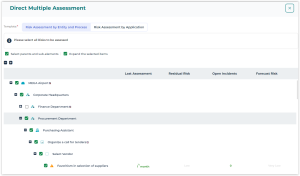
In the above example, if you select the “Procurement Department”, the following objects are also selected:
- all the risks and context objects at a lower level
- all parent context objects up to the root of the tree.
- all the risks and context objects at a lower level
- all parent context objects up to the root of the tree.
If you deselect a node of a branch, only the child elements of this branch are deselected.5. Click OK.
If assessments have already been carried out, the most recent assessment values are presented in columns.A heatmap appears. It enables to assess risks visually.
6. (first screen) Position the risks on the heatmap so as to specify:
• the Impact (from very low to very high), vertically
• the Likelihood (from rare to certain), horizontally
Values entered during the last assessment are displayed. 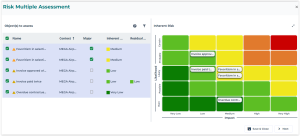
7. Click Next.
8. Specify the Control Level (from effective to inexistent).
Vertically, you find the Inherent risk, which was computed in the previous screen.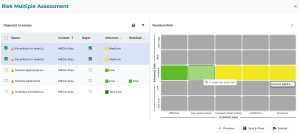
9. When done, click Submit.
You can also choose to save and close the questionnaire to resume the assessment later on. In this case the questionnaire is saved in the Ongoing Direct Assessment list.For more details, see Using Heatmap Questionnaires in the Common Features section.When submitting, an assessment is created in the Assessment page of the risk properties. For further details, see Displaying Risk Assessment Results.