Interface Elements
The general aspect of the interface is common to all Solutions. However, every area contains elements that are specific and adapted to the profile you are using.
Navigation menus
Navigation menus vary according to the Solution you use. They correspond to the various types of objects or various steps of a project.
E.g.: HOPEX Enterprise Architecture.

[If applicable] Click More  to show the menus that are not initially displayed on the navigation bar. If the list of menus is even longer, you can navigate through the navigation bar using the arrows
  . To scale back to the initial list of menus, click Less .
to show the menus that are not initially displayed on the navigation bar. If the list of menus is even longer, you can navigate through the navigation bar using the arrows . To scale back to the initial list of menus, click Less .The Browse  button appears when hovering the cursor over certain navigation menus.
button appears when hovering the cursor over certain navigation menus. See Browse area.
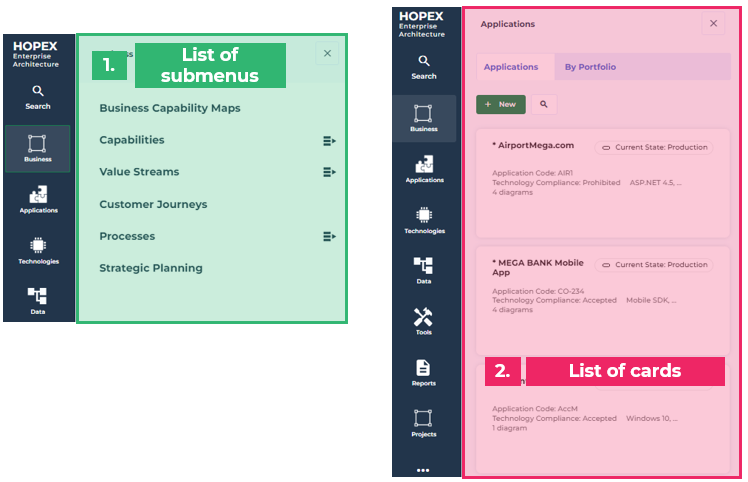
Example 1: submenus displayed from the Business navigation menu with the Enterprise Architect profile.
Example 2: cardlist displayed from the Applications navigation menu with the Enterprise Architect profile.
Browse area
In the browse area, navigate through the repository irrespective of your actions in the edit area. In it, you can find:
• submenus
See Navigation menus.• a list of cards
• a tree
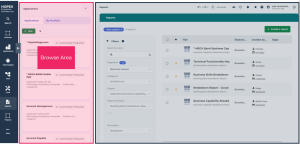
E.g.: on the Enterprise Architecture desktop, navigation in the browse area in parallel to a report edition.
You can access the browse area:
• from the navigation menus
 Click the navigation menu of your choice or the Browse button appearing when hovering the cursor over a navigation menu.
• from a list header in the edit area
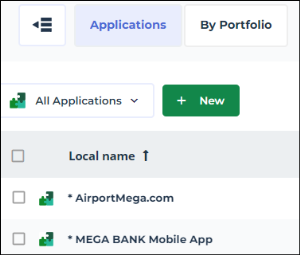
E.g.: from a list of applications with the Enterprise Architect profile.
In the browse area, you can:
• navigate through an object environment
• drag & drop objects into a diagram
Main menu
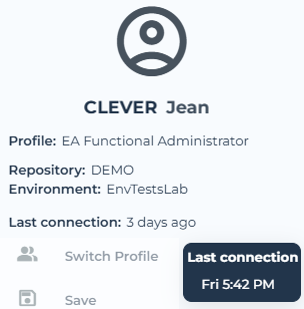
The Main Menu  , represented by your avatar, gives access to:
, represented by your avatar, gives access to:• your connection information:
• Name
• Profile
• Repository
• Environment
• Last connection (time elapsed since last connection, its tooltip shows the exact date/time)
 To modify your avatar, see Modifying your avatar.
• your HOPEX connection and use parameters:
• modification of your password
• modification of your options (user level)
See Option Groups.• management of your alerts
See Notifications.• detail of your licenses
• HOPEX version installed
The Main Menu allows you to:
allows you to:• change profile, without disconnecting
• save your work underway
See Saving your Work.• change data language.
• define or modify your current library
• reset your personal parameters
• access the community
The Main Menu gives you access to actions that concern:
gives you access to actions that concern:• (Private workspaces) dispatching
You can dispatch, refresh, or discard your work at any time. For more details on dispatching and refreshing, see Working in a Private Workspace.• import/export tools
See the Import and Export (EN) Technical Article.• the mapping editor
See Model Mapping.• the advanced search
See Advanced Search.