Desktops of HOPEX IT Business Management
The menus and commands available in HOPEX IT Business Management depend on the product licenses that you have and on the profile with which you are connected.
 For more details on using platform for HOPEX solutions, see the HOPEX Common Features guide.
Presentation of space common to all profiles
All users, with the exception of users connected with the Contributor and Viewer profiles, have a HOPEX IT Business Management desktop and access to the following panes:
• Home: presents the main tiles useful for the user.
• Dashboards: displays the list of indicators required to steer objects such as processes, applications or org-units.
• Bold BI Dashboards: displays the list of dashboards build in your environment with the Bold BI application.
The Bold BI web application is available in a module provided on the HOPEX Store. This application allows you to customize your dashboards.• Reports: gives access to the group of reports available for each solution.
For more details on the use of reports, see Generating Analysis Reports.• Collaboration: gives access to all collaborative tools provided by HOPEX.
For more details on the use of collaborative tools, see Access to Collaboration in HOPEX.HOPEX IT Business Management Home space proposes a add tile button  .
.
.The panes provide access to the following menus:
• History: contains all the objects you access or modify.
For more details on the use of history, see Using the History.• Favorites: to access to important objects and to usual actions.
For more details on the use of favorites, see Managing Favorites. Presentation of the IT Business Manager desktop
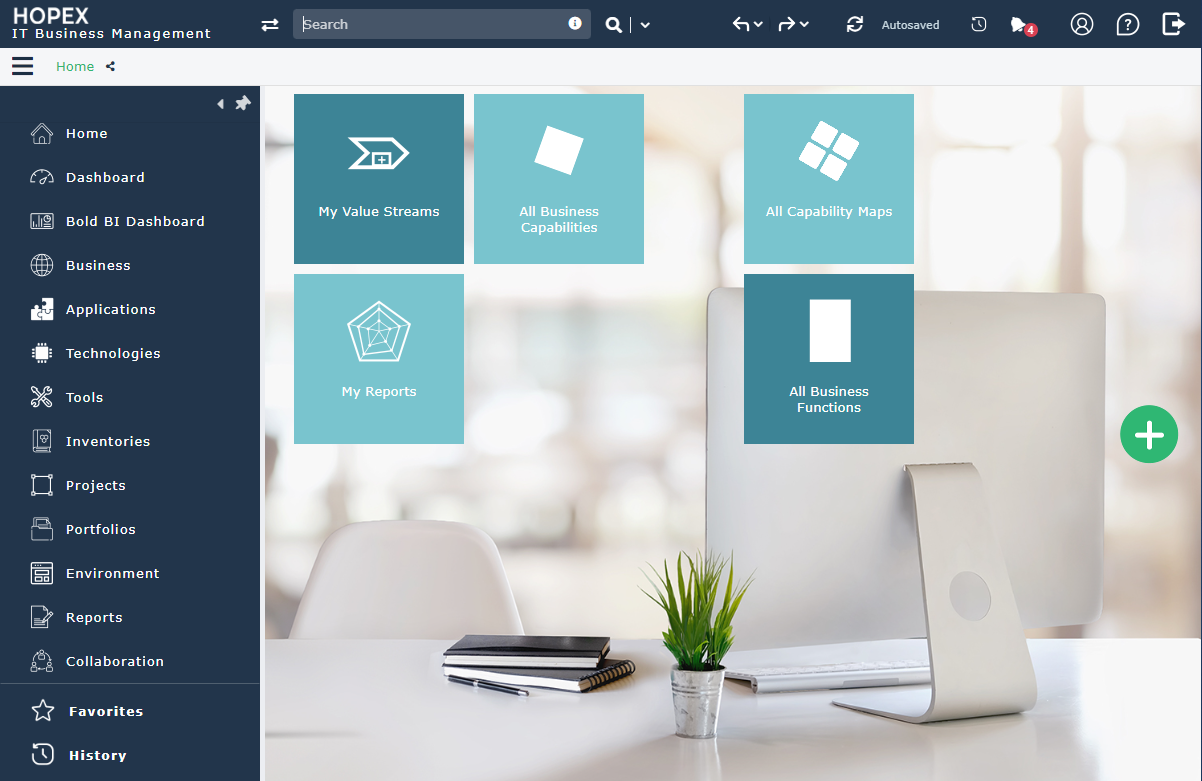
In addition to the panes offered in standard mode to all HOPEX IT Business Management desktop users, the users connected with the IT Business Manager profile have access to the following panes:
The Business pane
The Business pane provides access to the following menus.
• Capability Maps, to access the business capabilities, business capability maps and business capability trees of the company.
• Value Stream, to access value streams of the company,
• Customer journey;, to describe solutions for improvement and to assess them at different dates.
 A customer journey is used to describe and organize all interactions between the enterprise and a persona for a given result.
• Strategic Planning to see the hierarchical decomposition of Enterprises under study,
• Policy Framework, to describe business policy frameworks that define a set of business policies.
For more information, see HOPEX Data Governance guide.• Regulatory Frameworks, to get the inventory of Regulatory Frameworks.
For more information, see HOPEX Data Governance guide.The Applications pane
The Applications pane provides access to the applications of your repository, see Drawing up an Application Inventory.
The Technologies pane
The Technologies pane provides access to the technologies of your repository, see Drawing up a Technology Inventory.
The Tools pane
The Tools pane provides access to the following menus.
• Assessments, to manage the assessments of your application assets, see Evaluating Application Assets.
The Projects pane
The Projects pane provides access to the following menus:
• EA Projects, to access the management features for projects.
For more details on managing ideas and projects, see Enterprise Architecture (EA) projects in HOPEX.• Ideation: to access the functionalities for Ideation.
For more details on managing ideas and projects, see Submitting and evaluating ideas.• Project Portfolios, to access the project portfolio management functionalities offered with the HOPEX IT Portfolio Management product.
For more information, see HOPEX IT Portfolio Management guide.The Inventories pane
The Inventories pane provides access to the following menus.
• Business Architecture Environments to display the Environments tree view and their breakdown into components by stage as well as several reports;
• Business functions, to describe the business functions and business function areas in the company,
• Business Partners, to describe the business partners and business partner groups in the company,
• Technology Stacks, to list technology stacks.
A software technology stack is a set of software technologies.For more details on technology stacks, see Defining a Technology Stack.• Deployed Assets: to describe the enterprise infrastructure landscapes.
• Server Types: provides access to the IT Servers
An IT Server is an IT component providing a service to users connected via an IT network. This IT component can house databases and run applications.For more details on description of IT servers, see Describing a Computing Device.• Data: provides access to all the reports dedicated to the service catalogs.
The Portfolios pane
The Portfolios pane provides access to the following menus.
• Application,to access the application portfolio management functionalities offered with the HOPEX IT Portfolio Management product.
For more information, see HOPEX IT Portfolio Management.• Technologies, to access the technology portfolio management functionalities offered with the HOPEX IT Portfolio Management product.
• Smart Analyses, portfolio application assessment tool
For more information, see SMART Analyses.The Environment pane
The Environment pane provides access to the following menus.
• Libraries, to access the management features for libraries and Environments.
For more details, see Preparing the Work Environment HOPEX IT Business Management.• Application Risks, for accessing the risk management features offered with the HOPEX Risk Mapper product.
For more details on managing risks with HOPEX Risk Mapper product, see HOPEX Business Process Analysis guide.Presentation of the ITPM Functional Administrator space
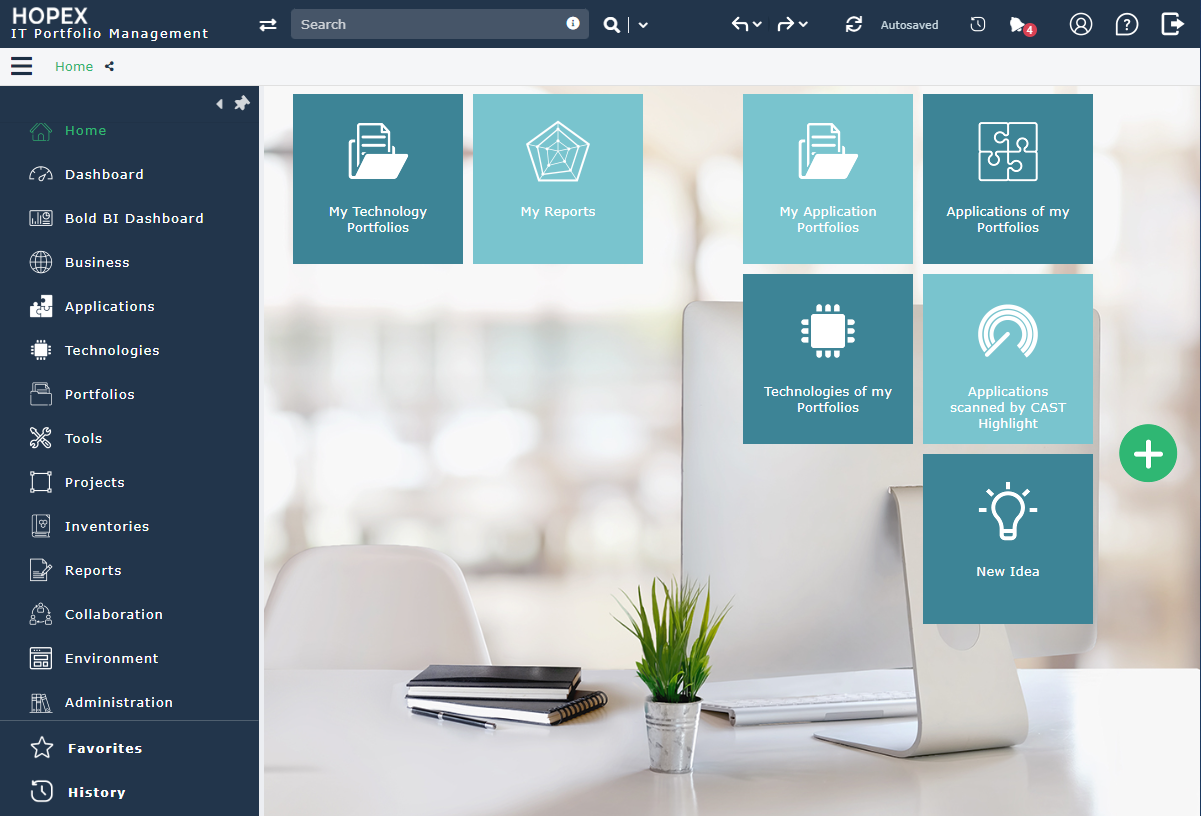
In addition to the panes offered in standard mode to all HOPEX IT Business Management users and users connected with the IT Business Manager profile, the users connected with ITPM Functional Administrator profile have access to the panes described below:
The Application Architecture pane
The Architecture pane provides access to the creation and management functionalities.
The Administration pane
The Administration pane provides access to the user management features. The rights of different users on objects of imported libraries depend on their assigned profiles.
For more details on managing users, see Managing Users.Switching Between Profiles with HOPEX IT Business Management
To switch between profiles with the HOPEX solutions, see Customizing your Personal Parameters.