Diagram Toolbars in Edit Mode
In edit mode, the diagram bars are:
• at the top:
• a diagram toolbar
• a text editing bar
• to the left
• a diagram editing bar
• an object inserting bar
• to the right
• a shape editing bar
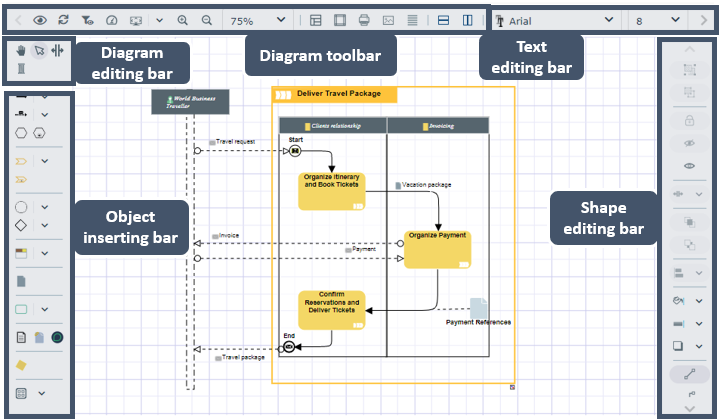
Diagram toolbar (top left)
The diagram main toolbar includes diagram tool buttons.
Icon | Description |
|---|---|
 | Return to Vew mode of the diagram See Opening Diagrams. |
 | Refresh diagram |
 | Views and Details To define the types of objects to be displayed in diagrams |
 | Quality and performance settings To change the image format: SVG (by default), PNG (for a better quality), or GIF (to improve performance) format |
 | Fit to page Fits diagram to the page: - Fit to height - Fit to width |
 | Zoom in/Zoom out Performs a zoom in / zoom out |
 | Zoom value To define the zoom percentage, or to display the full diagram See Zooming. |
 | Display page limits To display the diagram pages |
 | Diagram layout Enables diagram layout |
 | Print diagram Displays the diagram as a PDF file, which enables to print it See Printing a Diagram. |
 | Save the picture as Enables to save the diagram as a picture in *.png, *.svg, *.emf, or *.jpg format |
 | Diagram properties Displays the diagram properties in a pop-up window |
 | Reinitializing components Adds the components created during the diagram initialization |
Diagram text editing bar (top right)
The diagram text editing bar enables to edit any text included in the diagram. It includes the standard text editing buttons and the following other buttons:
Icon | Description |
|---|---|
 | Increase font size |
 | Reduce font size |
 | Rotate left 90° |
 | Rotate right 90° |
 | Word-wrap text Enables to automatically wrap the text to a new line if it does not fit on one line |
 | Automatic width adjustment Enables automatic resizing of the frame according to the text |
Diagram editing bar (left)
The toolbar to the left of the diagram includes diagram editing buttons.
Icon | Description |
|---|---|
 | Move To move the diagram though the page See Moving a Diagram. To zoom using the mouse wheel See Zooming. |
 | Select To select an object in the diagram, then perform actions on this object See Selecting Elements. |
 | Add/Remove space To adjust the space between objects |
 | Link To connect objects |
Diagram object inserting bar (left)
The toolbar to the left of the diagram includes:
• objects specific to each diagram that you can insert into the diagram
• objects common to all diagrams
Icon | Description |
|---|---|
 | Note To add a note to the diagram |
 | External reference To add an external reference to the diagram |
 | Title To add a title to the diagram |
 | Graphical object To add shapes, texts, fields, a title block |
Diagram shape editing bar (right)
The diagram shape editing bar enables to:
• adjust the position of the elements (i.e.: grouping, moving front, aligning)
• customize the line style (i.e.: orthogonal line, color)
Icon | Description |
|---|---|
 | Group To group selected elements See Selecting Elements. |
 | Ungroup Cancels the grouping |
 | Freeze Prohibits moving the selected element |
 | Hide To hide the selected element |
 | Show all Displays all hidden elements |
 | Front See Ordering Elements. |
 | Back See Ordering Elements. |
 | Align To align selected elements (i.e.: left-center-right, top-middle-bottom, perspective, on grid) See Aligning Elements. |
 | Fill color To set the color of a shape |
 | Line color To set the color of a line or shape outline |
 | Shadow To add shadow to a shape corner (top or bottom, right or left) |
 | Simple line |
 | Perspective line Technical architecture diagram |
 | Orthogonal line |
 | Line style |
 | Curved line |
 | Double line |
 | Rounded angles |
 | Arrow style To set the style of line edges |
 | Style of bridges To define the default bridge style or to modify the bridge of a specific line |