Defining the Diagram Layout
You can define the diagram layout:
• number of pages on which the diagram is displayed
 When you move an element outside the diagram area, the page number is automatically updated.You cannot reduce the size of a diagram if elements appear in deleted pages: all elements should be placed in pages that will be kept before reducing format (display of page boundaries simplifies this operation).
• paper size
E.g.: A3, A4, or its Width x Height values in inches.
• Margins (in inches)
The Margins are superimposed on those defined by the printing device. This is done so that any information in these margins is not lost. • orientation
E.g.: Portrait or Landscape.
You can also indicate a scaling percentage when printing.
Specifying the layout parameters
To set the diagram layout parameters:
1. Access the diagram in edit mode.
2. In the diagram toolbar, click Diagram layout  .
.
.The Diagram layout window opens.
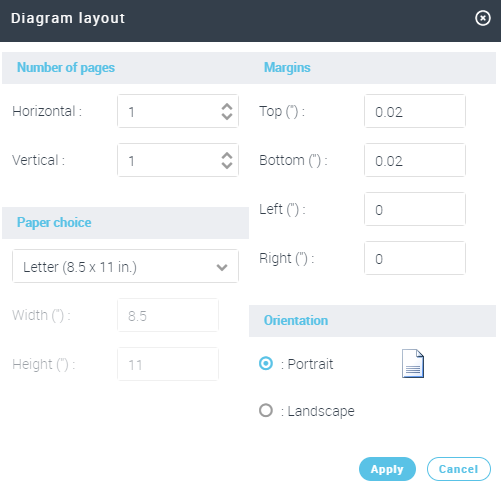
3. Modify the page layout parameters.
4. Click Apply.
Layout limitations
Number of pages limitations (height x width) | |
|---|---|
A4 Landscape | 6 x 8 |
A4 Portrait | 9 x 6 |
Letter Landscape | 7 x 8 |
Letter Portrait | 9 x 7 |
Platform limitations(*) | |
|---|---|
Maximum width | 200 cm |
Maximum height | 200 cm |
Maximum number of pages in width | 11 |
Maximum number of pages in height | 8 |
(*) These limitations prevail on other format contraints.In the diagram toolbar, click Display page limits  to show your diagram position with respect to pages outlines.
to show your diagram position with respect to pages outlines.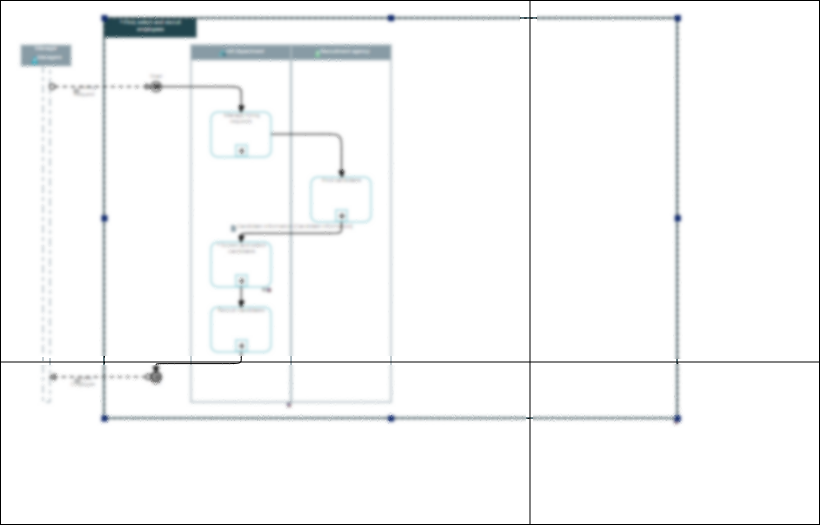
Printing a Diagram
To print a diagram you need to generate a PDF format file, which you can then print.
If you need to enlarge or reduce the diagram size for printing, you must display the diagram in edit mode before printing.
To print a diagram:
1. Access the diagram in edit mode.
2. In the diagram toolbar, click Print diagram.
3. (If you need to enlarge/reduce the diagram size for printing) In the Scaling section, select the “Enlarge/reduce” Mode.
4. Enter the number of pages (width and height) on which you want to print the diagram.
The Zoom value is modified as a result and previews the result of printing.5. Click OK.
The PDF export process starts.
6. Print the PDF.