Description of the HOPEX Explorer Desktop (tablet)
All HOPEX Explorer (tablet) desktops appear as follows:
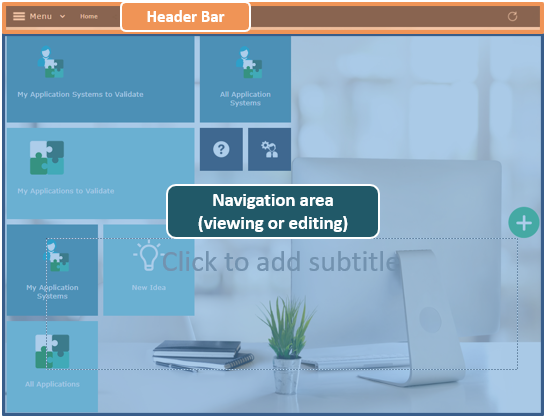
The HOPEX Explorer desktop (tablet) contains:
• a header bar to navigate, to refresh data and to access Collaboration features.
• a navigation area to view objects.
By default, you are working in browse mode. If required, and depending on your profile, a button is available to switch to edit mode as necessary.
Header Bar
The header bar is common to all HOPEX Explorer (tablet) desktops and available in all pages of the HOPEX Explorer (tablet) desktop. It includes:
•  a navigation menu
a navigation menu • a breadcrumb
 See Breadcrumb.
•  a button to refresh data. It enables to immediately update all the open windows in your desktop when you modify the name or value of an object attribute (trees, lists, property pages, diagrams).
a button to refresh data. It enables to immediately update all the open windows in your desktop when you modify the name or value of an object attribute (trees, lists, property pages, diagrams).•  (Landscape mode) a button to access collaboration features.
(Landscape mode) a button to access collaboration features.Navigation menu
The navigation menu gives access to:
gives access to:•  the full-text search (the repository must be indexed).
the full-text search (the repository must be indexed).See Full-text Search.• navigation panes common to all the HOPEX Explorer (tablet) desktops.
• navigation panes specific to the profile used for connecting to HOPEX Explorer (tablet).
Navigation panes common to all HOPEX Explorer (tablet) desktops
The navigation menu provides access to the navigation panes common to all the HOPEX Explorer desktops (tablet):
• Home, which provides quick access to objects (via tiles) and to the documentation.
See The Home Page.• Dashboard, which provides access to your widgets.
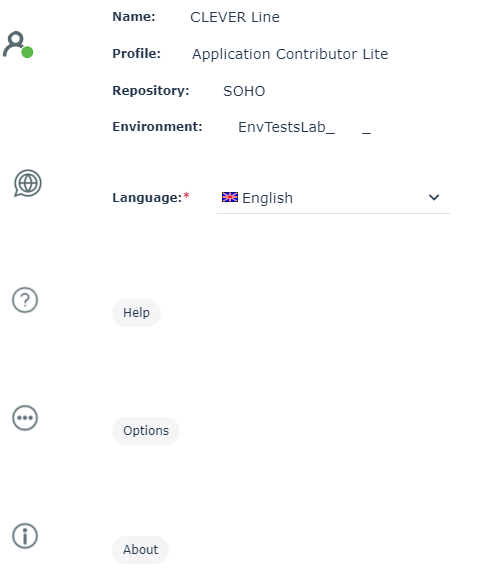
• Settings, which displays the name of the HOPEX user used for mapping and its connection characteristics (profile, repository, environment). Use this page to:
• modify the data display language (Language)
• access the documentation (Help)
• access options (Options)
• access HOPEX version
• Exit, to leave the HOPEX Explorer (tablet) application.
Profile-specific navigation panes
The navigation menu provides access to navigation panes, which are specific to the profile used for connection to HOPEX Explorer (tablet).
Each specific navigation pane contains one or more pages accessible via tabs. Each page displays its associated tiles.
When you click on a navigation pane, it displays the page of one of its tabs with its associated tiles.
Example: The Application Architecture navigation pane displays the Functional architecture tab and shows its associated tiles.
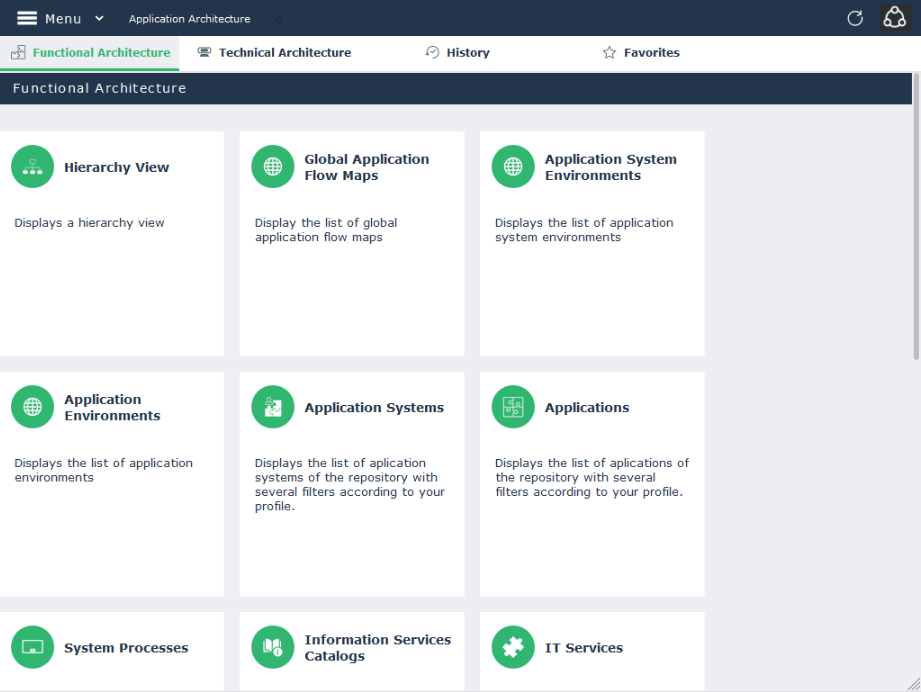
Click another tab to display its tiles.
Navigation Area
By default, on connection to HOPEX Explorer, the desktop opens in browse mode and displays the Home page with:
• connection profile specific tiles, which give direct access to a list of objects.
Example: the list of all your applications.
• quick access generic tiles.
Eg.: the Help tile to access the documentation.
See The Home Page.