Working in a Collaborative Workspace
Actions you can perform as a participant depend on your collaborative workspace access level.
 (see Collaborative workspace participant access level and Modifying Collaborative Workspace Participant Access Level).So that each participant receives a modification notification e-mail, the send notification by e-mail option must be selected, see Sending automatic notifications to participants.
Depending on your collaborative workspace access level, you can perform the following actions:
Connecting to a collaborative workspace
Depending on his/her collaborative workspace access level, a participant can connect to this collaborative workspace to:
• update objects in Check Out in this workspace.
Available for participants of access level Contributor, Owner, or Manager.• consult objects in Check Out in this workspace.
Available for participants of access level Viewer.Only participants of access level Blocked cannot connect to the collaborative workspace.
To connect to a collaborative workspace:
1. Start the HOPEX application.
The authentication dialog box appears.
2. In the Login field, enter your login.
3. (If you have a password) In the Password field, enter your password.
4. In the drop-down menu for environments, select your work environment.
If you can access one environment only, this is automatically taken into account and the environment selection field does not appear.5. Click SIGN IN.
When you have been authenticated, a new dialog box appears.
6. In the drop-down menu for repositories, select your work repository.
If you can access only one repository, this is automatically taken into account and the repository selection field does not appear.If you already have a private workspace open, the repository is automatically selected and this field is grayed. To change repository, you must first dispatch or discard your current private workspace.7. In the profile drop-down menu, select the profile with which you want to work.
8. (You already have at least one collaborative work space available) Select the collaborative workspace to which you want to connect.
A user has at most one private workspace in progress in an environment, but can have in parallel several available collaborative workspaces.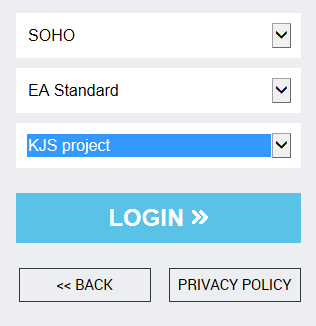
9. Click LOGIN.
Your desktop opens and objects in Check Out in the collaborative workspace are available. Authorized participants can update these objects.
Communicating your work progress in the collaborative workspace
Participants of Contributor, Owner, or Manager access level can communicate progress of their work in the collaborative workspace by means of the following actions:
• Work completed
The participant can warn other participants when his/her work is completed.
• Work again
The participant can then resume work and warn other participants.
To define progress state of your work:
1. Connect to your collaborative workspace.
2. In your HOPEX desktop, click Main menu > Collaborative Workspace.
3. Select the action to be performed.
Organizing a review
Participants of Owner or Manager status can organize review of updates carried out in the collaborative workspace.
All participants can communicate on work in progress in the collaborative workspace, see Communicating on collaborative workspace updates.When work is completed, or at a request for opinion on current state, you can organize a review of updates carried out in the collaborative workspace.
When the collaborative workspace is in review, all participants can give their opinion, see Giving your opinion on work in review.To organize a review:
1. Connect to your collaborative workspace.
2. In your HOPEX desktop, click Main menu > Collaborative Workspace.
3. Select Review.
The collaborative workspace passes to In Review state.
Giving your opinion on work in review
You can give your opinion to other users on updates carried out in the collaborative workspace when it is in the In Review state.
To give your opinion on work in review:
1. Connect to your collaborative workspace.
2. In your HOPEX desktop, click Main menu > Collaborative Workspace.
3. Select your opinion (I like, I don't like).
To consult the opinions of participants on updates carried out in the collaborative workspace, see Consulting opinions of other participants on work in review.Consulting opinions of other participants on work in review
To consult opinions of other participants:
1. Access collaborative workspace properties
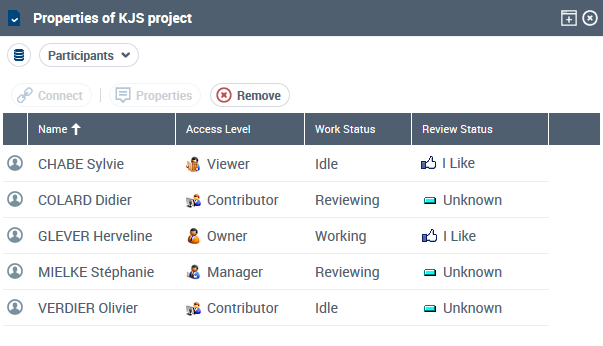
2. Select Participants.
The Review Status indicates the opinion of each participant.
Consulting participant work status
To consult work status of another participant:
1. Access collaborative workspace properties
2. Select Participants.
The Work Status field indicates the work status of each participant.
Communicating on collaborative workspace updates
As work progresses, all authorized participants (Contributor, Manager and Owner access levels) can exchange progress of their work.
Closing a collaborative workspace
Once updates have been completed, or to lock access to the collaborative workspace, a participant of Owner status can Close the collaborative workspace.
Only participants of Owner status can perform this action. Other participants can no longer access the collaborative workspace when it is closed.Participants of Owner status can reopen the workspace to participants via the Resume work action.
When the workspace has been closed, you can Discard or Dispatch updates carried out in the collaborative workspace in the repository.
To close your collaborative workspace:
You must be Owner of the collaborative workspace. In your HOPEX desktop, click Main menu > Collaborative Workspace > Close.
You access actions Discard or Dispatch the collaborative workspace.
Other participants can no longer connect to the collaborative workspace.
Dispatching or discarding collaborative workspace updates
Only the collaborative workspace Owner can Discard or Dispatch updates carried out in his/her collaborative workspace .
In a collaborative workspace, once it has been closed, if you are its Owner, you can:
To close your collaborative workspace, see Closing a collaborative workspace.• Discard
All updates carried out in the collaborative workspace are lost.
• Dispatch and Terminate
This action allows you to update the repository and make available to other users the updates you have carried out in your collaborative workspace.
Your collaborative workspace is no longer available.
• Dispatch and Continue
This action allows you to update:
• the repository, to make available to other users the updates you have carried out in your collaborative workspace.
• your collaborative workspace, with updates carried out in the repository by other users.
Your collaborative workspace is still available with the same objects in Check Out and the same users. You can, if needed, free objects in Check Out that you do not need anymore.
All authorized participants can connect to the collaborative workspace.
To dispatch or discard your collaborative workspace:
1. Connect to your collaborative workspace.
2. In your HOPEX desktop, click Main menu > Collaborative Workspace.
3. Select either:
• Discard
The collaborative workspace disappears. Updates are lost. Objects in Check Out are freed unchanged.
• Dispatch and Terminate
All updates carried out in the collaborative workspace are dispatched in the repository. They can be accessed by all users.
The collaborative workspace disappears.
• Dispatch and Continue
A window appears listing objects that you are going to dispatch and keep in Check Out.
(optional) Select objects that you want to free from your private workspace and click Remove objects from the list  .
.
.Click OK.
All updates carried out in the collaborative workspace are dispatched in the repository. They can be accessed by all users.
The collaborative workspace is updated, with updates carried out in the repository by other users.
The collaborative workspace is available to all authorized participants.
Exiting a session from a collaborative workspace
Exiting HOPEX from a collaborative workspace is the same whether you are its Owner or not.
While the collaborative workspace is in Shared or In Review state, a participant can exit and rejoin the collaborative workspace at any time.
In HOPEX, to exit your work session:
1. In your HOPEX desktop, click Logout  .
.
.The HOPEX exit dialog box appears.

2. Click:
• Yes to save your modifications in the collaborative workspace.
You will be able to continue your modifications in a subsequent work session.
These modifications are not saved in the repository. Users not participants in the collaborative workspace do not see these modifications.
• No to cancel your modifications in the collaborative workspace.
Your modifications are not saved in the collaborative workspace, but the latter remains available to carry out other updates.
Click Cancel to remain in your collaborative workspace.