Presentation of the Quick Search Tool
 To perform advanced queries, see Accessing advanced search.
The quick search tool is available in all of your HOPEX desktop pages.
To locate the quick search tool, see Interface Elements.The quick search tool includes two search types:
• the full-text search.
• the search by object type.
Full-text search bar
To display the search by object type bar, see Changing the quick search type.In all HOPEX desktops you can perform full-text quick searches.
This feature is available if the repository has been indexed.This is the quick search type by default when the repository is indexed.

To perform a full-text search, see Full-text Search.
Search by object type bar
To display the full-text search bar (if your repository is indexed), see Changing the quick search type.With HOPEX, you can perform the most common quick searches by object type.
This is the only type of quick search available when the repository is not indexed.

You can use the search by object type:
• to list all of the objects of a given type.
• to find an object whose name (short or long) starts with, contains or ends with a given character string.
• to search for an object whose comments contain a given string.
You can combine a search using the name and the comments of an object.To search by object type, see Search by Object Type.
Changing the quick search type
By default, if your repository is indexed, the quick search tool appears in full-text search mode.
To change the quick search type:
1. In your HOPEX desktop, to the left of the search bar, click Switch search bar  to switch to:
to switch to:• the object type search.
• the full-text search.
See Full-text Search.Changing the display window for your search results
According to your needs you can modify the window where you want to display your search results:
• Results (by default), or
• Browse
To define the more suitable window, see Defining Where to Display the Search Results.To change the display window for your search results:
1. To the right of the search bar, click the arrow.
The Display window indicates the window selected to display the search results.
Example: Results.
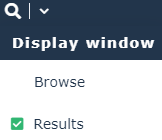
2. Select the window where you want the search results to be displayed.
Example: Browse.
This setting is kept (even after logout) as long as you do not change the display window or reset your personal settings.