Full-text Search
HOPEX Solutions and products enable you to execute quick searches of all objects that have been indexed. This feature is available as standard.
 If the repository is not indexed, the search by object type is available only; see Search by Object Type.
Full-text search result description
The full-text search result includes two panes:
• Filters, which enables to refine the existing search results.
Filters are calculated dynamically according to the search results.
• Search results, which indicates the string searched for as well as the filters used (if any), and displays the search results.
E.g.: string searched for “human resources”, no filter used.
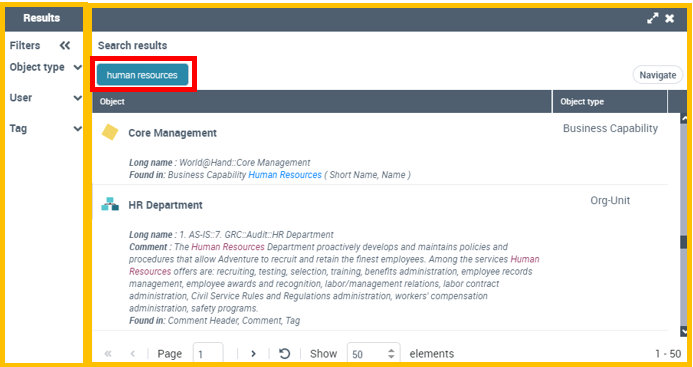 By default, results are displayed in the Results window. You can display the results in the Browse window, to access all of the functionalities available on objects in a list (e.g.: diagram creation). See Changing the display window for your search results.
Search results
In the Search results pane, for each full-text search result, are indicated:
• below the name of the object:
• the Long name of the object
• where the text entered was found (Found in)
E.g.: name, short name, comment, tag.
• in columns:
• the Object type
• the Relevance (not displayed by default), which takes into account the number of times the text was found and the weighting attributed to the attribute concerned.
To add the column, see Defining the columns to be displayed.For example, the search for “human resources” string was found in the “Manage the timetable” object of type Functionality, in its Name, Tag, and Review Note.

Filters
In the Filters pane, for each full-text search result, specific filters are associated with this search result:
• Object type concerns the type of the object searched for.
• User concerns any person linked to the object searched for:
• person to which the object is assigned to
• person who modified the object
• person who created the object
• person who created a review note linked to the object, or an answer to a review note linked to the object
• person who subscribed to the object modifications
• Tag concerns any tag added to the object searched for.
The elements of these three filter types are calculated dynamically according to the search results. Thus, as soon as an element of a filter type is selected, the elements of the other filter types are updated accordingly.
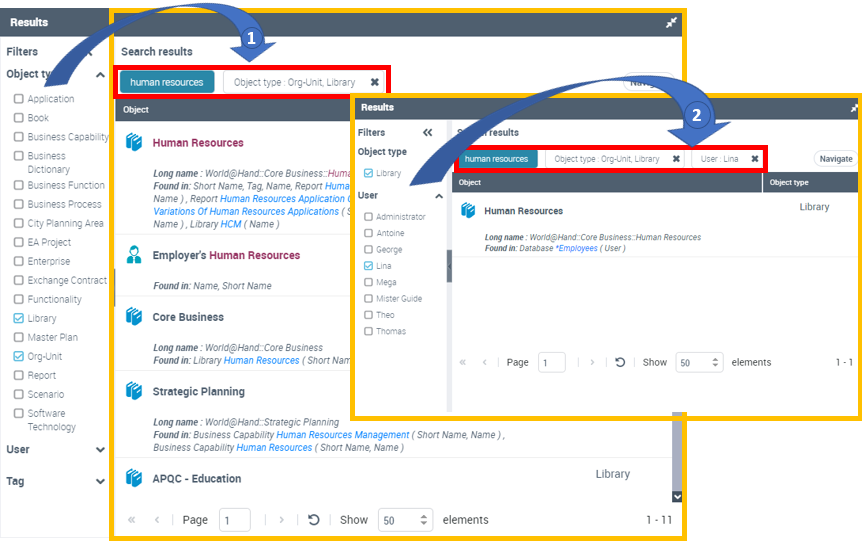
The search of results is performed according to the following rules:
• within the same filter type, the OR operator is applied
Example: display the org-units or libraries that include “human resources” string
Search: “Human resources”
Object type filter: “Org-unit” and “Library”
• between filter types, the AND operator is applied
Example: display the org-units OR libraries that contain “human resources” string AND that are linked to “Lina” user.
Search: “Human resources”
Object type filter: “Org-unit” and “Library”
User filter: "Lina".
Performing a full-text search
Prerequisite: the repository is indexed. Repository indexing is performed by your administrator.
For more details, see Enabling/Disabling repository indexing for full-text search.To perform a full-text search:
1. On your HOPEX desktop, in the full-text search bar, enter the term you want to search for.
See Full-text search bar.As soon as you enter a character, suggestions (associated with autocompletion) are proposed.
You can add several terms to your search, included tags and persons.
 When you add several terms: be careful to the word order of the character string, enter the exact phrase you are searching for or add operators if needed. See Full-text search syntax.
For example, enter “human resources”.
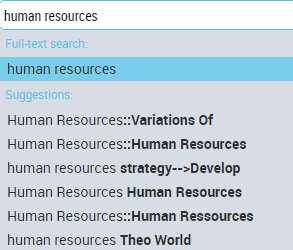
2. By default the research is positioned on the text you entered, if needed, press the down navigation key to select one of the Suggestions or select it with the mouse.
3. (If needed) By default the search results are displayed in the Results window.
To display the results in the Browse window, click the drop-down menu linked to  and select Display window > Browse.
and select Display window > Browse.The default window to display the search results is now the Browse window.
4. Press [Enter] or click .
.The search results are displayed in the selected window and include:
• the Search results pane with the string searched for and the results ordered by relevance.
• the Filters pane, which is associated with the search results and which enables to filter the results.
Filters are calculated dynamically with the search.5. If the search returns too many results, a message indicates you to refine your search.
E.g.: refine the character string you are looking for.
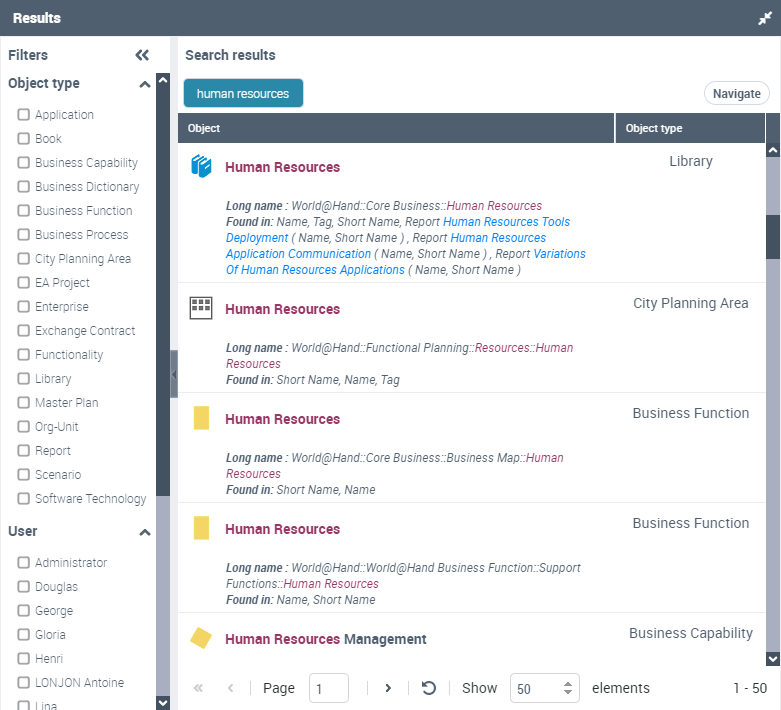
6. (If needed) Use the Filters pane to refine your search.
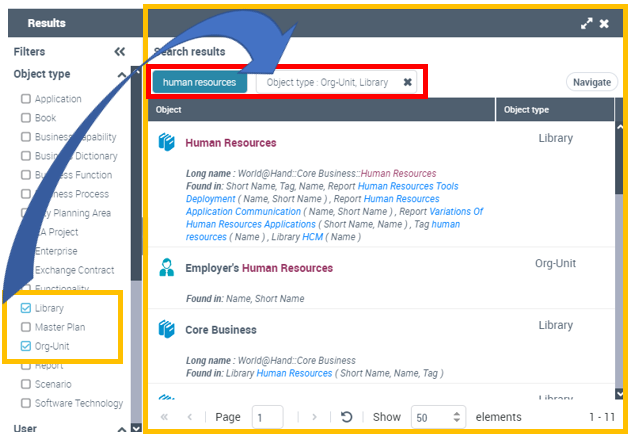
• In the Object type section, select an object type.
You can select several object types.Beside the searched string, the Type filter is displayed with the selected object types.
To remove the filtering on Type, in the Search results pane, click the  of the Type filter.To remove an object type from the Object type filter: in the Filters pane, clear the object type.
For example, in the Object type section, select “Org-Unit” and “Library”.
The Type: Org-Unit, Library filter is added to the search.
Only the “org-unit” or “Library” type objects are displayed.
• In the User section, select a person.
You can select several persons.Beside the searched string (and the Object Type filter, if any) the User filter is displayed with the selected persons.
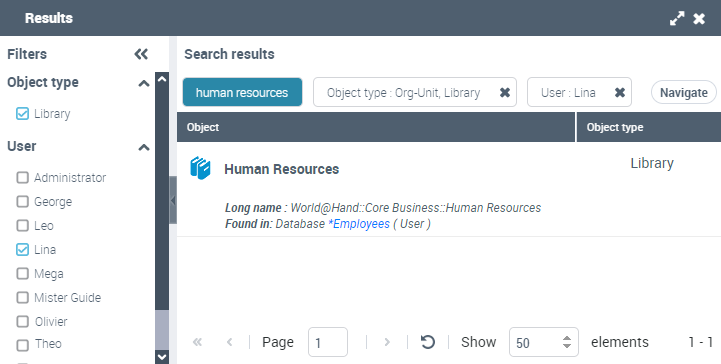
To remove the filtering on User, in the Search results pane, click the of the User filter.To remove a person from the User filter: in the Filters pane, clear the person.For example, in the User section, select “Lina”.
Only the libraries linked to “Lina” are displayed.
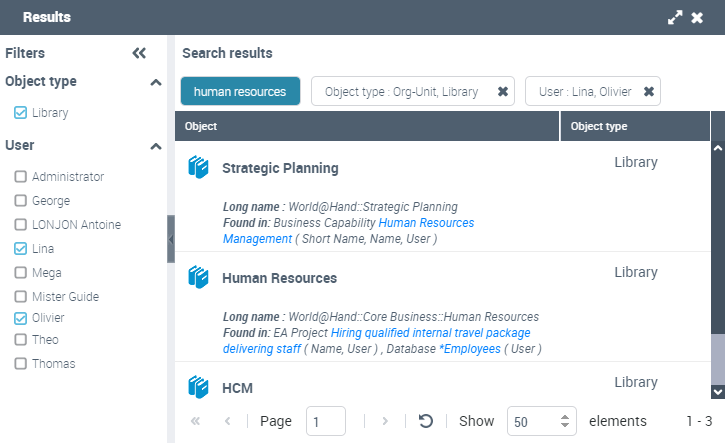
For example, in the User section, select “Lina” and “Olivier”.
Only the libraries linked to “Lina” OR “Olivier” are displayed.
Handling the search results window
By default the search results are displayed in the Results window.
To display the search results in the Browse window, see Changing the display window for your search results.The search results include two panes:
• Search results
• Filters
You can:
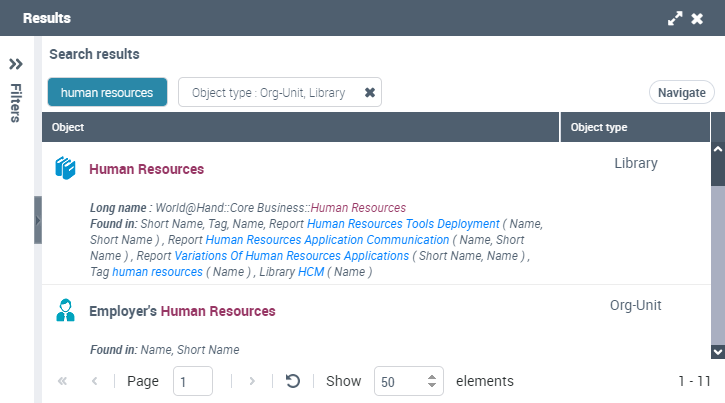
• hide the Filters pane: in the Filters pane bar, click Collapse window  .
.
.To display the pane again, click Expand window  .
.
• display your search result as a list in the Browse window and thus benefit from the features available on object lists (e.g.: diagram creation): in the Search results pane, click Navigate.
See Managing Lists.• handle the Results window
Full-text search syntax
By default, searches relate to the objects of which one of the indexable attributes includes all of the terms entered, in the order entered.
The search is performed on the exact terms (be careful with plural).
For example a search for “journey” or “journeys” does not return the same result.
To refine your search, you can use operators. You can use several operators and mix them.
Without operator
Without operator, the search is performed on all of the terms, in the order entered.
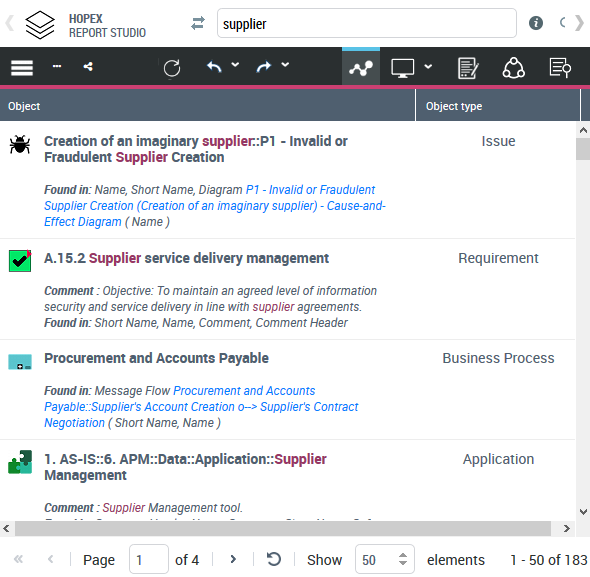
Example 1: The search supplier returns 183 results.
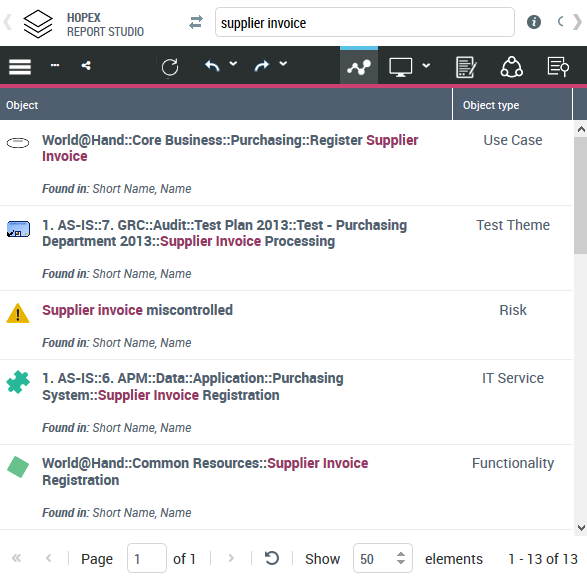
Example 2: The search supplier invoice returns 13 results.
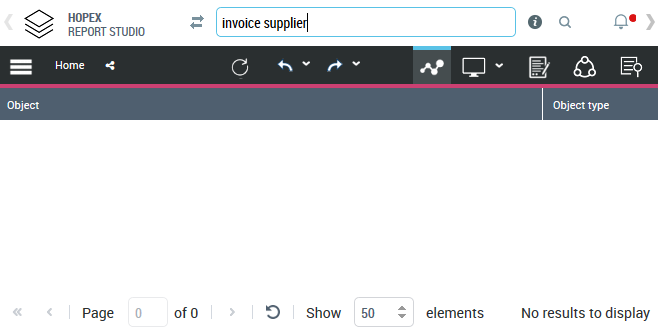
Example 3: The search invoice supplier returns no result.
AND operator
The AND operator enables to include all of the terms in the search regardless their order.
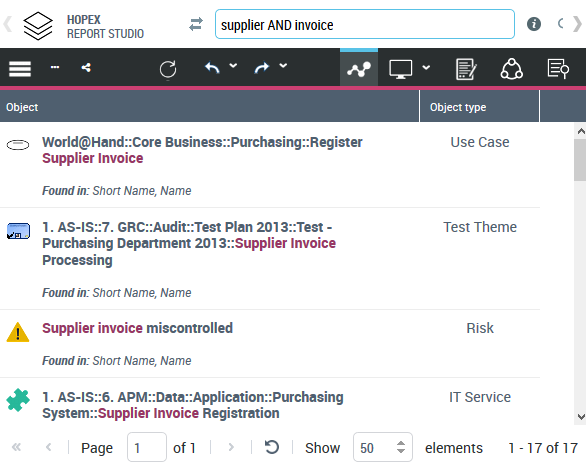
The search supplier AND invoice returns 17 results.
OR operator
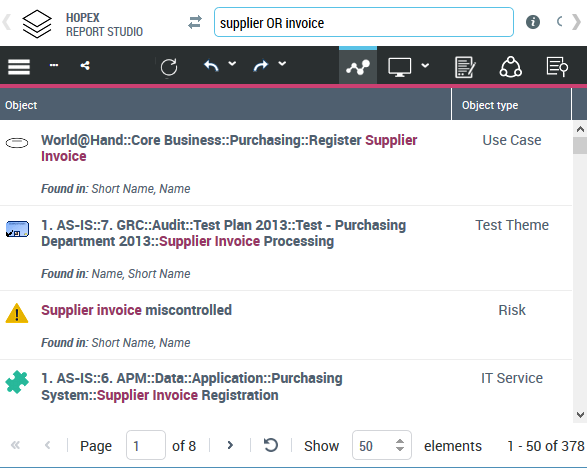
The OR operator enables to include at least one of the terms in the search.
The search supplier OR invoice returns 378 results.
* operator
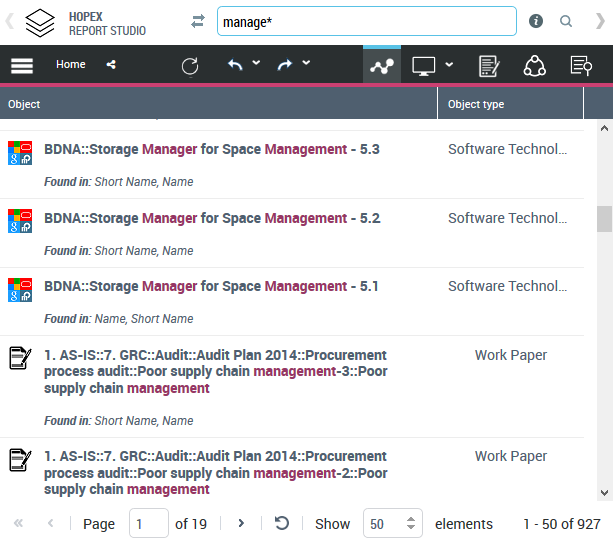
The * operator enables to replace one or several characters.
E.g.: manage*
? operator
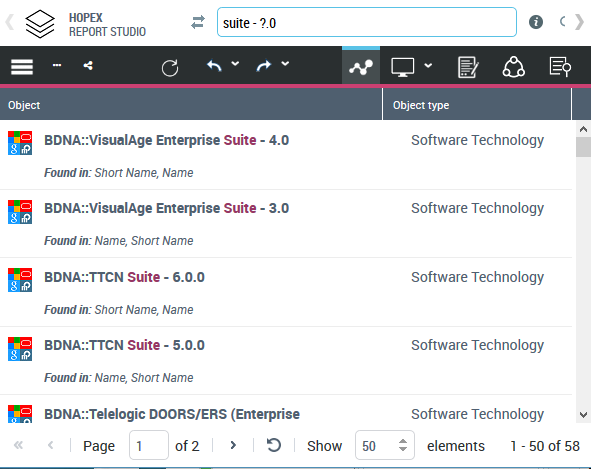
The ? operator enables to replace a single character.
E.g.: suite - ?.0
# operator
The # operator enables to include one or several tags in the search.
To add a tag to the search:
1. Enter the # character followed by at least the first letter of the tag.
Example: #c, #cat

2. Select the tag in the list of tags that begin with this letter.

@ operator
The @ operator enables to include one or several persons in the search.
To add a person to the search:
1. Enter the @ character followed by at least the first letter of the person's name.
Example: @m, @me
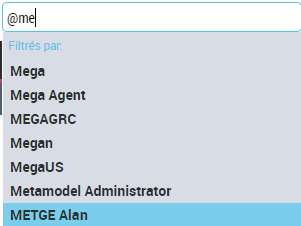
2. Select the person in the list of persons whose name begins with this letter.
