Accessing Report DataSets
Access to the Report DataSets in HOPEX (Web Front-End):
• is similar in all HOPEX Solutions.
• is specific in the Enterprise Architect (EA) desktop.
Accessing to Report DataSets in a HOPEX Solution (Web Front-End)
In HOPEX (Web Front-End) Report DataSets are listed in two pages :
• public Report DataSets
• your Report DataSets
Each Report DataSet is listed with the following characteristics:
• its confidentiality (public/private)
• the Report DataSet Definition on which it is based
• the date and time it was last generated
• its generation time
• its owner container
To access a Report DataSet preview, see Accessing the properties of a Report DataSet.
To access Report DataSets in a HOPEX Solution (Web Front-End):
1. Connect to HOPEX (Web Front-End).
2. On your HOPEX desktop, click the navigation menu  .
.
.3. Click the Reports navigation pane.
The Other Reports category is selected.
4. In the Navigation edit area, click My Report DataSets tile.
By default, the publics Report DataSets (including yours) are listed.
5. To access your Report DataSets, in the Public Report DataSets drop-down menu, select My Report DataSets.
Your Report DataSets are listed.
In this page, you can create a Report DataSet and access its properties.
 See also Configuring and Using a Report DataSet.
Accessing Report DataSets from the EA Desktop (Web Front-End)
To access Report DataSets from the EA desktop (Web Front-End):
1. Connect to HOPEX (Web Front-End) with the Enterprise Architect profile.
2. In your EA desktop, click the navigation menu .
.3. Click the Repository navigation pane.
4. In the Repository navigation pane, click Documentation  .
.
.The Documentation tree appears in the Navigation edit area.
5. In the Navigation edit area, expand the Report DataSets folder.
Report DataSets are classified in the associated Report DataSet definition folders.
You can access properties, create, and manage your Report DataSets.
Accessing Report DataSets (Windows Front-End)
To access Report DataSets in HOPEX (Windows Front-End):
1. Connect to HOPEX (Windows Front-End).
2. In the Documentation navigation window, expand the Report DataSets folder.
Report DataSets are classified in the associated Report DataSet definition folders.
You can access, create and manage your Report DataSets.
Accessing the properties of a Report DataSet
To access the properties of a Report DataSet:
1. Access Report DataSets.
2. From your HOPEX desktop:
Web Front-End :
• In the Report DataSet list, select the Report DataSet concerned.
• Roll the mouse over the Name column and click Properties  .
.
. The properties of the Report DataSet appear in the Properties edit area.
In the EA desktop, right-click Report DataSet and select Properties.Windows Front-End:
In the Report DataSet tree, right-click Report DataSet and select Properties.
The Report DataSet properties window opens.
Properties of a Report DataSet
A Report DataSet is created from objects of the HOPEX repository.
In the Report DataSet properties, the Characteristics page specifies the characteristics of the Report DataSet:
• Report DataSet Definition is the definition on which the Report DataSet is based
• Report DataSet Sharing defines the confidentiality mode of the Report DataSet:
• public: the Report DataSet is shared with the other users
• private: the Report DataSet is confidential to the user who created it.
In the Report DataSet properties, the Data page contains the following sections:
• Parameters, which defines the objects to be extracted from the HOPEX repository.
• Report DataSet, which presents the Report DataSet data in table format.
The data displayed in the table is read-only.
For example, a Report DataSet with the "Application technologies" definition Report DataSet contains the following data for each application selected (objects to be extracted):
- "Application"
- "Rating"
- "Technologies"
- "Vendor"
- "Cost"
- "Number of Users".
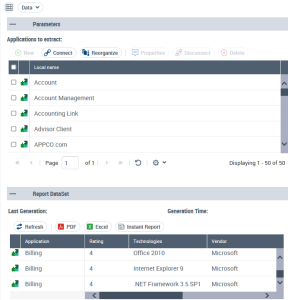
From the Data properties page, you can:
• perform the following operations:
Only the display is concerned: when you launch an instant report, the instant report is performed on all data. You can filter the data in the instant report, see: Defining and customizing the data of a table-type instant report (Report DataSet).• launch an instant report