Accessing HOPEX Web Front-End
Connecting to HOPEX (Web Front-End)
To connect to your HOPEX desktop:
1. Start the HOPEX application using its HTTP address.
 If you do not know this address, contact your administrator.
The connection page appears.
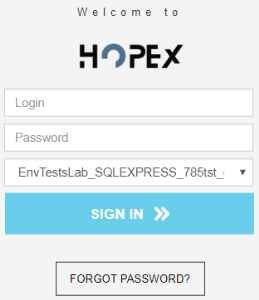
2. In the Login field, enter your identifier.
3. In the Password field, enter your password.
4. In the drop-down menu for environments, select your environment.
If you can access one environment only, this is automatically taken into account and the environment selection field does not appear.5. Click SIGN IN.
When you have been authenticated, a new dialog box appears.
6. (If you belong to a person group) In the group drop-down menu, select the group with which you want to connect or "My assignments" to connect with one of your own assignments.
7. In the drop-down menu for repositories, select your work repository.
If you can access only one repository, this is automatically taken into account.8. In the profile drop-down menu, select the profile with which you want to work.
If you can access only one profile, this is automatically taken into account.The profile you select defines the applications you can access.9. In the application pop-up menu, select the application to which you want to connect.
If you can access only one application with the selected profile, this is automatically taken into account and the application selection field does not appear.10. Click Privacy Policy, read the confidentiality policy, then select I have read and accept the privacy policy.
The LOGIN button is active.
When you have read and accepted the confidentiality policy, a certificate is automatically linked to your person and this step is not required again.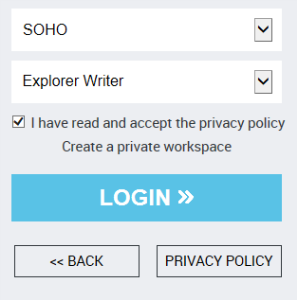
11. Click LOGIN.
Click BACK if you want to return to the authentication dialog box.Your desktop home page appears and a session is opened.
After a certain period of inactivity, you are disconnected from the desktop. To reconnect, repeat the steps of the procedure above. This inactivity period is configured by the portal administrator.Reinitializing Your Password
If you have lost your password to access HOPEX on the Web, you can reinitialize it.
To reinitialize your password:
1. Open the connection page.
2. Click Forgot Password.
The Lost password page appears.
3. In the Environment field, select your environment.
If you have access to only one environment, this is automatically selected and this field does not appear.4. In the Login field, enter your login.
5. Click Continue.
6. Answer the security question.
7. Click Reinitialize.
An e-mail containing a link with limited validity period is sent to you.
8. Click this link.
The Change password page appears.
9. Enter your password and answer the security question.
Your password must contain between 8 and 16 characters, with at least one letter, at least one figure and at least one special character.10. Click Apply.