Viewing Person Characteristics
See:
The icon for a person is represented by:
• 
when the person is created (name and writing access area)
• 
when the person has a login (but the person's e-mail is not specified)
• 
when the person is configured as a
MEGA user:
name, writing access area, login and e-mail address are specified and a business role is assigned to the person (or a profile is connected to the person).
Viewing person characteristics (Web Front-End)
To view person characteristics:
1. Access the User Management pages.
2. Select:
• the Persons sub-folder for a direct access, or
• a classification sub-folder (Persons by group, Persons by business role, Persons by writing access area, or Persons by reading access area) then in the edit area click the Group, the Business role, the Writing access area or the Reading access area concerned.
The list of persons appears, with for each person, the corresponding login and e-mail (if specified).

You can modify the e-mail and the login of a person directly in this page (with a click in the corresponding field).
3. In the Persons list, select the person.
4. In the toolbar, click
Properties 
.
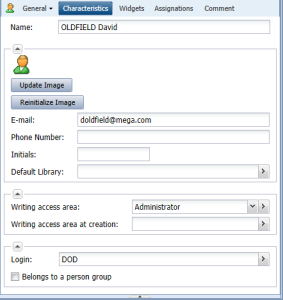
The Properties dialog box of the person opens.
5. Click:
• Characteristics to define or modify the person properties.
• General > History to display the actions performed on the person.
• Assignments to display and assign business roles to the person.
Viewing person characteristics (Windows Front-End)
To view person characteristics:
1. Open the Users management window.
2. Select the Persons tab.
The list of persons appears with the characteristics of each person.
You can modify these characteristics directly in this page (with a click in the corresponding field).
3. In the Persons list, select the person.
4. In the toolbar, click
Properties 
.
5. From the Properties dialog box for the person:
• Characteristics to define or modify the person properties.
• General, History sub-tab to display the actions performed on the person.
• Assignments to display and assign business roles to the person.