Using Hopex as a Viewer
With the Viewer profile, you can view and search repository information, work with repository content, and collaborate on objects.
Performing Actions on Repository Objects
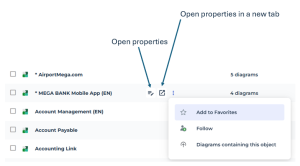
From the object lists, you can perform a number of actions, including:
• displaying object properties
• accessing diagrams
• adding objects to your favorites
• following objects
When you hover over an object, some icons appear:
Viewing and Searching Repository Content
Viewing property pages
Property pages allow you to view object information in read-only mode.
 See Handling Object Property Pages in the general documentation.
The Overview, Details, Reports and Diagrams (when available) pages are displayed by default in the object properties.
Other pages are available via the  button.
• Overview
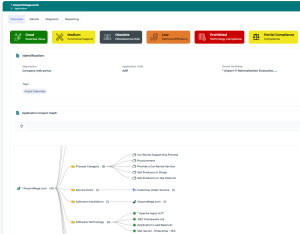
Overview with the impact graph (dendrogram)
For more details, see Property Page: Overview.• Details of the object with the various sections available.
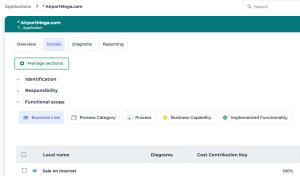 To access all available sections, click the Manage Sections button.
• Diagrams, when available
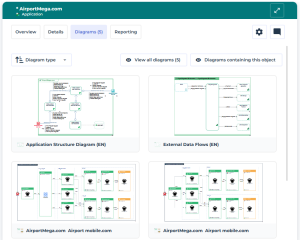 See the general documentation: Handling Diagrams.
• Embedded Reports
See also the functional documentation corresponding to each described object type (applications, technologies, etc.).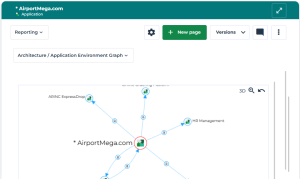
Searching for objects
Two types of search are available:
• Easy search on the homepage
• Hopex standard search in the toolbar
For more details on Hopex standard search, see Search.Filtering object lists
You can filter objects from a list.
You can combine filters and search simultaneously in several columns.
For more details on using filters, see Filtering data from a list.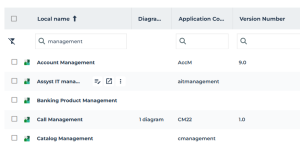
Working with Repository Information
Consulting Reports
You can view reports but you cannot create them.
Reports can be accessed:
• from the Reports navigation menu.
See Navigation menus.• in an object's properties.
For the general documentation on reports, see Accessing Reports and Handling Reports.
The "Accessing reports embedded in a dashboard" section of the general documentation does not apply to the Viewer desktop dashboard, which cannot be modified.Creating instant reports
You can generate instant reports that give access to a more detailed analysis of a list of objects.
Instant reports provide graphical statistical analyses of object data. They provide an overview of trends and make it easy to compare objects based on specific characteristics.
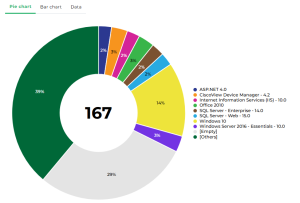
Example of an instant report: technologies supporting applications (%)
For complete documentation, see Managing Instant Reports.
As a Viewer, you cannot edit or save instant reports.
You can:
• print instant reports
• export the instant report to Excel
Viewing Diagrams
You can view existing diagrams, but you cannot create or edit them.
To learn about the actions you can perform in a diagram, see Handling Diagrams.
Exporting data
You can export objects from a list to Excel.
For more details, see Exporting a List of Objects to Excel.
You can also access the Excel Export wizard from the main menu.Collaborating on Objects
You can perform collaborative actions on Hopex objects:
• add review notes to objects
• manage the object follow-up
To follow-up on an object:
 Hover over the object and click the Follow icon that appears.See also Managing the Object Follow-up.
Modifying Your Data Language
You can modify the repository data language.
For more details, see Modifying Your Data Language.