Comparing and Aligning
The compare and align feature is available in all of the desktops (Administration, Functional administration, and Solutions).
 Before comparing and aligning, see Compare and Align Warnings.
To compare and align:
1. Connect to HOPEX with the profile concerned.
2. In the edit area, right-click an object and select Manage > Compare and Align.
The object comparison wizard opens.
3. Indicate if you want to compare:
• two repositories
• two current repository archived states
4. Click Next.
5. Select:
• the Source repository
• the Target repository, which is the repository to be updated.
It can be a private workspace of the repository.6. (Optional) If required, you can choose to Compare all repository objects. Select the option an go to step 10.
Warning: processing of this option can be time-consuming.7. Click Next.
The dialog box for selection of objects to be compared opens.
8. In the Perimeter field, select the perimeter type (by default Standard for Comparison)
For detailed information on perimeters, see Perimeters. 9. In the Elements to compare pane, select:
• Add from source  to add objects from the source repository, or
to add objects from the source repository, or • Add from target  to add objects from the target repository.
to add objects from the target repository.If you have opened the comparison wizard from an object, this object is automatically added in the list of objects to be compared.10. Click Next.
The Comparison Progress window opens. It presents the differences between compared objects and their modifications.
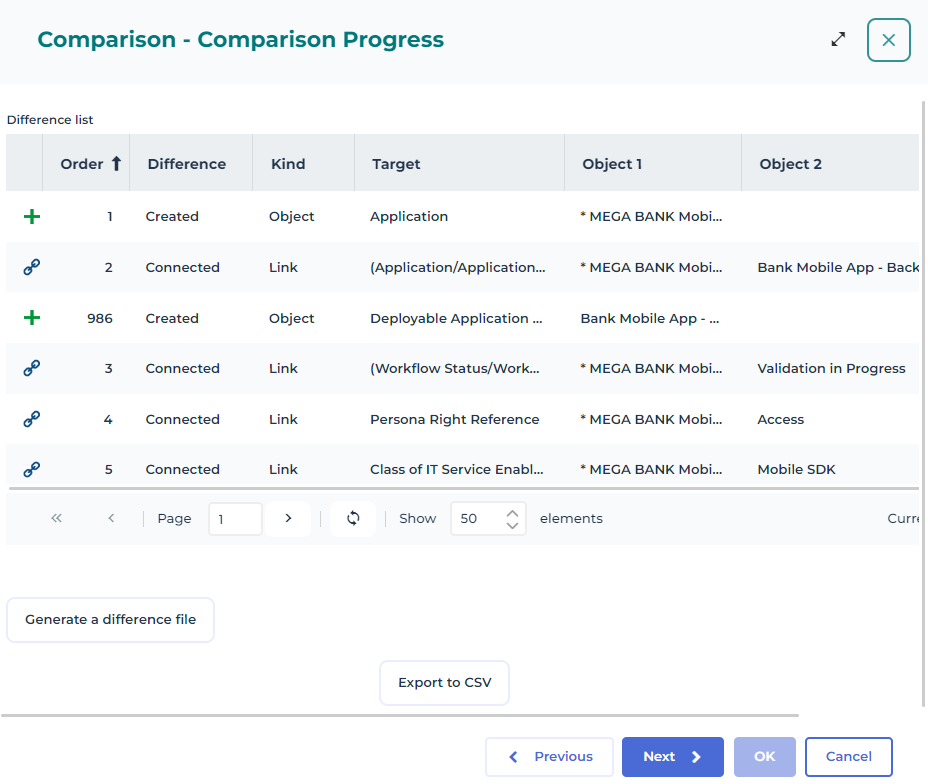
The Difference column presents differences by update category:
• Created: objects not existing in the target repository.
• Deleted: objects existing in the target repository but not in the source repository.
Deletion commands of compare and align can be generated in a separate file. To do this, activate the corresponding option in Options > Tools > Data Exchange > Import/Export Synchronization > MEGA.• Modified: objects of which characteristics, including name, have been modified.
• Connected: links, between two objects, that do not exist in the target repository.
• Disconnected: links existing in the target repository but not in the source repository.
• Changed: links for which a characteristic has been modified.
The Type column presents differences by type.
11. (Optional) Click:
• Generate a difference file to generate a file (.mgr format) that contains the list of differences detected.
• Export to CSV to generate a CSV file of the differences detected.
12. Click Next.
Differences are imported in the target repository.
The target repository is aligned with the source repository.
An alignment file with the content of differences (align-YYYY-MM-DD-hh-mm_555.mgr) is automatically saved in folder <Environment Name>\Db\<Repository Name>\USER\<User Code>.If the alignment contains rejects, click Display rejects to open and save the file of the alignment rejects (.mgr format).
A rejects file is automatically saved in folder <Environment name>\Db\<Repository name>\USER\<User Code> (rejects file-reject-YYYY-MM-DD-hh-mm_555.mgr). This file is empty if alignment does not contain rejects.
13. Click OK to dispatch the modifications.
Click Cancel if you do not want to keep the modifications.