Full-text Search
HOPEX Solutions and products enable to perform full-text searches over all the objects of your repository, provided that latter is indexed. With the full-text search tool, browse through your repository using terms and operators.
In some Solutions, your search results are filtered according to your navigation (breadcrumb trail).
 If the repository is indexed, indexation runs automatically every 10 minutes (which is an adaptable default value) thanks to the indexing scheduler. This indexing is incremental and about created and modified objects, see "Enabling and Customizing Repository Indexing", page 33.If your repository is not indexed, you can use the advanced search, see Advanced Search.
Performing a full-text search

Prerequisite: the repository is indexed. Repository indexing is performed by your administrator.
For further details, see .For further details, see .For further details, see "Enabling/Disabling repository indexing for full-text search", page 33.To perform a full-text search:
1. In the navigation bar of your HOPEX desktop, select Search  .
.
.See Navigation bar.2. Click in the search entry bar and:
• quickly access your recent searches via the dropdown list

• enter the terms of your search
When you perform a search over your repository, suggestions pop up and are updated progressively as you enter the characters of your search. These suggestions are based upon the object Short Name and Long name.
You can add several terms to your search, including tags and persons.
 When you add several terms: be careful to the word order of the character string, enter the exact phrase you are searching for or add operators if needed. See Full-text search syntax.
For example, enter “human resources”.
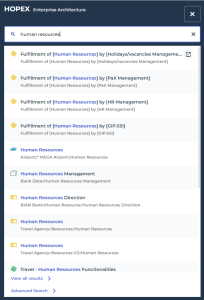
3. Press <enter> to initiate your search.
Results display below the the search entry field.
4. Select the element of interest to you in the list:
• click the item to open its properties in the edit zone
• hover the cursor over the item and click Open in a new tab  to open its properties in a new tab, in the edit zone
to open its properties in a new tab, in the edit zone5. To access more results and/or details, see Displaying the Full-Text Search Results in Details.