Opening Diagrams
Access an object diagrams
You can access the diagrams of an object from:
• the object
From the object properties, in the Diagrams page, you have access to the diagrams:
• describing the object
• containing the object
You can navigate between diagrams and switch to edit mode if needed.
 To view a hierarchy of diagrams within a single diagram, see Displaying Diagram Thumbnail in a Diagram.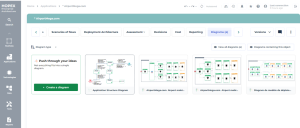
• a list
When you click on the number of diagrams in the column Diagrams of the list:
• if the object has only got one diagram, the latter displays in view mode.
• If there are several diagrams, you are redirected to the object Diagrams property page. The diagram list then displays as tiles.
 To facilitate the access, you can use the list filtering tool.
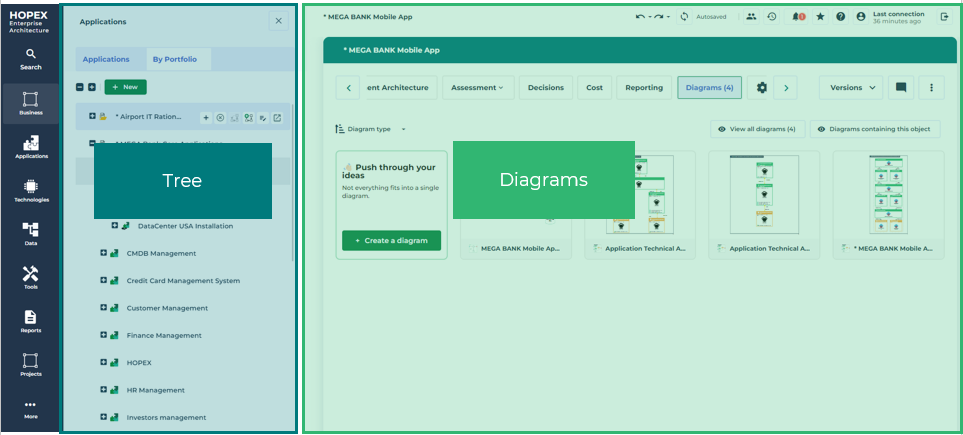
• a tree
When you click on View diagrams  , the list of diagrams related to the object displays as tiles:
, the list of diagrams related to the object displays as tiles:• to the right of the tree, if you are in the Browsing area.
When you switch to edit mode, you can drag-and-drop objects from the tree into the diagram. See Open a diagram in edit mode.• in place of the tree, if you are in the edit zone.
• a diagram
You can display a diagram starting from another diagram containing or describing the objet in question.
Filtering the display of an object diagrams
Diagrams describing or containing the object
Two types of diagrams are available from an object property pages:
• diagrams describing this object
• diagrams containing this object
To get an isolated view on the diagrams describing or containing an object:
1. Access the object diagrams.
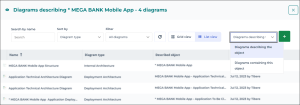
2. In the Diagrams property page, click Diagrams containing this object  .
.
.3. A new page opens. At the top-right of this page, access the dropdown menu and select whether Diagrams describing the object or Diagrams containing this object.
Display order of diagrams
When you access an object list of diagrams, you can modify the diagrams display order criteria in order to ease your search.
To filter the display order of an object diagrams:
1. Access the object diagrams.
2. By default, diagrams are sorted by type. Click:
• the arrow of the Diagram type drop-down menu and select the value of your choice
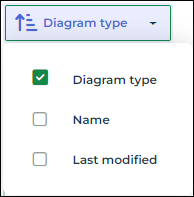
• the text or the  icon to invert the display order of the selected criteria
icon to invert the display order of the selected criteriaExample: If you select Name, the diagrams will be sorted by alphabetical order (A-Z), or by inverted alphabetical order (Z-A).
The selected order is not saved. It gets back to its default state after closing the window.If the diagram list is long, click View all diagrams  to access the advanced filtering tool.
Opening a diagram
To open a specific diagram:
3. Access the object diagram list of your choice.
4. Select the diagram of interest:
• To open the diagram in view mode, click the tile.
• To directly access edit mode, hover the cursor over the tile and click Edit  .
.
.Adding a diagram to your favorites
To ease your access to a diagram, you can add it to your favorites.
To add a diagram to your favorites:
1. Access the diagram list of an object.
2. Hover the cursor over the diagram thumbnail you are interested in.
3. Click More  > Add to favorites.
> Add to favorites.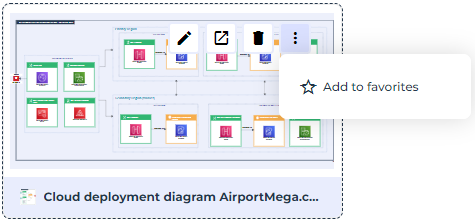
Navigating through a diagram edit or view mode
The view and edit modes of diagrams contain a navigation banner at the bottom of the screen. Each mode shows:
• at the center: the preview of one of the available diagrams.
• at the bottom: the other diagrams as thumbnails.
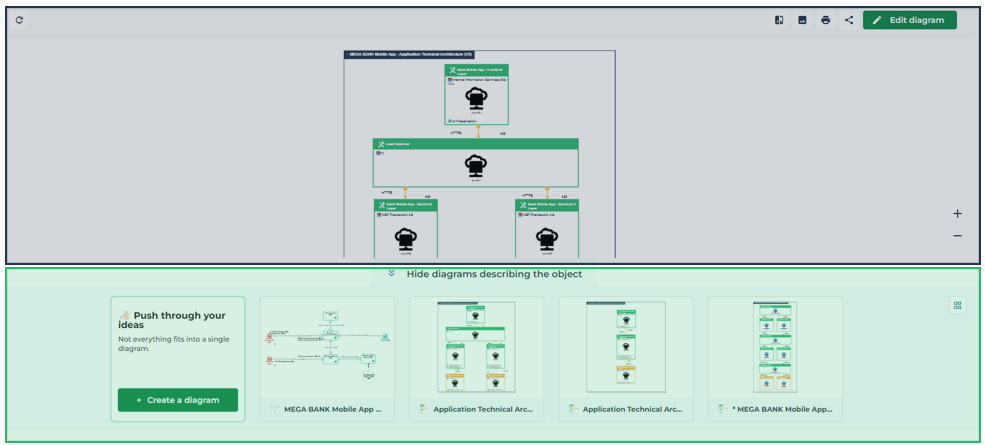
E.g.: navigation in the edit mode of a diagram
Click Show diagrams describing/containing the object at the bottom of the edit zone to view the other diagrams thumbnails.
If needed, drag-and-drop the diagram for a better view.If more than 5 diagrams are available, additional thumbnails are hidden. The diagram under view or edit mode also features in the thumbnail list.
When scrolling through thumbnails, diagrams successively appear at the center of the list. If more than 5 diagrams are available, additional thumbnails will successively replace the current ones.
See Handling a Diagram Preview for more information about the operations that you can carry out on a diagram preview.