Homepage
Accessing the homepage
When logging in to HOPEX, the edit features your homepage.
 Click your navigation bar header to come back to your homepage at any time:
When you navigate in the edit , you can also come back to it using your breadcrumb.
 See Breadcrumb.
Homepage description
The HOPEX homepage is structured into four parts:
• Header
• My scope
• Quick access
• My favorite report
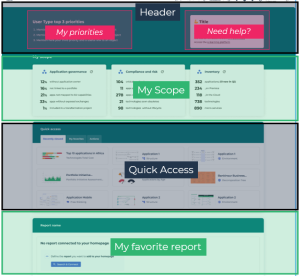
Your homepage is made of customized and customizable elements. The information contained in My scope are auto-generated from your repository data.
The terms above-mentioned are generic and can vary according to the Solution you use.Header
The header is made of:
• My priorities, showing three main goals assigned to your profile. It provides clickable links to object occurrences from your repository.
• Need help?, providing useful links about the use of HOPEX.
The Solution Functional Administrator is able to modify the header contents.My scope
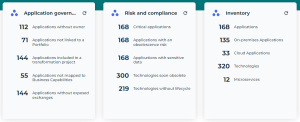
My scope provides an overview of your scope activity through key numbers and statistics.
Thanks to this overview, you can:
• stay tuned on the overall condition of your perimeter
• obtain updated information about repository objects
• get a quick view on important data related to your perimeter
• Access some objects of the repository in one click
Click the line to access the repository objects related to the given statistics. Each line is clickable.
To update the data, click the Refresh  icon sitting in each frame, or Refresh
  in your toolbar.
E.g.: with the HOPEX Enterprise Architect profile
Quick access
Quick access contains shortcuts facilitating your work in HOPEX.
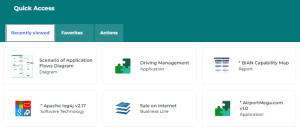
It is made of three tabs:
• in Recently viewed, you can find direct links to the objects you last viewed.
The list of elements displays as tiles. Click the tile of the object to access its properties.
• in Favorites, manage your favorites and shared favorites.
See Favorites• in Actions, find shortcuts facilitating your use and navigation in HOPEX.
The list of actions displays as tiles. Click the tile to launch the designated process.
My favorite report
In My favorite report, you can display the report of your choice in your homepage. When signing in for the first time with a specific profile, a default report is set. You can then define manually the report of your choice.
The administrator (HOPEX Administrator profile) can set a default report for a profile, see Defining a default report on the homepage.To define a report:
1. Click Search and connect to access the list of reports.
2. Using the wizard, search for the name of your report.
3. In the list, select your report.
4. Click Connect.
The report displays in read-only mode.
You can then:
• update your report data
• manipulate a report (i.e. navigate through the report of filter the elements to display)
E.g.: a report displayed in the HOPEX Enterprise Architecture Solution.
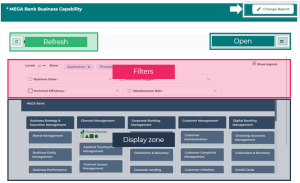
To modify the report and access all its features, click Open report to open the report in the edit .
You can define another report at anytime. To change the report to display:
1. At the top right of the frame, click Change report.
2. In the list of reports, search and select a new report.
3. Click Connect to validate your choice.
 At the end of each operation, a green header indicates that your report has been successfully connected to your homepage, and the name of the inset becomes the chosen report name.