Creating Questionnaire Templates
To create a questionnaire template:
2. Click New.
The workspace designed to create questionnaire templates opens.
Interface for Questionnaire Creation
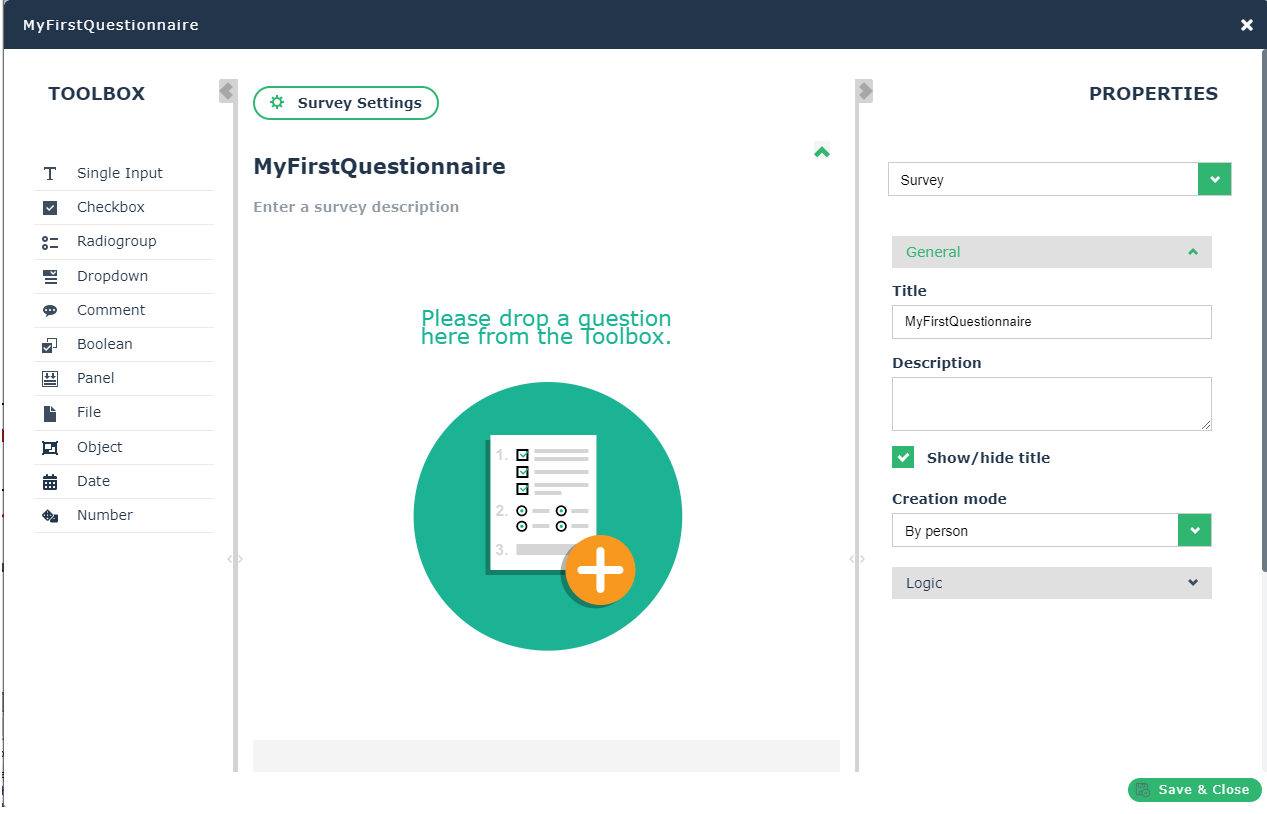
The workspace consists of three parts, which can be collapsed.
• a left toolbox offers the different types of questions you can use in your questionnaire template.
• The central part enables you to drop your questions from the left toolbox.
• The right part enables you to access the properties:
• of the whole questionnaire
• of each question that has been dropped in the middle of the questionnaire builder.
Inserting Questions in a Questionnaire Template
To insert questions into your questionnaire template:
1. In the left part of the questionnaire builder, select a question type or drop it on to the page.
For example: Click Comment to insert free text.
2. Click the question you have just created (“Question 1” by default) and enter text.
 This is the title of your question. This is what appears to the users in the questionnaires received. The Name found in the properties of the question is a technical name that appears in the event no title has been entered.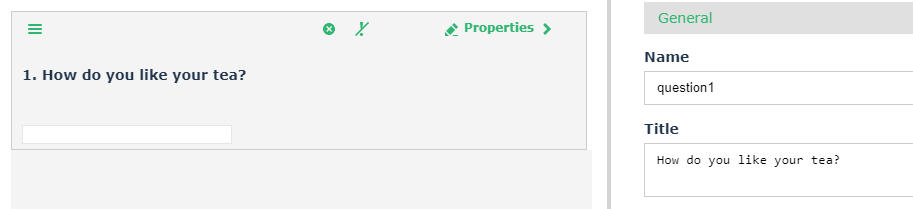
3. Click another type of question and drag and drop it below the first question.
For more information about question properties, see Defining Questions Properties.See also Question Types.