Question Types
Summary of Question Types
|
Question Types
|
Description
|
|
|---|---|---|
|
Short answer
|
Input text question enabling to display:
• Text
• Date
• Number
|
 |
|
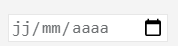
Date
|
Used to insert a date
 You can also use the Short Answer question type to insert a date. You can also use the Short Answer question type to insert a date. |
 |
|
Number
|
Uused to insert a number
You can also use the Short Answer question type to insert a number. |
|
|
Comment
|
Multi-line text box
|
 |
|
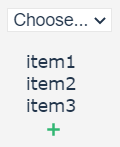
Drop-down
|
Enables you to select an answer from a predefined list.
|
 |
|
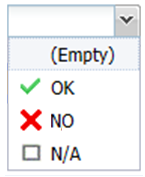
OK/KO
|
OK/KO/NA answers question type
|
 |
|
Radio Group
|
Single Choice Question
|
 |
|
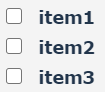
Check Box
|
Used for Multiple Choices
|
 |
|
Boolean
|
Boolean question
|
 |
|
Object
|
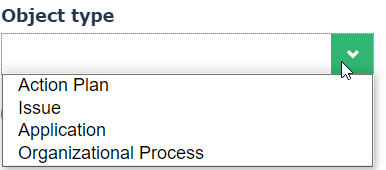
Used to select a set of HOPEX objects in a drop-down list.
|
 |
|
Expression
|
Enables to calculate an answer based on other answers.
|
|
|
File
|
Used to upload a file in the form of business documents.
|
 |
|
HTML
|
Enables to insert HTML code in a questionnaire (image, text or URL for example)
This type of answer does not require any answer. This is a feature that enables to enrich the questionnaire visually. |
|
|
Image
|
Enables to insert an image in a questionnaire.
This type of answer does not require any answer. This is a feature that enables to enrich the questionnaire visually. |
 |
|
Panel
|
Container element. Can contain several questions.
|
|
Using Questions of “Panel” Type
The Panel-type question is a question group. It enables you to:
• group questions together
You may drag & drop questions from the Questionnaire Builder tool box or drop existing questions.• create questions based on question motives that are specific to a trade (for example audit or testing).
The "Motivation" list allows you to select the contexts of use of this panel, i.e. when questions specific to one of these types of objects must be inserted in the questionnaire (e.g. Control or test steps). 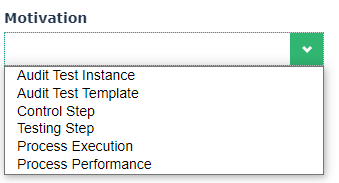
Using Calculated Expressions
HOPEX enables to create expressions to calculated automatically an answer from other answers.
The answer obtained is in read-only mode.Examples of calculated expressions
Example 1
Example: to obtain total cost, multiply the unit cost by the quantity.
Example 2
When assessing risks, you can compute and display the inherent (or gross) risk. To do so you need to take into account the user questions regarding impact and likelihood.
Creating a calculated expression
To create your expression:
 In the Expression field corresponding to the calculated answer, use curly brackets to access question values.
Example 1: {question1} * {question2}
Example 2: ({price}*{quantity}) * (100 - {discount}
You may use functions such as: if(), today(), age(), min(), max(), count(), avg().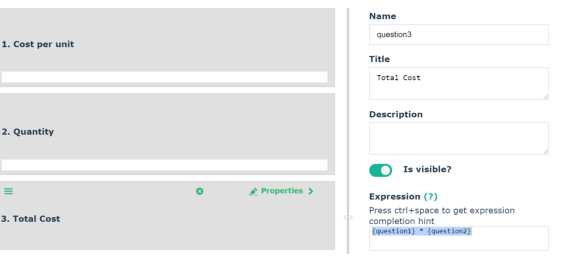
Managing digits after the decimal separator
If you use the “decimal” display style, you can define the number of digits you want to display after the decimal separator.
To do so, use the following fields:
• Display style (and specify “"Decimal”")
• Maximal fraction digits
• Minimum fraction digits
Using Questions of “Object” Type
You can create questions that allow to select HOPEX objects from a drop-down list.
To do so, you must create a question of Object type.
You may modify the following parameters:
Object type
In the right part of Questionnaire Builder, select an object type from the list of assessable object types.
To add an object type to the default list, you may:• connect the relevant MetaClass to the “Answered Element” MetaClass.
• regenerate the GraphQL Rest API schema applicable to assessments. For more information, see the video “Create custom schema”.
Collection computing mode
If you selected an object type from the drop-down list, the collection computing mode must be positioned to “Object type”.
It is possible to select to other values:
• Macro
• GraphQL query
Authorize multiple selection
Enables to authorize object multiple selection from the drop-down list of “Object” type questions.
Authorize object creation
Enables to authorize object creation from a drop-down list when entering an answer to the question.