Configuring Optional Languages
By default, the website is set to English.
If you want to generate a website in another language, further configuration is required:
• you have to specify the language code(s) in the website configuration file. See Configuring General Settings.
• you have to modify the Enterprise Portal homepage:
• for unilingual website generation outside of English
• for multilingual website generation
 If needed, check that the adequate language(s) in HOPEX are activated via Tools > Options > Installation > Languages.
 Editing the Enterprise Portal homepage for a unilingual website
By default, the Enterprise Portal homepage opens in English.
To set up the Enterprise Portal homepage in another language:
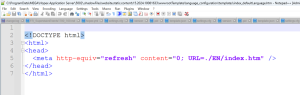
1. Access the Enterprise Portal homepage file in edition mode.
 The default path is: C:\ProgramData\MEGA\Hopex Application Server\<name of the HAS instance>\.shadowFiles\website.static.content\<date of the last generation>\wwwrootTemplate\index.htm
2. Edit the language code.
For example, instead of EN (English), enter another language code such as FR (French); ES (Spanish); DE (German); IT (Italian) or PT (Portuguese). 3. Save the file.
Editing the Enterprise Portal homepage for a multilingual website
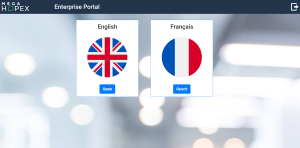
For multilingual websites, it is necessary to edit the Enterprise Portal homepage so as to enable the end-user to select the language of their choice via language tiles.
A multi-language template is provided to help you with this task. In this template, language tiles are available by default in English and French, as shown in the image below.
Setting up the Enterprise Portal homepage in several languages
To set up the Enteprise Portal homepage in several languages:
1. Open the "index_severalLanguages.htm" template in edition mode.
The default path is: C:\ProgramData\MEGA\Hopex Application Server\<name of the HAS instance>\.shadowFiles\website.static.content\<date of the last generation>\wwwrootTemplate\language_configuration\templates\index_severalLanguages.htm2. (Optional) Add/Edit language tiles.
This action is not necessary of you generate a bilingual website in English and French. 3. Copy the content into the "index_htm" Enterprise Portal homepage file.
The default path is: C:\ProgramData\MEGA\Hopex Application Server\<name of the HAS instance>\.shadowFiles\website.static.content\<date of the last generation>\wwwrootTemplate\index.htm4. Save the file.
Adding/Editing a language tile
By default, language tiles are available for English and French languages. Therefore, no further configuration is required for these two languages.
For any other language, you need to set up a new language tile.
To add/edit a language tile:
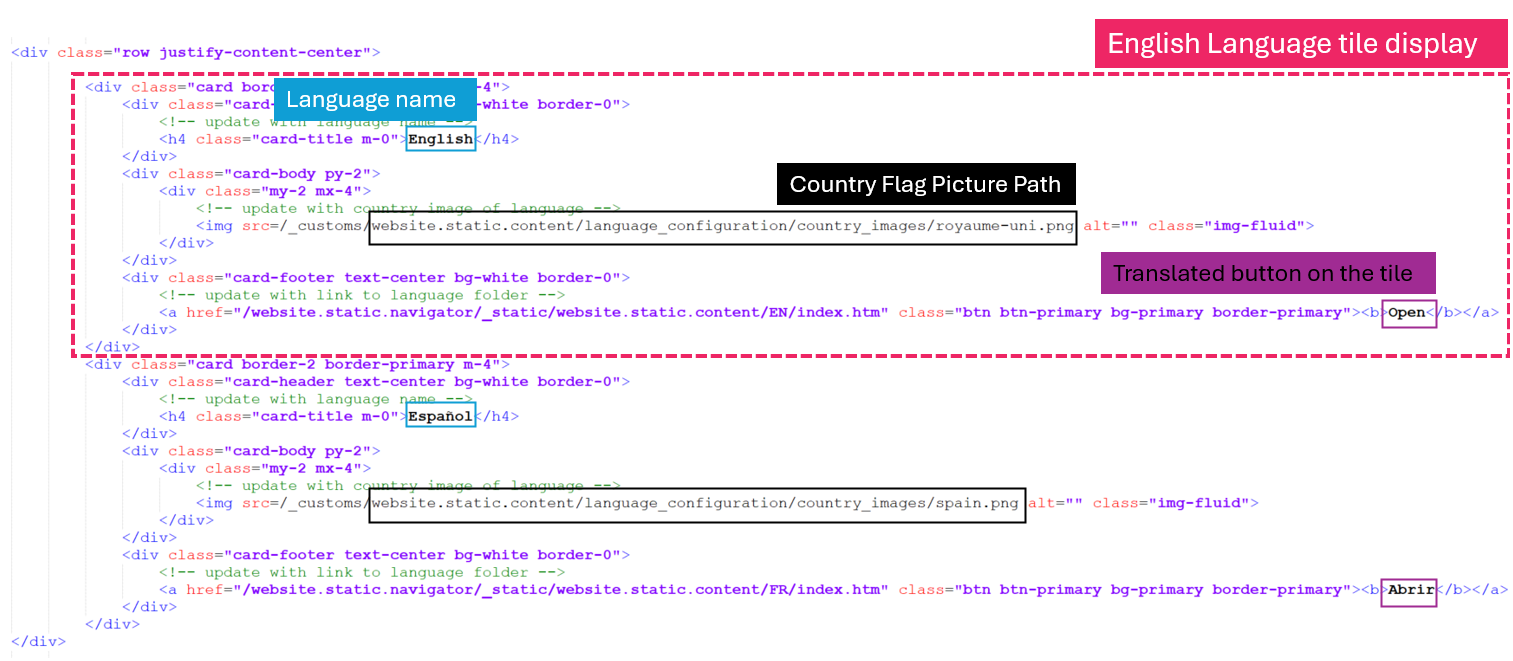
1. Insert an image of the adequate country flag in png format in the "country_images" folder.
The default path is C:\ProgramData\MEGA\Hopex Application Server\<name of the HAS instance>\.shadowFiles\website.static.content\<date of the last generation>\wwwrootTemplate\language_configuration\country_configuration\country_images.2. Open the "index_severalLanguages.htm" template in edit mode
3. Edit the adequate information:
• Language name
• Country flag picture
• Open button on the tile