Favorites
Favorites provide access to regularly viewed objects. They enable access to all actions possible on these objects. Favorites are useful when your repository is large and you want to save valuable time in navigation.
Adding an Object to Favorites
Adding an object to favorites
To add an object to your Favorites list:
1. In HOPEX:
• on an object (e.g.: in a tree, a report, or a diagram): right-click the object and select Add to Favorites,
or
• in a list of objects: in the Local Name column, hover the cursor over the object and click More  > Add to Favorites
  .
.
> Add to Favorites .The Favorites management pane pops up.
 Alternative: display your favorites and in a card list, select the card of the object and add it to the folder of favorites by drag and drop.
2. Select the folder or sub-folder in which you want to add the object.
 If needed, create a sub-folder (right-click a folder and select New > Folder of favorites). See Organizing your Favorites.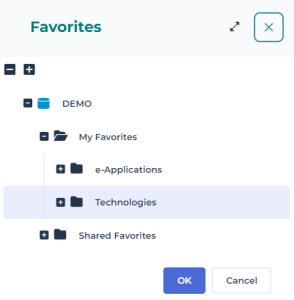
3. Click OK.
The object is added to the selected favorites folder.
Adding several objects of a list to favorites
To add several objects to your Favorites list:
1. In HOPEX, display the object list.
2. Select all the objects you want to add to your Favorites list.
If needed, use the filtering tool to filter the data displayed, see Filtering a list data.3. Right-click an object of the list and select Add to Favorites.
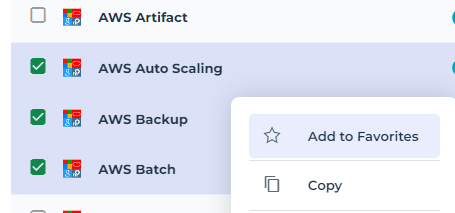
4. Select the folder or sub-folder in which you want to add the object.
5. Click OK.
The objects are added to the Shared Favorites folder.
Mass adding objects to favorites
To mass add objects to your Favorites list:
1. Access your list of favorites.
See Accessing Favorites.2. Right-click the favorites folder concerned and select <Name of favorites folder> > Connect > Object.
3. In the object query window, select the objects that you want to add.
4. Click OK.
The objects are added to the selected Favorites folder.
Accessing Favorites
Shared favorites are organized in trees, just as your favorites. They are available:
• from your homepage, in the Favorites tab
See Quick access.• from the HOPEX toolbar via the Favorites shortcut 
See Toolbar.If needed, you can create sub-folders of favorites, see Organizing your Favorites.
To access favorites:
1. Use one of these shortcuts:
• In the HOPEX toolbar, click Favorites .
.• In the Quick Access inset of your homepage, select Favorites.
The tree of your favorites is displayed.
2. Expand the folders concerned to access the favorites they contain.
For information on tree handling, see Expanding/Collapsing a tree by one level.Use the tree search tool to find a favorite, see Searching for objects in a tree.3. (If needed) To access the objects connected to a favorite, expand the favorite.
For information on available actions on an object in a tree, see Actions on an Object in a Tree.
Organizing your Favorites
If needed, you can create sub-folders to organize your favorites.
Alternatively, you can create the sub-folder when adding the object to favorites, see Adding an Object to Favorites.When you drag and drop a favorite from a folder into another one, the favorite is connected to both folders. You can keep it or remove it from the source folder.
Creating a sub-folder of favorites
To organize your favorites:
1. Access the favorites.
2. Right-click a folder and select New > Folder of favorites.
3. In the Local Name field, enter the folder name.
4. Click OK.
Classifying a favorite in a sub-folder
When you add an object to your favorites, if you do not classify it in a specific folder or if you want to classify it in another folder, you can do it later.
To classify a favorite:
1. Access the favorites.
2. Select the favorite and drag and drop it into the required folder.
The favorite is available in both source and target folders.
You can remove it from one of the folders.
To remove a favorite from a folder, see Removing an Object from Favorites.Removing an Object from Favorites
An object can be available in My favorites folder or in one or more sub-folders of favorites.
You can remove the object from the folder or from one or several sub-folders.
To remove an object from a favorite folder:
1. Access the favorite folder from which you want to remove the object.
2. Hover the cursor over the object and click Remove  .
.
.3. Keep Remove from “Name of the favorite file” selected and click Remove.
 If you select Delete, the object is deleted from the HOPEX repository.
The object is removed from your favorites.