Downloading an Excel Template
The Excel template download wizard features standard, default templates coming with your HOPEX Solution as well as templates saved by yourself (previously created or edited using the Excel Template Builder).
In HOPEX, you can download Excel templates useful to the import of your data into your repository. These templates are available in standard and are specifically engineered for the Solution in use.
To access the Excel template download wizard:
1. Check your export options.
2. Open the HOPEX Main menu.
3. Select Import > Excel Template Download.
The list of available templates displays.
4. Hover the cursor over the row of the template of interest.
5. Click Download  .
.
.6. Retrieve the file in the Downloads menu of your File explorer.
You can now fill out the file with the data to import.
Using the Excel import wizard
Accessing the Excel import wizard
To run the Excel export wizard in HOPEX:
1. Make sure the necessary options were activated.
2. Open the HOPEX Main menu.
3. Select Import > Excel.
 On the Administration desktop: in the Tools pane, select the Excel > Import sub-folder.
The import wizard opens.
4. In the Excel import file field, click Browse.
5. In your file explorer, select the file to import.
Pour plus de détails sur le contenu d'un fichier d'import, voir Data Processed by the Excel Import/Export Wizard.6. (Optional) Check the Save object history option to keep access to the past history of the data concerning the objects included in the import.
This option may slow down the import process. Select it only if you wish to preserve the history of the changes operated throughout the import.Choosing the Import Mode
Once the import wizard is launched, you need to choose the import mode:
• the instant import starts the import process as soon as you click Import
• the import in background enables to schedule the import process execution so that you can keep working in HOPEX regardless of this operation.
Instant import
To run the import process instantly:
1. In the Choose import mode field, select Import now (which is the default value).
2. Click Import to start the import process.
3. The import result window opens. Click Open report file to access the result details.
4. Click Confirm import to validate the import of your data into the HOPEX repository.
 If you close the result window or if you click Discard import, your data will not be import into the repository.
Import in background
The import in background mode enables to schedule and execute the import so that you can keep working on other tasks in HOPEX.
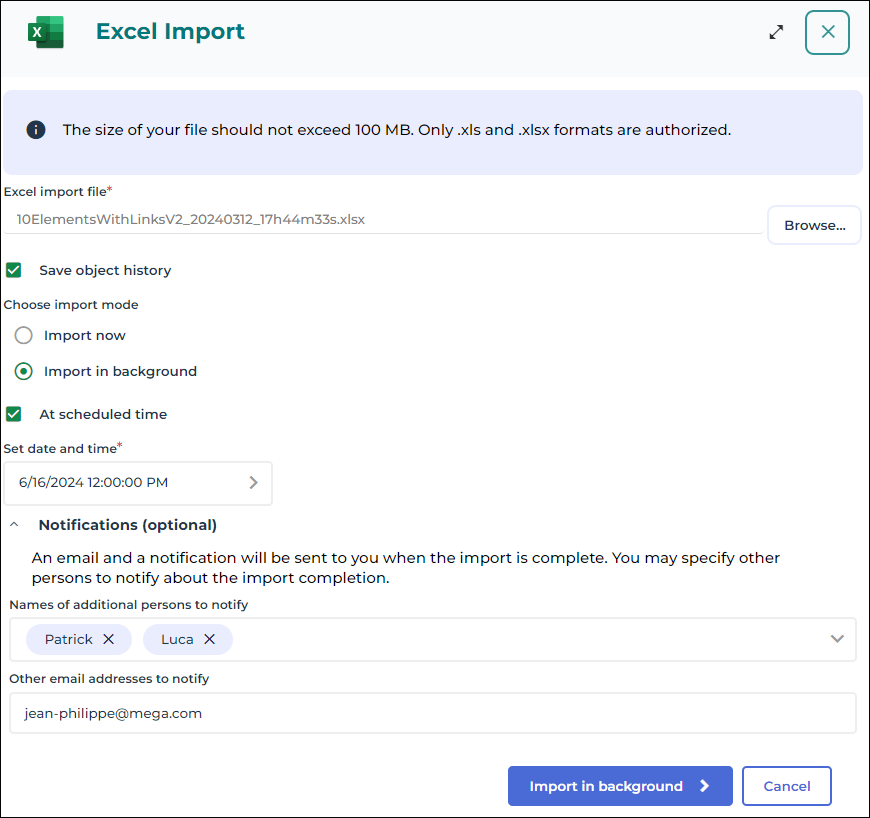
To import your data in background mode :
1. In the field Choose import mode, select Import in background.
2. (Optional) Check the At scheduled time option to schedule the import execution. You can then set the date and time you want to start the import process at.
3. (Optional) In the Notifications pane, enter the names and email addresses of the people to notify about the import completion:
• In the Names of additional persons to notify field, select in the list the HOPEX users to notify about the import completion
Enter the first characters of the name to make your search easier.• In the Other email addresses to notify field, enter manually the email addresses you want to notify about the import completion.
Use a semi-colon to separate email addresses from each other.4. Click Import in background.
5. Once the loading complete, a wizard opens to display the import results.. Click Open report file to access the result details.
6. Click Confirm import to validate the import execution in background.
If you close the result window or if you click Discard import, the import process will be canceled and your data will not be imported into the repository.Excel import report
Before data import confirmation, you must study the import report.
Accessing the import report
Whichever import mode you choose, the wizard provides a report of the import results.
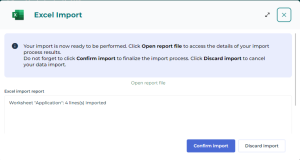
The Excel import report section provides the list of imported Excel worksheets, indicating the number of import errors for each one.
To get a detailed report of import errors:
 Click Open report fileT.
Error report presentation
The error report automatically generated after carrying out the import shows in red the problematic data.
For more details on possible import errors, see Data Processed by the Excel Import/Export Wizard. In the following example, the file has identified an application that exists in HOPEX but whose identifier has been modified in the import file.
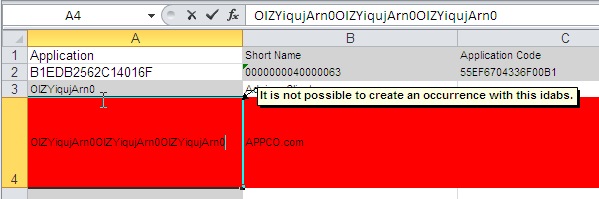 The first two lines of an Excel worksheet are reserved to file configuration. Ensure the first two lines of the imported file remain identical to those obtained after an export.
When you want to import Enumeration type attribute values (values available in a drop-down list), you must ensure that the data language in HOPEX and the language of the Excel file are identical.
If, for example, your Excel file is in French and the data language in HOPEX is English, a message like the following one will pop up when carrying out the import: “value_name outside table”.
The data language and the interface language are two separate concepts.