Quick search
In the Advanced Search, the Quick search mode enables to perform a search on an object type based on a character string contained in the Name or Comment of the object.
To carry out a quick search:
1. Access advanced search.
The Advanced Search page displays in the edit area.
2. Using the drop-down menu, select the object type over which you want to run your search.
3. In the Quick search pane, enter the appropriate characters in the Find object field.
4. In the Found in field, select the object Name or Description containing.
5. In the Filtered by field, select the value of your choice:
• beginning exactly with,
• containing (if the repository is indexed)
• containing exactly, or
• ending exactly with a given character string
Default values: “Name” and “Beginning exactly with”
6. Click Find.
The result list is displayed.
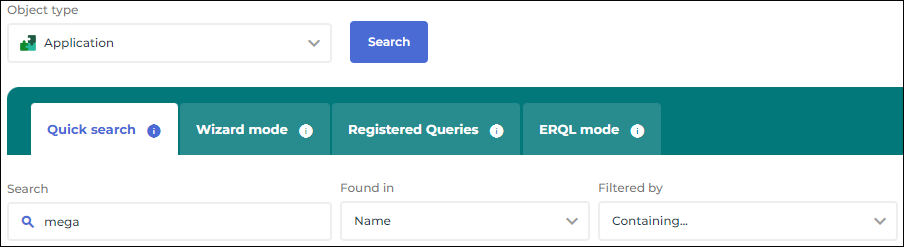
For example: search for applications whose Name contains the “mega” character string.
Search in Wizard mode
With Wizard Mode, you can run more detailed searches. Details can relate to:
• object attributes and/or
• object properties
 See also Extending the advanced search to administration and/or translation attributes and Defining the condition combination rules.
To perform an advanced search with the search wizard:
1. Access advanced search.
The Advanced Search page displays in the edit area.
2. In the drop-down menu, select the object type on which you want to perform your search.
 If needed, enter the first characters of the object type.To extend or restrict the list of object types searched, see Advanced Search Options.
3. Click the Wizard mode tab.
The lists of Attributes, Links and Links by type are automatically generated based on the selected object type.
4. (Optional) In the Attributes tab, specify the operator and value defining the attribute to which the search relates:
To display the administration or translation properties, see Extending the advanced search to administration and/or translation attributes.• Click in the Operator field of the attribute to which the search relates and select the required operator.
E.g.: "="
Operators in the drop-down list come directly from HOPEX, see "List of Query Operators".Note the differences with:the “Like” operator, the result contains the specified value,
the “=” operator, the result is exactly the specified value,
the “NearMatch” operator, the result contains a near match value.
• Click in the Value field of the attribute and find, select one of the proposed values, or enter the string to search for.
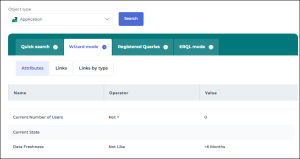
E.g.: the technical efficiency and validation status of an Application
 Repeat this step 4 for each attribute to search for.
5. To include link conditions in your search:
• Click the Link tab (listed in alphabetical order) or Links by Type tab (listed by type of link).
• As with step 4, enter the Operator and the Value defining the attribute to which the search relates.
Repeat this step 5 for each link to search for.By default, all conditions must be met. To modify the combination rules for search conditions, see Defining the condition combination rules.6. Click Search to run the search.
The result list is displayed.
To reset all search criteria, click Remove all query criteria  .You can export the list to an Excel format, see Actions on a List of ObjectsYou can launch an instant report from the list, see Launching an instant report from a list.