Comparing Diagrams
Diagram Comparison
Diagram comparison feature is useful, for example, to:
• follow the diagram changes over time
• compare a diagram according to an area, a country, a service
• compare a diagram according to a state (urgent or not urgent)
Steps
To perform a diagram comparison:
1. Create the diagram of the object.
2. Duplicate the object.
 See Duplicating Objects.
The object, included its diagram, is duplicated.
Case of the follow-up of a diagram over time: you can duplicate the source object, then duplicate the duplicate, etc.Case of a diagram comparison according to criteria: you can duplicate the source object several times. You get as many diagrams as duplicates.3. Modify the diagram of the duplicated object.
If you have several duplicated objects, you can modify each of their diagrams.If needed, you can also modify the source object diagram.4. Compare the diagrams.
See Comparing a Diagram.You can compare the differences of the diagram of each duplicate with the source diagram.
The comparison is performed chronologically: from the oldest to the most recent diagram.
Source/Target diagram
You can start from any object (source or duplicate) to compare diagrams. By default, the comparison is performed from the diagram of the more recent object compared to the diagram of the oldest object.
In case of the follow-up of a diagram over time, you can modify the source object and/or the target object (Parameters section).
Differences
The diagram comparison highlights the differences on the diagram elements (for example on an Operation; a sequence flow deletion is not indicated).
The differences on objects are indicated on each diagram:
• in the comparison source diagram: the deleted objects
• in the comparison target diagram: the created and modified objects
By default the comparison source diagram is the diagram of the older object. Whatever diagram is chosen as source or target, the comparison is identical (see the example in Comparing a Diagram section).
The differences between the diagrams are indicated in:
• green: created objects and links (target diagram)
• yellow: modified objects and links (target diagram)
• red: deleted objects (source diagram)
Comparing a Diagram
Prerequisite: Your object diagram is created and you have at least one duplicate of the object.
To compare a diagram:
1. Access the object described by the diagram you want to compare.
You can access the source object, or one of its duplicates.
2. Open its diagram in view mode.
3. In the diagram tool bar, click Compare  .
.
.4. (With an object with several duplicates) Unfold the Parameters section:

• In the Target object field, by default its closest duplicated object is selected. You can select another object.
• (In case of several target diagrams) If the target object is described by several diagrams, you can select another Target diagram type.
Click Refresh the report.
By default diagrams are Overlaid.
No matter which object is taken as source for the comparison, by default the oldest diagram hides the most recent diagram and is the source of the comparison.
Deleted objects are marked in red.
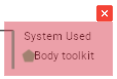
5. To the right of the diagram, select the scrolling bar, hold your click down and drag the cursor to the left to display the target diagram (the more recent diagram) and see the differences in the target diagram:
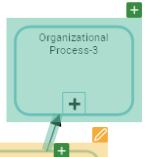
• created objects and links are marked in green.
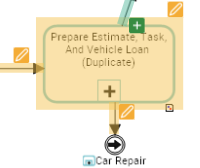
• modified objects and links are marked in yellow.
E.g.: the source diagram on the left, and duplicated diagram on the right.
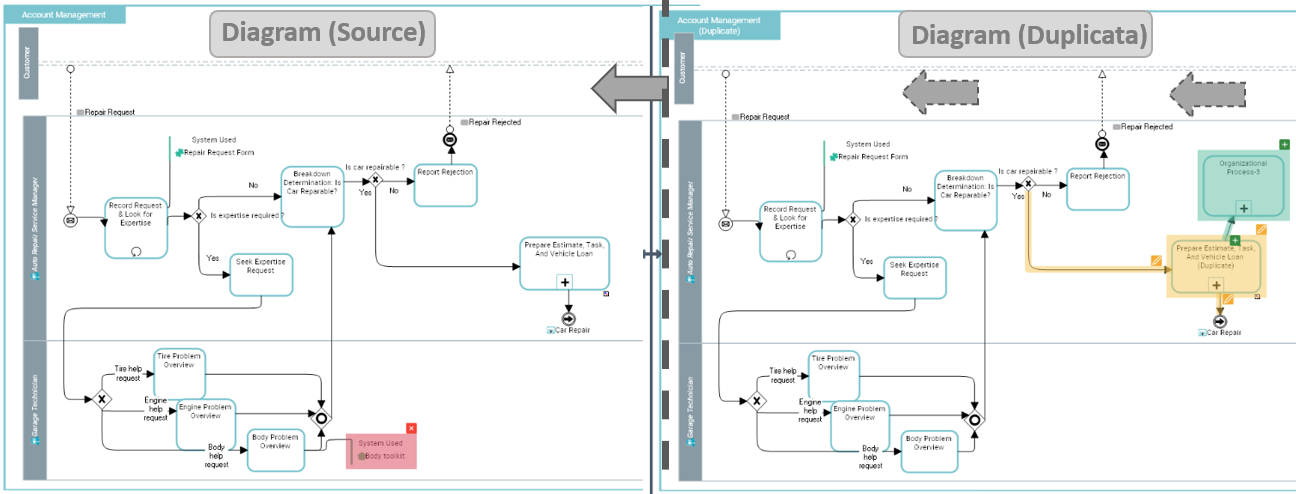
Below the diagrams, the Legend section displays the comparison details in tabular form.

Modifying the Comparison Display
Displaying entirely both diagrams
The source diagram hides the target diagram by default. To display both diagrams entirely at the same time, in the diagram comparison tool bar, click:
• Above/Below to display the comparison source diagram above the comparison target diagram.
• Side by side to display the comparison source diagram to the left of the target diagram.
Hiding differences
To hide certain types of differences in the diagram, in the diagram comparison tool bar, clear:
• Created: to not mark created links and objects (target diagram)
• Modified: modified objects are not highlighted (target diagram)
• Deleted: deleted objects are not highlighted (source diagram)
In Legend, the table, detailing the differences, keep all the differences, even the hidden ones.Removing the synchronized zoom
By default, when you zoom in a diagram, both diagrams are zoomed in the same way.
To zoom in only one diagram, in the diagram comparison tool bar, clear Synchronized scroll.