Enriching Questions Visually
Modifying Question Layout
You can modify the global display of your questions. For more details on possible parameterizations, see Question layout.
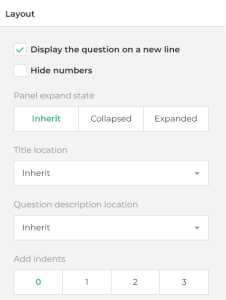
The Layout section on each question offers the following additional possibilities:
• display two questions on the same row: to do so, at the second question level, select the Display the question on a new line check box.
• Hide the question number displayed.
• specify:
• Question box collapse state
 Enables to specify whether the question is expanded or not by default.
• Question title alignment
• Question description alignment
• Increase the inner indent
• Inline question width
• Minimal question width
• Maximum question width
• Input field width (in characters)
Managing Questions of HTML or Image Type
Questions of Image or HTML types are not real questions and do not require an answer. They are read-only questions.
Creating a question of Image type
To add an image to your questionnaire:
1. Open the questionnaire template.
2. Add an “Image” type question.
3. In the Image Link fields, enter a proper URL
See Question Types.Creating a question of HTML type
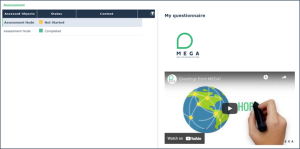
You may, for example, use a question of HTML type to:
• insert an image
• insert a video.
Using Tooltips to Guide Respondents
HOPEX enables to display tooltips to help respondents for each possible answer of the following question types:
• Drop-down
• Radio button group
• Checkboxes
To specify the content of a tooltip:
1. In the properties of the question, expand the Choices section.
2. In the row corresponding to the possible answer of interest, click the Edit button.
3. In the Tooltip field that appears, enter the text of the tooltip to display.