Configuring Questionnaire Templates
Configuring Questions Layout
You may specify the layout of questions in the questionnaires to be sent. This is the questionnaire “renderer”.
• standard
• in the form of a table
• in the form of a heatmap
Defining Questionnaire Properties
You may configure questionnaire properties from within the questionnaire editor. Those properties apply to all questions.
To specify the properties of a questionnaire:
 Click the questionnaire title.
Its characteristics appear in the right pane of the editor.
General properties
You can specify the following properties:
• Title
• Description
• Rendering type
• standard
• tabular
• heatmap
• Creation mode
This enables you to specify how the questionnaire template has to be handled in campaigns, that is to say whether you want to generate one questionnaire:
• per person
• per context
• per assessed object
Question layout
The Questions section enables to globally define question layout in the questionnaire.
 You can also modify the layout for each question. See Modifying Question Layout.
Title location
Enables to modify the location of the question title (together with its description) and place it:
• at the top
• at the bottom
• on the left
Question description location
Enables to modify the location of the description (only) and place it:
• at the bottom, after possible answers
• under the title
Show question numbers
• display
• hide
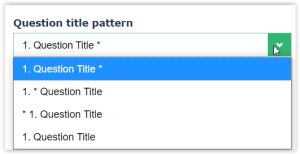
Question title pattern
You can specify the location of the “Required” symbol, if any.
For more information, see “Required” symbols.
“Required” symbols
You can specify the “Required” symbol (by default: *)
This symbol is displayed at the question level when the question is declared mandatory.
You can modify the location of the “Required” symbol (see Question title pattern)
Question error location
• top
• bottom
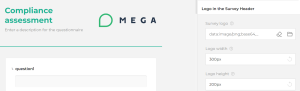
Logo in the survey header
You may insert a logo in the title of the questionnaire: