On-Premises Specific Features
Creating a User Account as an Administrator
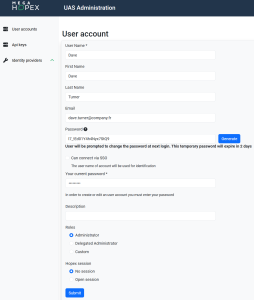
To create a user account as an Administrator:
1. Access the HAS console:
2. In the navigation menu, select Modules > Authentication > User accounts.
3. Click Create.
4. Fill in the following fields:
• User Name
• Password: enter a temporary password or click Generate.
 The password expires in two days and must be shared with the user for first-time login.
 • Your current password: enter your own password.
• (Optional) Add a description.
5. Role (choose based on required access level):
• Administrator: Full administrative access.
• Custom: Limited permissions in the HAS Console and/or HOPEX Supervisor.
• Delegated Administrator: Minimal access, typically used in SaaS contexts.
6. Choose a HOPEX session:
• No session: no access to HOPEX repositories.
• Open session: grants access to HOPEX repositories.
7. Click Submit.
Configuring Authentication as an Administrator
As an Administrator, you can configure the following:
• HOPEX Native Authentication
• Windows Authentication
• SAML2 Provider
• OpenID Connect Provider
For step-by-step guidance, refer to the HOPEX Unified Authentication Service.Creating an API Key
API keys not associated with a HOPEX session must be created directly in the HAS Console.
API keys associated with a HOPEX session must be created via HOPEX Administration, see Managing API Keys.To create an API key in the HAS console:
1. Access the HAS console:
2. In the navigation menu, select Modules > Authentication > Api keys.
3. Click Create.
4. Enter a key Name.
5. Configure the Roles:
• Administrator: Grants full access to perform all operations in the HAS Console with administrative rights.
• Custom: Grants limited permissions for certain operations in the HAS Console and/or HOPEX Supervisor.
6. Click Submit.
7. Copy and save the key immediately.
The key will not be retrievable later.