2 Versatile Desktop Overview
2.1 Diagram
A user can connect to MEGA Applications via customized desktops according to the actions to be performed.
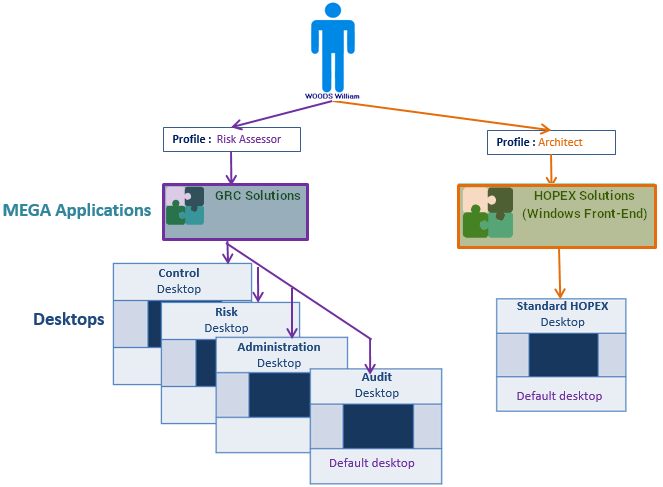
The properties defined on each desktop of a MEGA Application define:
• the session access mode for this desktop:
o Public Workspace: the application opens in the current state and data can be modified. All updates are visible by all users using the application at the same time.
o Private Workspace: the application opens in the current state and data can be modified. All updates made by the user are kept in the private space of the user until he/she decides to dispatch them.
• (when the session access mode is Public Workspace) the Session Connection Mode for this desktop:
o Single session: end users do not share the same process. They might not have the same view of the repository.
o Multi-session: end users share the same process. They must have the same view of the repository.
2.2 Elements of a work environment
To customize the work environment of users, the following elements are available:
- a desktop, which can contain one or several containers
- containers, which can contain other containers or desktop components
- desktop components, which are:
- tools associated with a configuration (MEGA Parameterized Tools)
eg: tree, list, menu, HTML formatters.
eg: tree, list, menu, HTML formatters.
- tools (MEGA Tool)
eg: Query, Properties pages, Wizard, Widget, diagram editors and HTML.
eg: Query, Properties pages, Wizard, Widget, diagram editors and HTML.
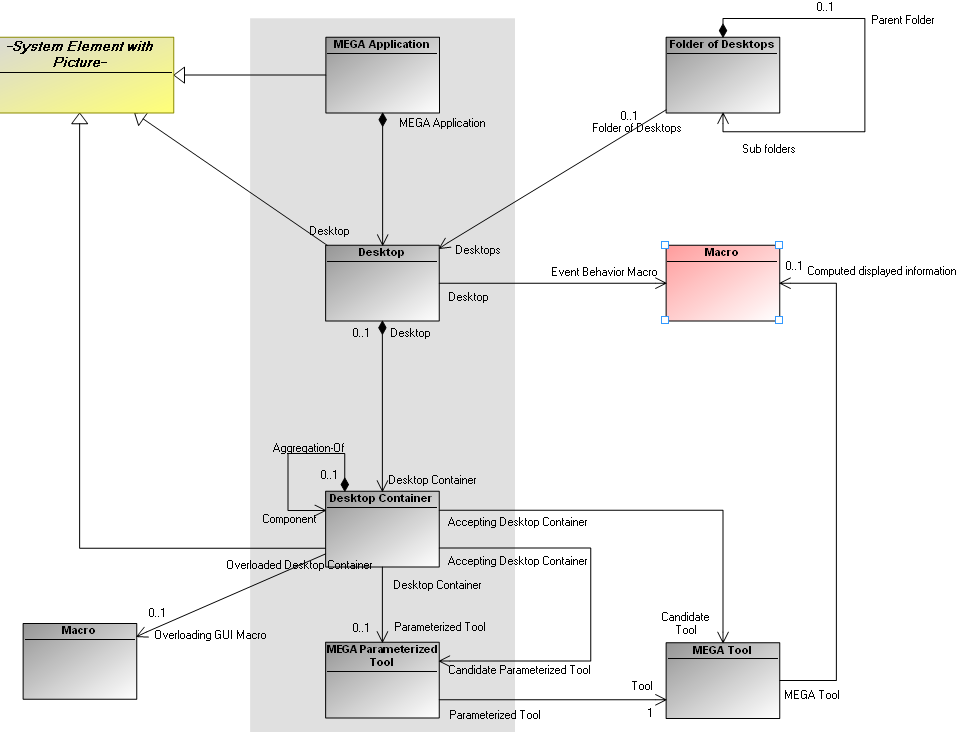
 A desktop cannot directly contain a MEGA Tool. The desktop contains a MEGA Parameterized Tool which contains the MEGA Tool.
2.3 Metamodel
The following Metamodel schema shows architecture and links between:
- Application
- Desktop
- Container
- Desktop components
- Tools
To see another Metamodel using a Working Environment Template (WET) combined with Desktops, see WET metamodel.
Principle :
A user can connect to one or several desktops depending on his/her profile and authorizations. The user passes from one desktop to another by logoff/login or by using the MEGA Tool Desktop Switcher.
A desktop comprises one or several containers, in which are defined tools that will be displayed.
A container can contain only a single tool.A tool must be hosted by a container.
To create and customize the desktop of an application, you should follow these steps:
Step | Action | See chapter |
1. | Define desktop configuration | |
2. | Define desktop component elements | |
3. | Create desktop structure | |
4. | Create desktop Containers | |
5. | Define characteristics of Containers in work environment | |
6. | Configure desktop (pop-up menus, toolbars) |