5 Creating a desktop
You can create a desktop from scratch or from a model already created.
5.1 Creating a desktop from scratch
To create a desktop from scratch:
1. Connect to HOPEX with the HOPEX Customizer profile.
2. Display the MetaStudio Navigation window.
3. Right-click the MEGA Application folder and select New > MEGA Application to create a MEGA Application.
4. In the Creation of MEGA Application dialog box, enter the Name of the MEGA Application you want to create.
Example: « MEGA My Application".
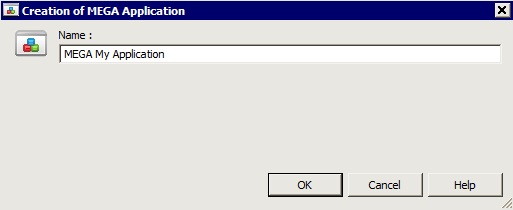
5. Click OK.
6. Right-click the folder of the MEGA Application you have just created ("MEGA My Application") and select New > Desktop.
The Creation of Desktop dialog box appears.
7. Enter the Name of the desktop.
Example: "Desktop MA A".
8. Click Next.
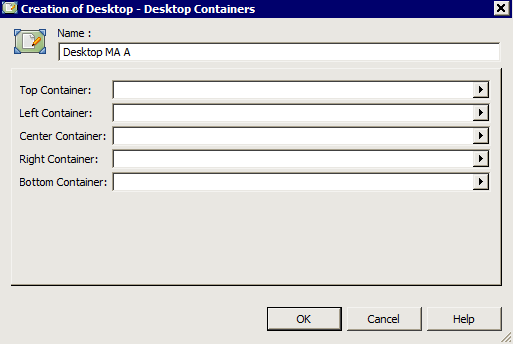
9. Depending on the desktop configuration you want to create (see Desktop configuration) you must specify the required fields:
- Center Container (Mandatory)
- Top Container
- Left Container
- Right Container
- Bottom Container
To specify these fields, see the corresponding procedures, for example see:
5.2 Creating a desktop from a model
You can create your desktop starting from a model. This method allows you to start from a structure already set up and simplifies your work. To do this you must duplicate an existing model.
To create a desktop starting from a model:
1. Connect to HOPEX with the HOPEX Customizer profile.
2. Display the MetaStudio Navigation window.
3. Right-click the MEGA Application folder and select New > MEGA Application to create an Application.
4. In the Creation of MEGA Application dialog box, enter the Name of the MEGA Application you want to create (example: "MEGA My Application").
5. Click OK.
6. Expand the application that contains the desktop you want to use as a model.
7. Right-click the desktop name (example: Standard Desktop) and select Duplicate.
The Duplicate an Object (Desktop) dialog box appears.
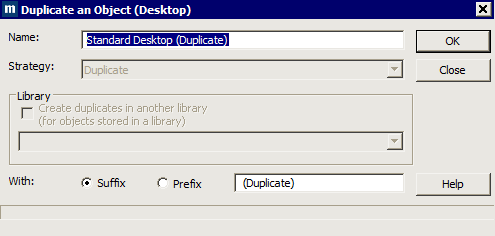
8. By default the name of the duplicated desktop is: <Name of desktop> (Duplicate). If you want to change the format of the duplicated desktop name to: Duplication of <Name of desktop>, select Prefix.
Warning: If you then modify the name of the desktop in the Name field, the trace of duplication is no longer visible.
9. Click OK.
The duplicated desktop is displayed in the application of the model desktop.
10. Select the duplicated desktop (example: Standard Desktop (Duplicate)) and drag-and-drop to the folder of your application (example: "MEGA My Application").
11. (Optional) You can rename the desktop. To do this, select the name of the desktop and press key F2, or from the desktop pages select the Characteristics tab.
12. You can rename, move, modify and/or delete Containers from your desktop. This does not modify the model desktop.
Warning: If you modify the name of a tool or a command, the name of this tool or command is also modified in the model desktop.