10 Modifying a desktop
When a desktop has been created, you can modify it.
You can:
- add a Desktop Container to the desktop,
- delete a Desktop Container from the desktop,
- modify position of a tool group (MetaCommand Group) in the toolbar,
- modify or customize a Container; to do this, you must specify its characteristics.
10.1 Adding a Desktop Container to a desktop
To add a Desktop Container to an existing desktop:
1. In HOPEX, display the MetaStudio navigation window.
2. Expand the MEGA Application folder, then the application concerned.
3. Right-click the desktop (example: "Desktop MA A") and select Properties.
The Properties of Desktop "Desktop MA A" appears.
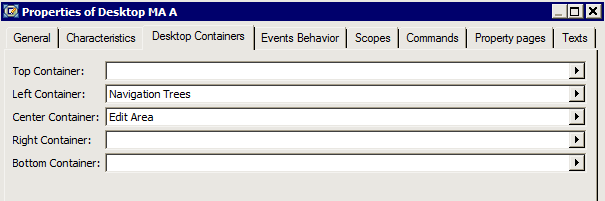
To add a new Desktop Container, see Creating Desktop Containers p. 20 and Step 1, start from the Properties of Desktop (instead of from the Creation of Desktop – Desktop Containers dialog box).
10.2 Deleting a Desktop Container from a desktop
To delete a Desktop Container from an existing desktop:
1. In HOPEX, display the MetaStudio navigation window.
2. Expand the MEGA Application folder, then the application concerned.
3. Expand the desktop concerned.
4. Right-click the Desktop Container you want to delete and select:
- Delete to definitively delete the Desktop Container, or
- Disconnect to retain the Desktop Container in the repository.
10.3 Modifying the position of a tool group in the toolbar
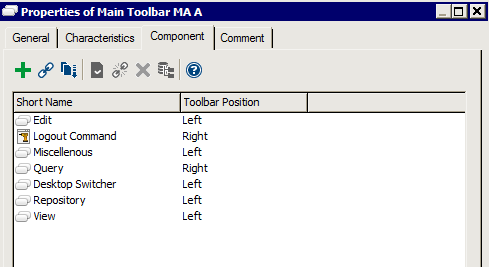
When the toolbar has been created, you can reorganize its tool groups.
 The value of the position of an object (left/right) takes priority over its appearance order in the list.
To reorganize the toolbar:
1. In HOPEX, display the MetaStudio navigation window.
2. Expand the MEGA Application folder, then the application and desktop (example: "Desktop MA A").
3. Right-click the desktop tool group (example: "Main Toolbar MA A") and select Properties.
4. Select the Description tab.
5. In the MetaCommand Group field (example: "Main Toolbar MA A"), click the arrow and select Properties of the MetaCommand Group (example: "Main Toolbar MA A").
6. Select the Component tab.
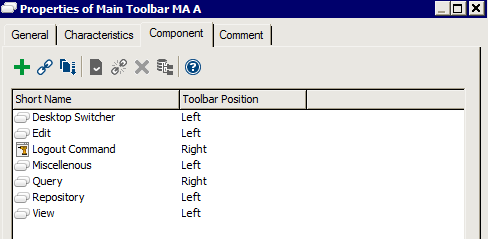
7. Click Reorder  .
.
. The Order Modification (Command Component) dialog box appears.
8. Clear Alphabetic order.
9. Select the MetaCommand Group you want to move and drag it to the required position.
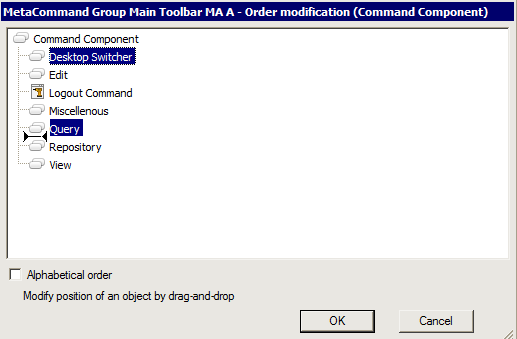
10. Click OK.