Overview
 This feature requires a desktop based on private workspaces (i.e. it cannot be used in a public workspace).
HOPEX enables you to share your work with certain users only. They see modifications as these progress.
The other users of the repository do not see the updates performed until the collaborative work is dispatched in the repository.
A person can be part of several collaborative workspaces, to work on different repository objects.
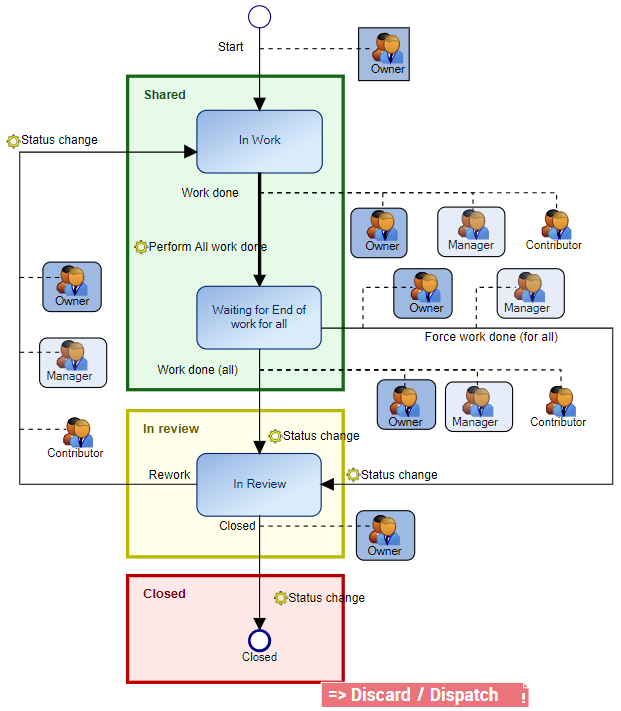
This collaborative work is workflow-based:
• Initialization
Collaborative workspace creation: description of the workspace and definition of its participants.
• Realization
Participants perform their work.
The collaborative workspace is in Shared state.
• Validation/Review
Validation/Review of the work of the participants.
The collaborative workspace is in In review state.
• Dispatch/Discard
Dispatch (or Discard) of the participant work in the repository.
The collaborative workspace is in Close state.
Prerequisite: Collaborative workspace option activation
 Option restricted to HOPEX experts. Do not activate, without consulting MEGA support.
By default, the collaborative workspace feature is not activated.
To activate the feature:
1. Connect to the Web Administration desktop with the HOPEX Administrator profile.
2. Click Environment options.
3. Access Tools > Collaboration > Workspace management folder.
4. Select Collaborative workspace activation option.
The Collaborative Workspace menu is available in private workspace-based desktops.
Collaborative workspace participant access level
The access level of a participant to a collaborative workspace defines actions he/she can and cannot perform within this workspace.
To modify the access level of a participant, see Modifying the Collaborative Workspace Access Level of a Participant.Access levels of a collaborative workspace participant are:
• Viewer (by default)
By default, a participant has a read only access to the collaborative workspace and to its properties. He/she cannot update the collaborative workspace.
• Contributor
The contributor can perform updates, inform when his/her work is done, and when rework is needed. The contributor can also communicates on updates.
A collaborative workspace can include several contributors.
• Manager
In addition to the actions available to the contributor, the manager can also manage participants, modify the collaborative workspace properties, and force the end of work for all the participants (e.g.: to organize a review).
A collaborative workspace can include several managers.
• Owner
The owner is the user who creates the collaborative workspace. Only one of the participants has this access level.
Only the owner of the workspace can perform all available actions in his/her collaborative workspace.
In addition to the actions available to the manager, the owner can close, and dispatch or discard the work performed within his/her collaborative workspace.
Collaborative workspace states
A collaborative workspace can be in the following states:
• Shared
Once the collaborative workspace has been created, it is in Shared state. All authorized participants can connect to it.
• All authorized participants can perform updates within the collaborative workspace and inform when their work is done.
• If some participants did not inform that their work is done, a Manager or the Owner of the workspace can force the end of work for all of the participants so as to organize a review.
• In Review
All authorized participants can connect to the collaborative workspace. The participants can communicate on updates performed within the collaborative workspace.
Following the review, each participant can if needed resume work in the collaborative workspace in the Shared state.
• Closed
When the collaborative workspace has been closed by its Owner, it can no longer be accessed by the other participants.