Using the Advanced Search in ERQL
An ERQL query enables to search for elements in the repository. Its syntax is based on a Select, followed by the searched element, to which a condition is applied.
Example:
“select Org-Unit where Name like” Org-Unit where Name like”#agent#"
This query enables to find org-units whose name contains agent.
The ERQL query syntax and conditions are detailed in the "ERQL Query Syntax" section.
Performing an advanced search in ERQL mode:
To perform an advanced search in ERQL mode:
1. Access advanced search.
The advanced search tool appears.
 You can use the Wizard to help you enter your query; see Performing an advanced search in ERQL Mode with the help of the wizard mode.
2. Click the ERQL mode pane.
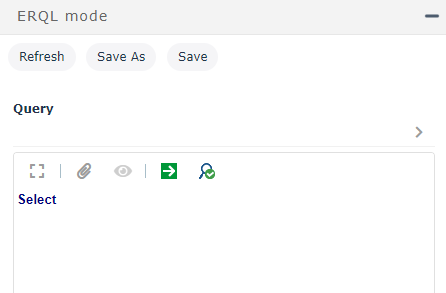
3. Enter your query respecting the ERQL query conditions and syntax.
See "ERQL Query Syntax".You can use the IntelliSense feature to help you enter your query:
• Press <Ctrl> + <Space> to display the list of eligible elements.
To extend/restrict the eligible elements displayed in the list, see Expanding the advanced search to the abstract metamodel.• Select an element to complete your query.
The calculated links are prefixed with the character / and appear first in the Intellisense tool.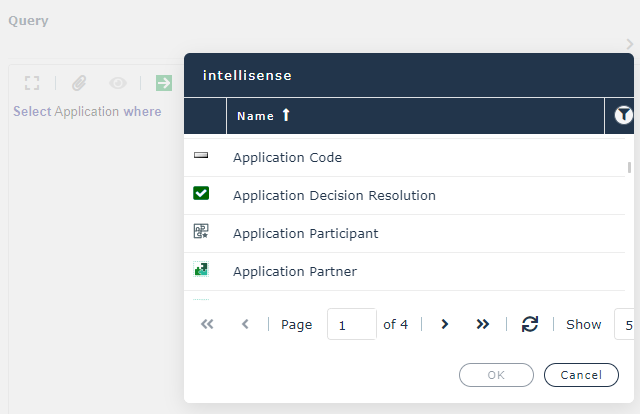
4. (Optional) Click Analyze  to test the syntax of your request.
to test the syntax of your request.5. Click Process  to run the search.
to run the search.The result list is displayed.
6. Select the object you want to consult.
You can export the list in Excel formatYou can launch an instant report from the list, see "Launching an instant report from a list", page 400.To return to your search, in the breadcrumb trail, click Advanced Search. If needed, you can modify it.Performing an advanced search in ERQL Mode with the help of the wizard mode
To simplify data entry, you can build a query from the wizard mode.
To perform an advanced search in ERQL Mode with the help of the wizard mode:
1. Open the advanced query tool.
The advanced search tool appears.
2. In the Select an object type field, use the drop-down menu to select the object type to which your search relates.
3. In the Wizard Mode pane, select the search parameters.
4. When you have selected your parameters, select the ERQL mode pane.
5. In the command bar of the ERQL mode pane, click Refresh.
The syntax of the query appears.
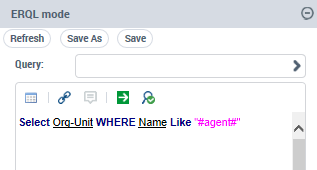
6. Complete the syntax.
You can use the Intellisense feature to complete your code:
• Press <Ctrl> + <Space> to display the list of eligible elements.
To extend/restrict the object types displayed in the list, see Expanding the advanced search to the abstract metamodel.• Select an element type to complete your code.
Abstract objects are prefixed with [A] and are listed after the concrete objects in the Intellisense tool.Abstract objects are prefixed with the / character and are first listed in the Intellisense tool.
7. (Optional) Click Analyze to test the syntax of your request.
to test the syntax of your request.8. Click Process to run the search.
to run the search.The result list is displayed.
You can export the list in Excel formatYou can launch an instant report from the list, see "Launching an instant report from a list", page 400.To return to your search, in the breadcrumb trail, click Advanced Search. If needed, you can modify it.Saving an ERQL query
You can save an ERQL query to make it available in the registered queries.
To save an ERQL query:
1. Define your ERQL query.
2. Click Save As.
3. In the Name field, enter a name for your query.
4. In the Stereotype field, select the query type.
See Query type.5. Click Next to reread the code of your query.
6. Click OK.
Your query is available in the Registered Queries pane of the Advanced search.