Using the Advanced Search with the Wizard
With Wizard Mode, you can run more detailed searches. Details can relate to:
• object attributes and/or
• object links.
To perform an advanced search with the search wizard:
1. Access advanced search.
The Advanced Search page is displayed in the Edit Area.
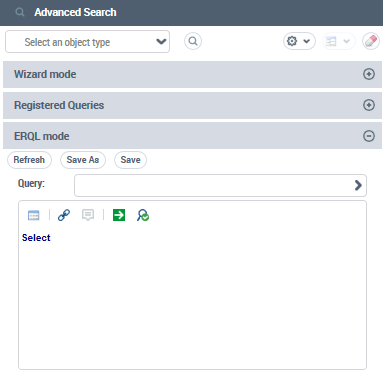
2. In the Select an object type field, use the drop-down menu to select the object type to which your search relates.
E.g.: “Org-unit”.
 To extend or restrict the list of object types searched, see Configuring the Search Tools.
3. Click the Wizard mode pane.
4. (Optional) In the Attributes tab, specify the operator and value defining the attribute to which the search relates:
To display the administration or translation properties, see Extending the advanced search to administration and/or translation attributes.• Click in the Operator field of the attribute to which the search relates and select the required operator.
E.g.: "="
Note the differences with:the “Like” operator, the result contains the specified value,
the “=” operator, the result is exactly the specified value,
the “NearMatch” operator, the result contains a near match value.
• Click in the Value field of the attribute and find, select one of the proposed values, or enter the string to search for.
E.g.: "Internal org-unit"
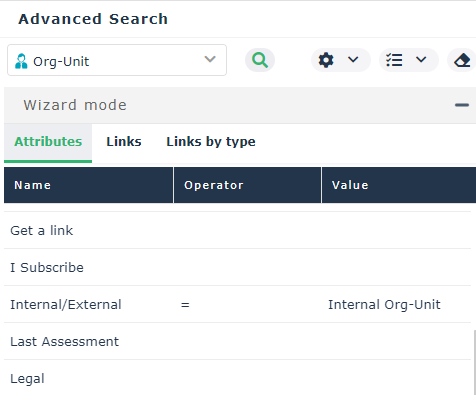 Repeat this step 4 for each attribute to search for.
5. To include link conditions in your search:
• Click the Link tab (listed in alphabetical order) or Links by Type tab (listed by type of link).
• As with step 4, enter the Operator and the Value defining the attribute to which the search relates.
Repeat this step 5 for each link to search for.By default, all conditions must be met. To modify the combination rules for search conditions, see Defining the condition combination rules.6. Click Find  to run the search.
to run the search.The result list is displayed.
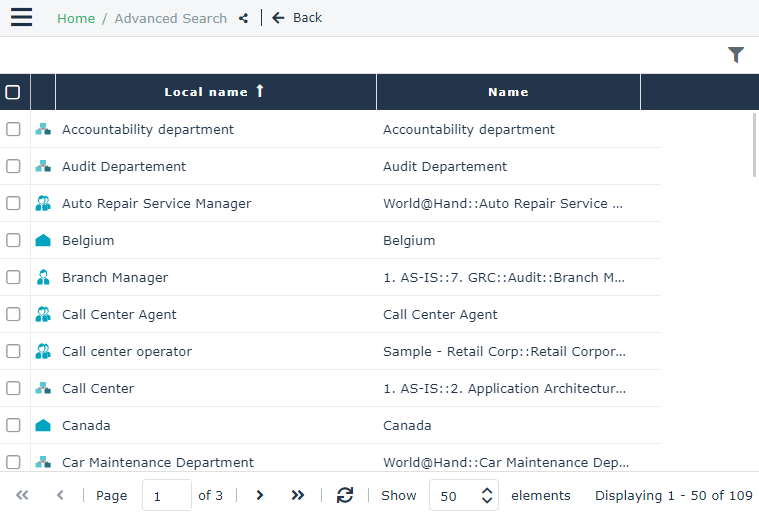 To return to your search, in the breadcrumb trail, click Advanced Search. If needed, you can modify it.To delete all of the search criteria, click Remove all query criteria
  .You can export the list in Excel formatYou can launch an instant report from the list, see "Launching an instant report from a list".